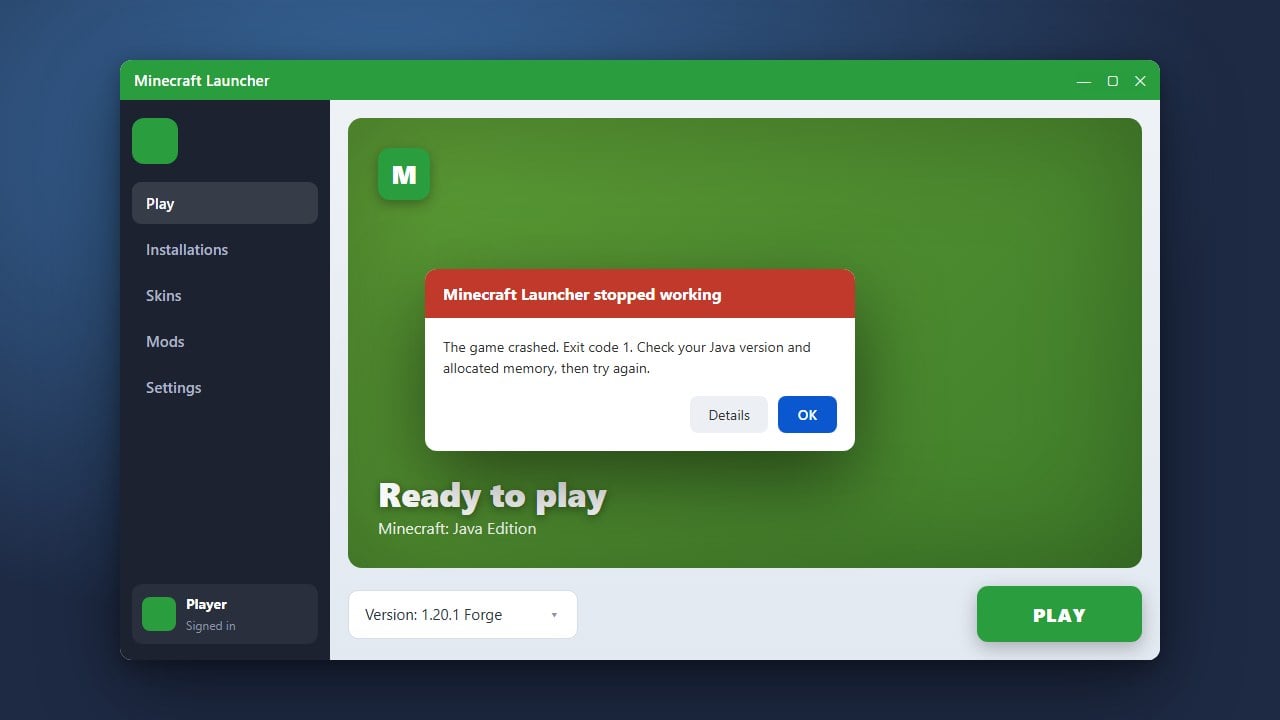
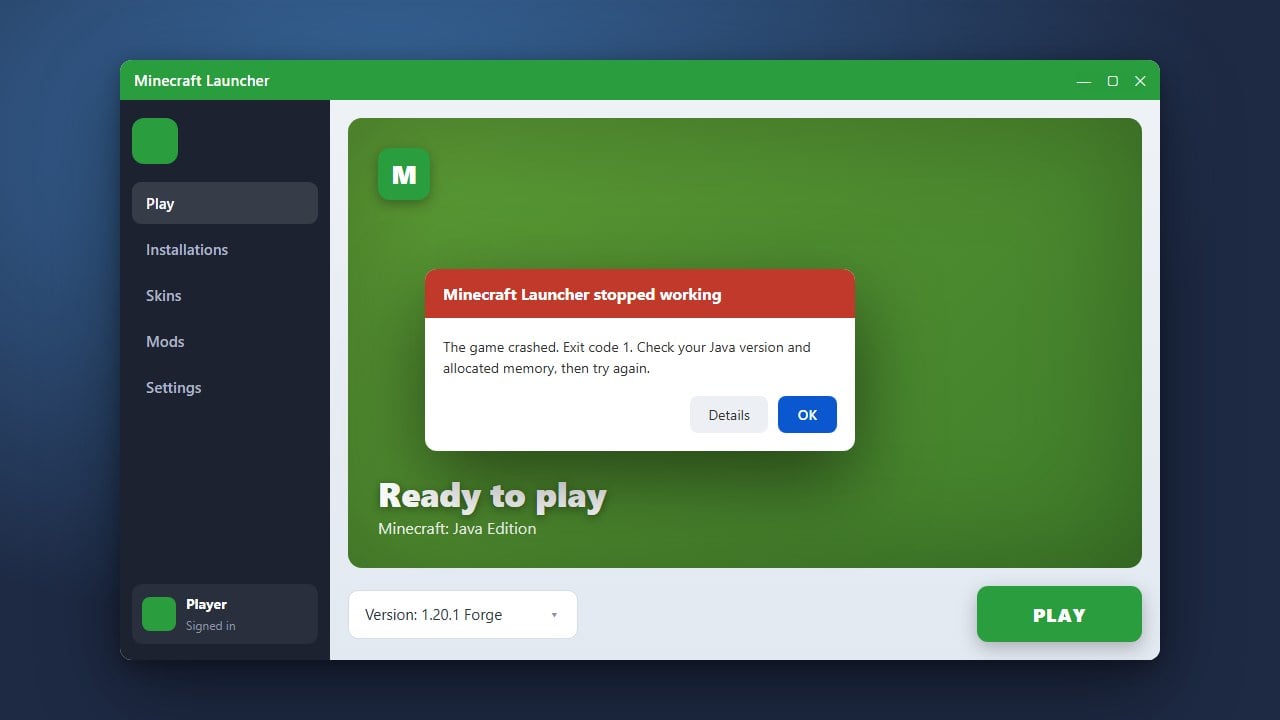
Running into issues while trying to update Minecraft can be frustrating, whether you play on Java Edition or Bedrock Edition. Update errors typically happen due to launcher glitches, corrupted cache files, or network connection blocks. Follow this simple guide to troubleshoot and get your game updated to the latest version.
Restart the Minecraft Launcher
Often, a simple restart is all it takes to force the launcher to recognize a pending update. Completely close out of the Minecraft Launcher by ending its task via Task Manager on Windows or Force Quit on Mac, then open it again.
If your launcher itself is failing to load properly or check for updates, you may want to consult our guide on How to Fix Minecraft Launcher Not Updating for more specific troubleshooting steps.
Check Your Internet Connection
Minecraft requires a stable internet connection to download game assets and update files. Ensure your Wi-Fi or ethernet cable is securely connected and that your firewall or antivirus software isn't blocking the Minecraft Launcher from accessing the internet.
If you keep running into connection interruptions during the download process, check out How to Fix Minecraft Download Error for targeted network solutions.
Sign Out and Back Into Your Account
Authentication issues can sometimes prevent the launcher from verifying your ownership and pulling down the latest update files. Click on your profile name in the top corner of the Minecraft Launcher, select sign out, and then sign back in with your Microsoft account credentials.
Update Bedrock Through Your Store App
If you are playing Minecraft Bedrock Edition on Windows, Xbox, PlayStation, or mobile devices, updates are handled through your platform's dedicated store rather than the launcher. Open the Microsoft Store, Google Play Store, Apple App Store, or your console's update menu to manually trigger the update.
Reinstall the Minecraft Launcher
If the launcher remains stuck or refuses to download the update, the installation files may be corrupted. Uninstall the Minecraft Launcher from your system, download the latest fresh installer directly from the official Minecraft website, and install it again.
Frequently Asked Questions
Why is my Minecraft update stuck at 0%?
An update stuck at 0% usually indicates a network timeout or a blocked connection by your firewall. Try restarting your router, disabling third-party antivirus software temporarily, or running the launcher as an administrator.
Will updating Minecraft delete my saved worlds?
No, updating Minecraft normally preserves your single-player worlds and resource packs. However, it is always a smart precaution to back up your saves manually before updating.