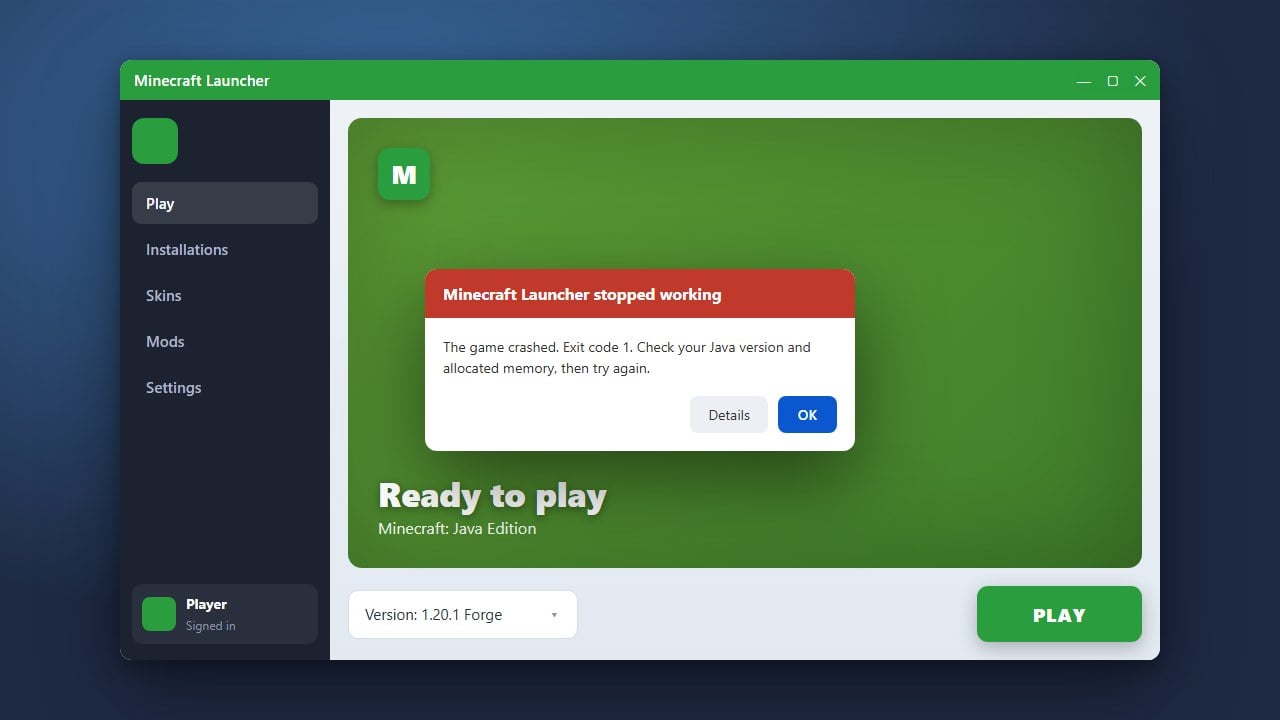
Running into trouble while trying to update Minecraft can be frustrating, especially when you are eager to jump into the latest features. Whether you play on Java Edition or Bedrock Edition, update glitches usually stem from corrupted files, network interference, or launcher hiccups. Follow these simple steps to get your game updated and working smoothly.
Check Your Internet Connection
A weak or unstable internet connection is one of the most common reasons an update fails to download. Ensure your device has a stable connection, restart your router if necessary, and verify that your firewall or antivirus is not blocking Minecraft from accessing the internet.
Restart the Minecraft Launcher
Sometimes the launcher simply freezes or fails to register that a new version is available. Completely close the Minecraft Launcher—making sure no background processes are running via your Task Manager on Windows or Activity Monitor on Mac—and open it again to force a fresh connection.
Check for Store or Launcher Updates
If you are using Minecraft Bedrock Edition, open the Microsoft Store (PC) or your device's official app store, go to your library or downloads section, and manually check for updates to the Minecraft app itself. For Java Edition players, ensure your official Minecraft Launcher is updated to its latest version.
Log Out and Log Back In
Authentication issues can sometimes halt game downloads and updates. Log out of your Microsoft or Mojang account inside the Minecraft Launcher or your game app, close the program, open it again, and sign back in to refresh your license status.
Repair or Reinstall the Launcher
If the update still refuses to start or complete, you may need to refresh your installation files. For Windows users, go to Apps & Features in your system settings, locate the Minecraft Launcher, and select Advanced Options to use the Repair or Reset features. You can also review How to Fix Minecraft Launcher for more detailed troubleshooting steps.
Frequently Asked Questions
Why is my Minecraft update stuck at 0%?
An update stuck at 0% usually indicates a network timeout or lack of write permissions on your storage drive. Restarting your launcher, running the launcher as an administrator, or temporarily disabling third-party antivirus software typically resolves this issue.
Will updating Minecraft delete my mods or worlds?
Standard updates do not delete your worlds, but major version changes can sometimes break incompatible mods or resource packs. Always back up your world saves before applying major updates, and check if your favorite mods have updated versions available.