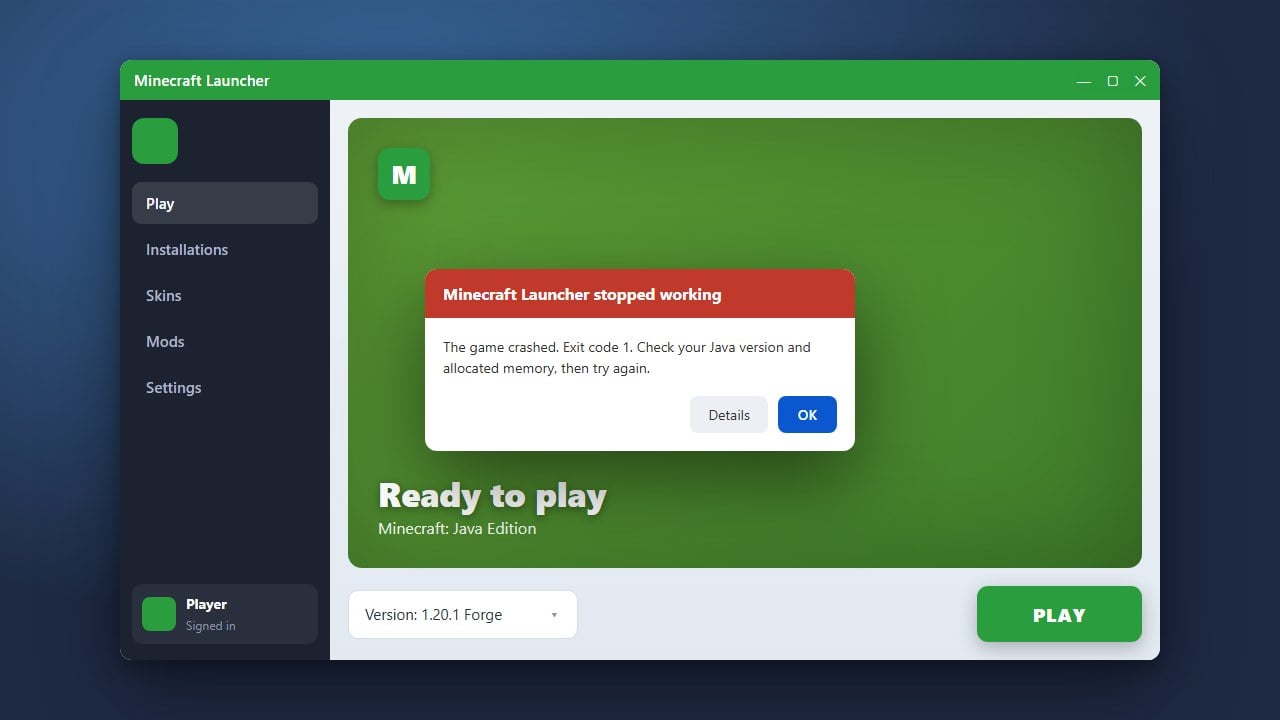
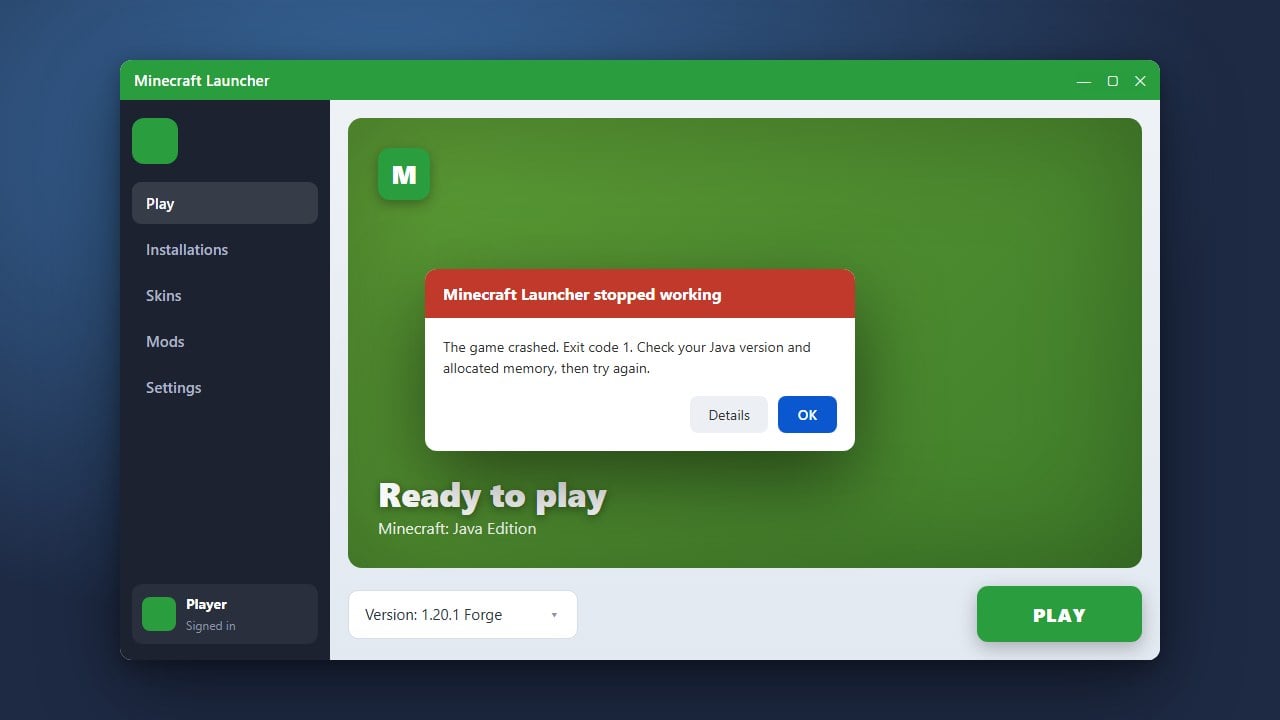
Running into an update error can be frustrating when you just want to check out the newest features in Minecraft. Whether you are playing Java Edition or Bedrock Edition, update issues usually stem from connection glitches, outdated launchers, or temporary corrupted cache files. Follow these simple steps to get your game successfully updated.
Check Your Internet Connection
A stable internet connection is required to download game updates. Make sure your Wi-Fi or Ethernet cable is securely connected and that other websites load properly on your device.
If your connection drops mid-download, it can cause file corruption. Try restarting your router if you suspect network instability.
Restart the Minecraft Launcher
Sometimes the launcher simply fails to trigger the download prompt. Completely close the Minecraft Launcher—make sure no background processes are running via Task Manager on Windows or Activity Monitor on Mac—and open it again.
For persistent launcher problems, you can read our guide on How to Fix Minecraft Launcher to ensure your application is running smoothly.
Log Out and Log Back In
Authentication issues can prevent the launcher from verifying your ownership of the game, stopping updates in their tracks. Click on your profile name in the top corner of the launcher, log out completely, and then log back in with your Microsoft account credentials.
Check for Store or App Updates (Bedrock Edition)
If you play Minecraft Bedrock Edition on Windows, Xbox, PlayStation, or mobile, updates are handled through your device's official app store. Open the Microsoft Store, Google Play Store, Apple App Store, or console store, navigate to your downloads or updates page, and manually check for updates.
If you encounter broader issues while launching the game after updating, check out How to Fix Minecraft Bedrock Not Opening for additional troubleshooting tips.
Reinstall the Minecraft Launcher
If the launcher itself is stuck and refuses to update, your installation files might be damaged. Uninstall the Minecraft Launcher from your system, download the fresh installer from the official Minecraft website, and install it again.
Don't worry, reinstalling the launcher will not delete your saved worlds, but it is always a good practice to follow How to Back Up Your World before making major system changes.
Frequently Asked Questions
Why does my Minecraft update keep failing at 99%?
This usually happens due to a locked file or insufficient storage space. Ensure your drive has enough free space and temporarily disable third-party antivirus software that might be blocking the installer from writing new game files.
Will updating Minecraft delete my mods and resource packs?
In Java Edition, major version updates (like moving from 1.20 to 1.21) will often disable outdated mods, resource packs, and shaders until their creators release compatible versions. Make sure to check compatibility before updating.