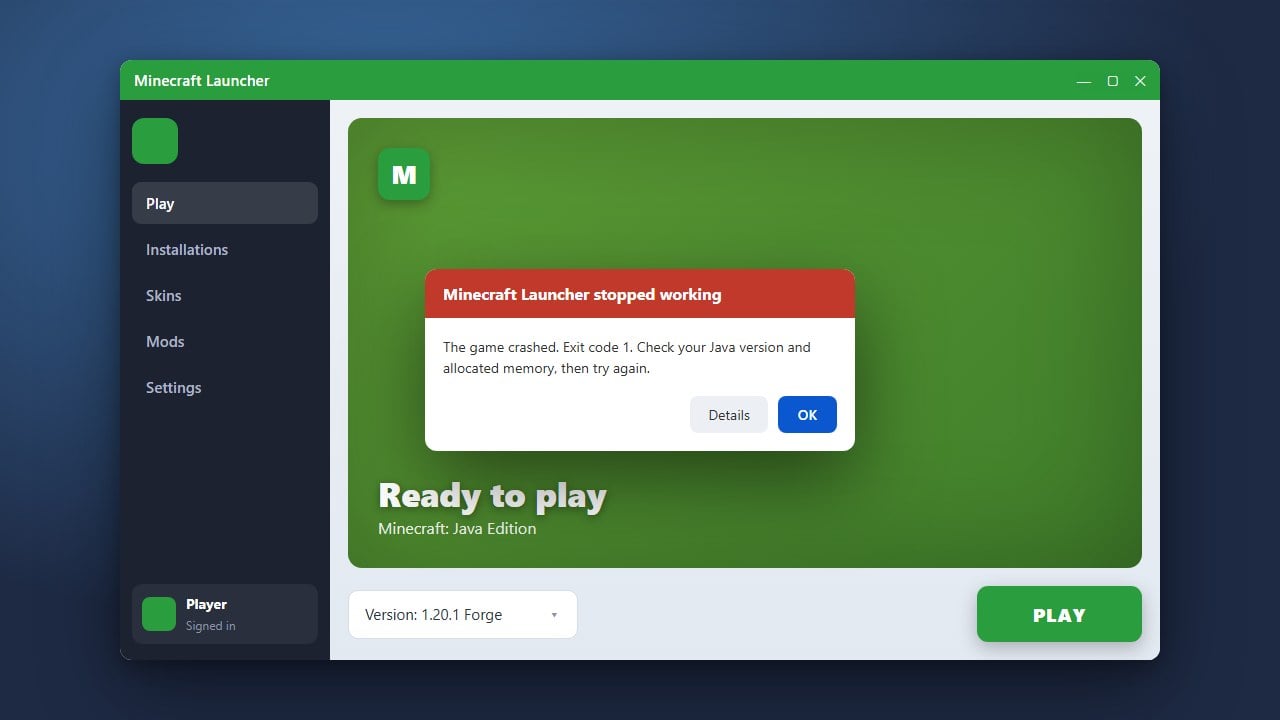
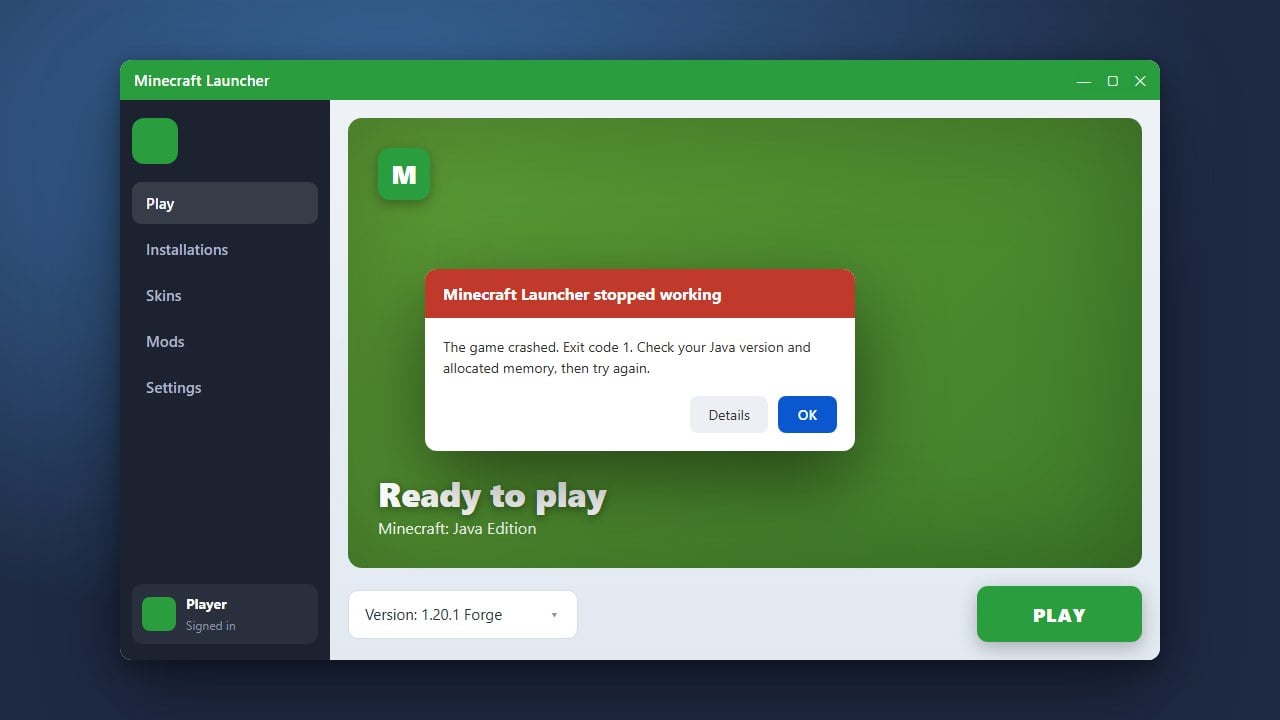
Crashing in Minecraft Java Edition can be frustrating, especially when it interrupts your gameplay or prevents the game from launching entirely. This guide will walk you through easy, effective troubleshooting steps to find the cause and get your game running stably again.
Update Your Graphics Drivers
Outdated or corrupted graphics card drivers are one of the most common causes of game crashes in Minecraft Java Edition. Open your graphics manufacturer's software—such as NVIDIA GeForce Experience, AMD Software, or Intel Graphics Command Center—and check for any available updates.
Alternatively, you can manually update your display adapters through the Windows Device Manager. Once your drivers are up to date, restart your computer and launch Minecraft again to see if the crash persists.
Allocate More RAM to the Game
If Minecraft is running out of memory during heavy exploration or when using mods, it may crash unexpectedly with an out-of-memory error. You can easily fix this by giving the game more system memory using the official launcher.
Open the Minecraft Launcher, navigate to the Installations tab, edit your active profile, and click More Options. Under JVM arguments, change -Xmx2G to a higher value like -Xmx4G depending on your system specs. For detailed instructions, check out our guide on How to Allocate More RAM to Minecraft.
Remove Broken Mods and Resource Packs
Custom mods, resource packs, and shaders frequently cause crashes if they are incompatible with your current game version. Temporarily move everything out of your mods and resourcepacks folders located inside your .minecraft directory.
Launch the vanilla game without any modifications. If the game stops crashing, add your mods back one by one to identify which specific file is causing the conflict and remove it.
Update Java
Minecraft Java Edition relies on the Java runtime environment to operate correctly. Running an outdated or incorrect version of Java can lead to unexpected game closures and startup errors.
Ensure you have the correct version of Java installed for your specific game version (Minecraft 1.21+ uses Java 21). Download and install the latest Java runtime release from the official provider, then set your launcher to use the updated path.
Verify and Repair Game Files
Corrupted installation files can cause continuous crashes when loading worlds or starting the application. You can easily fix missing or damaged assets through the Minecraft Launcher.
Go to your Installations tab, hover over your profile, click the three dots, and select Edit. You can also completely delete the versions folder inside your .minecraft directory and let the launcher download a fresh, clean copy of the game files.
Frequently Asked Questions
Why does Minecraft keep crashing right after I launch it?
Immediate crashes on startup are usually caused by outdated graphics drivers, incompatible Java versions, or broken configuration files. Updating your drivers and clearing out conflicting mods will usually resolve this issue.
Where can I find my Minecraft crash logs?
You can find your crash reports inside the crash-reports folder located in your .minecraft directory. Opening these text files will help you pinpoint the exact mod or error code causing the crash.