Experiencing stuttering, low frame rates, or freezing while playing Minecraft Java Edition can ruin your adventure. Fortunately, you can easily optimize your settings, allocate proper resources, and install performance mods to get the game running smoothly again.
Press F3 while inside your world to open the debug screen. In the top-right corner, you can check your current FPS, graphics card model, and memory usage to see if your adjustments are working.
Avoid setting your render distance extremely high unless you have a high-end gaming CPU, as world generation heavily taxes the processor in Java Edition.
Lower Your In-Game Video Settings
Open the Options menu, go to Video Settings, and start turning down demanding options. Lower your Render Distance to 12 chunks or fewer, reduce Simulation Distance, and set Graphics to Fast instead of Fancy.
You should also disable smooth lighting, turn clouds off, and limit your maximum framerate (FPS) to match your monitor's refresh rate to reduce unnecessary hardware strain.
Allocate More RAM to Minecraft
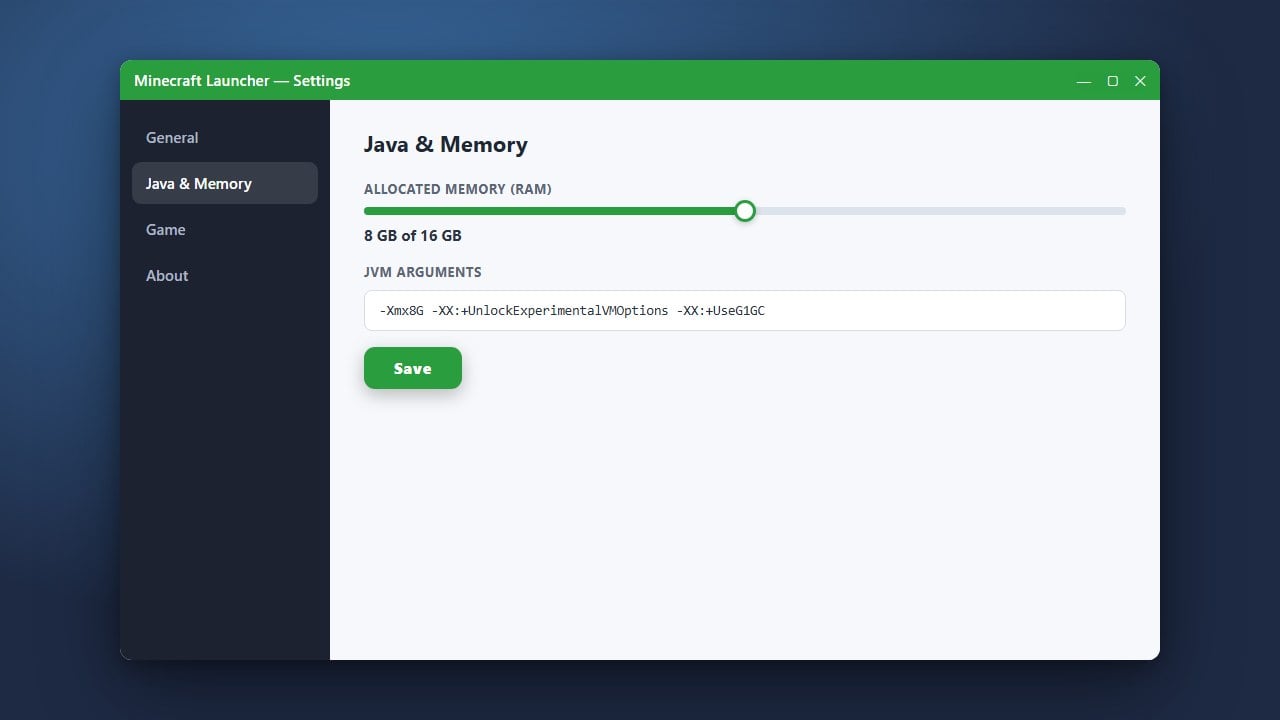
Java Edition often struggles when it runs out of assigned memory. If your PC has enough memory to spare, you can follow our guide on How to Allocate More RAM to Minecraft to give the game more breathing room.
Assigning between 4GB and 6GB is usually plenty for vanilla gameplay and prevents frequent garbage collection stutters.
Install Performance Mods
Vanilla Minecraft Java is notoriously unoptimized. Installing modern optimization mods like Sodium, Lithium, or the Fabulously Optimized modpack can double or triple your frame rate while drastically reducing lag spikes.
Make sure you use a mod loader like Fabric to easily install these performance-enhancing client-side mods without altering core gameplay mechanics.
Update Your Graphics Drivers
Outdated graphics drivers are a common cause of unexpected FPS drops, graphic glitches, and stuttering. Visit the official website for your GPU manufacturer—NVIDIA, AMD, or Intel—to download and install the latest drivers for your graphics card.
After updating, restart your computer completely before launching the Minecraft launcher again.
Close Background Applications
Heavy background applications like web browsers, video streaming software, and unnecessary launchers consume valuable system RAM and CPU power. Press Ctrl + Shift + Esc on Windows to open the Task Manager and close anything you do not need while playing.
Freeing up system resources ensures your operating system dedicates maximum processing power directly to Minecraft.
Frequently Asked Questions
Why is my Minecraft Java lagging even on a good PC?
Vanilla Minecraft is single-threaded by nature and lacks built-in engine optimizations. Installing optimization mods like Sodium or allocating correct RAM limits usually resolves this issue instantly.
Do performance mods change how Minecraft looks or plays?
Client-side performance mods focus entirely on code efficiency and rendering pipelines. They keep gameplay entirely vanilla while dramatically boosting your frame rate and fixing micro-stutters.