The developer console—known as the game output log in Java Edition and the Content Log in Bedrock Edition—is an essential tool for troubleshooting crashes, viewing mod errors, and debugging scripts. However, it can sometimes freeze, fail to generate logs, or continuously pop up and interrupt your gameplay. Here is how to configure, fix, and manage the developer console across both editions of Minecraft.
You can copy the entire text from the Java developer console by clicking the Copy button at the bottom of the window, making it easy to paste into community support forums or error trackers.
Closing the Java Game Output window while playing will not shut down Minecraft, but force-killing it via Task Manager may terminate the running game process.
Configure the Output Log in the Minecraft Launcher
On Java Edition, the developer console opens as a separate Game Output window whenever your game launches or crashes. Open the official Minecraft Launcher, click the Settings gear icon in the bottom-left corner, and navigate to the General tab. Locate the Open output log when Minecraft: Java Edition starts checkbox.
If the console opens unwantedly every time you play, uncheck this box. If you are actively troubleshooting a crash and the console is missing, ensure this option is checked so the developer console loads alongside your game.
Disable Bedrock Content Log Popups
On Bedrock Edition, the developer console equivalent is the Content Log GUI, which tracks behavior pack errors, texture failures, and custom script events. If developer messages clutter your screen during gameplay, open Minecraft Bedrock, go to Settings, and scroll down the left sidebar to Creator.
Toggle off Enable Content Log GUI to stop real-time error boxes from interrupting your screen. You can still inspect historical script and addon errors at any time by clicking Content Log History.
Delete Corrupted Game Logs and Cache
A developer console that freezes or displays a blank screen is often caused by an excessively large or corrupted log file. Press Win + R on Windows, type %appdata%\.minecraft, and press Enter. Locate the logs folder.
Delete the older compressed log archives and the latest.log file. Minecraft automatically generates a fresh, clean log file the next time you boot the game, preventing the console window from locking up.
Address Underlying Crash Triggers
If the developer console remains open and halts the launch sequence, it is usually reporting a critical game failure rather than bugging out on its own. Examine the red lines in the output window to identify missing mod dependencies or outdated drivers.
If your log ends abruptly with a crash code, check our guide on How to Fix Exit Code 1 or review How to Fix Minecraft Game Crash to solve the root problem.
Repair or Reset the Minecraft Launcher
If the launcher developer console continues to crash or fails to execute commands properly, corrupted launcher binaries may be at fault. On Windows 10 or 11, close the game and launcher completely, open your system Settings, navigate to Apps > Installed apps, and find Minecraft Launcher.
Click the three-dot menu, select Advanced options, and click Repair. If repairing does not resolve the console malfunction, click Reset to restore the launcher to factory defaults without deleting your saved worlds.
Frequently Asked Questions
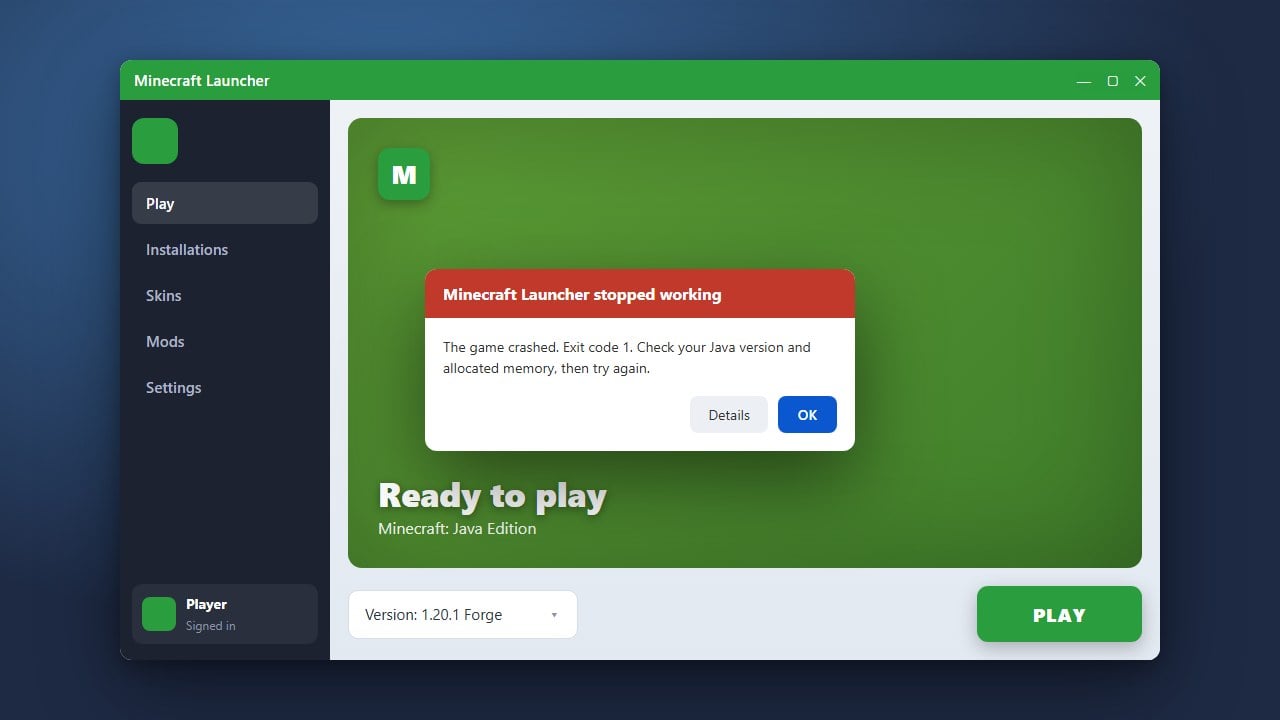
Why does the developer console say 'Process crashed with exit code 1'?
Exit Code 1 is a generic error indicating Java terminated unexpectedly, most commonly due to incompatible mods, outdated graphics drivers, or invalid Java runtime arguments.
Can I clear the Bedrock Content Log without reinstalling?
Yes. Go to Settings > Creator > Content Log History and click Clear All Logs to wipe previous error reports.