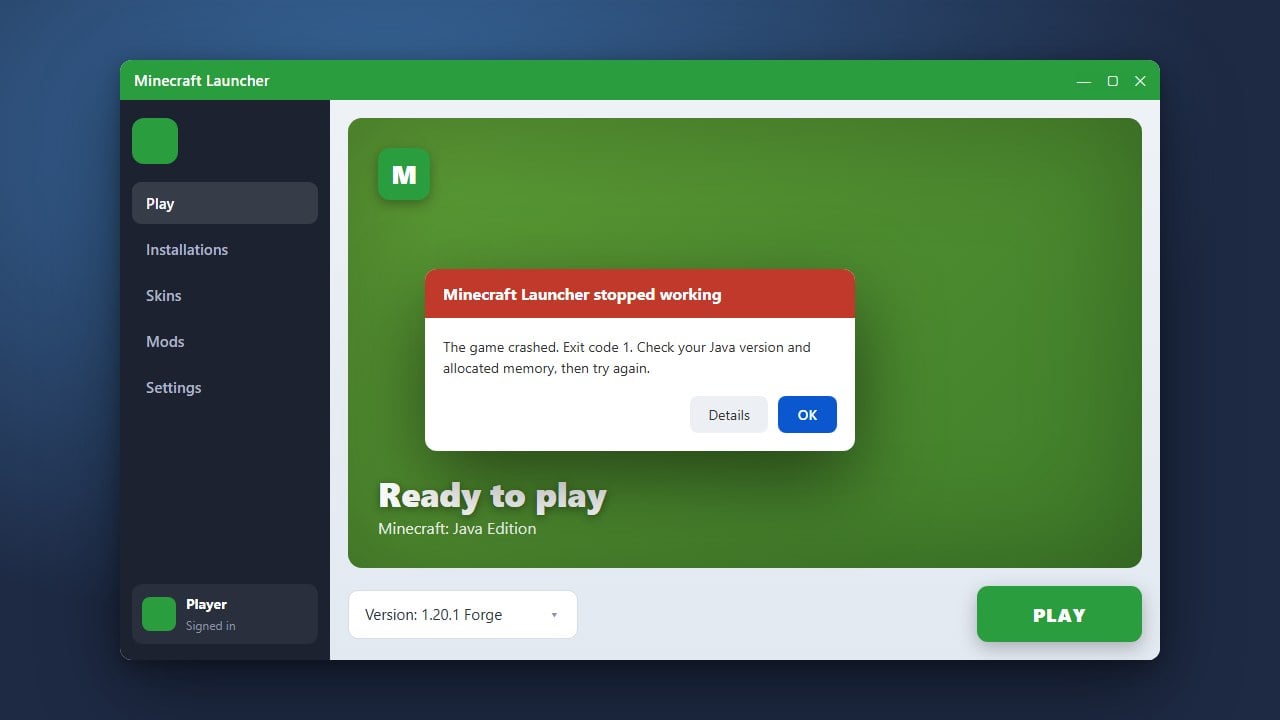
Encountering Error Code Block usually happens when Minecraft fails to authenticate your Microsoft account during startup or online play. This authentication roadblock is common across Bedrock Edition on consoles, mobile devices, and Windows, but you can resolve it quickly by clearing stale login data and reconnecting your account.
Always make sure your device clock is set to Automatic. Incorrect date and time settings will cause SSL authentication certificates to fail instantly, triggering sign-in error codes.
Do not use third-party login sites. Only authenticate your Microsoft account through official domains such as login.live.com or aka.ms/remoteconnect.
Restart the Game and Your Platform
A temporary network desynchronization often triggers sign-in failures. Completely shut down Minecraft rather than leaving it suspended in standby or quick resume. On consoles (Xbox, PlayStation, or Nintendo Switch), quit the application from the home menu, then restart your device to flush volatile memory.
If you are on PC or mobile, close all related background tasks—including the Minecraft Launcher and Xbox app—before relaunching to see if the session reconnects smoothly.
Clear In-Game Account Sign-in Data
Corrupted local authentication tokens are the primary culprit behind Error Code Block. In Bedrock Edition, launch the game and navigate to Settings > Account. Scroll down and select Clear Account Sign in Data, then confirm the prompt.
This clears cached authentication tokens without deleting your worlds or marketplace purchases. If you frequently run into similar sign-in hiccups, this step functions similarly to solutions for How to Fix Minecraft Error Code Drowned.
Re-Link Using Remote Connect
After clearing the cached tokens, click the Sign In button on the main title screen. The game will display an eight-digit code alongside a prompt to visit the official remote connect web page.
Open a web browser on your phone or PC, navigate to https://aka.ms/remoteconnect, log in with the correct Microsoft credentials, and enter the alphanumeric code shown on your screen to refresh your authentication link.
Check Microsoft Account Security and Family Settings
Sometimes Error Code Block triggers because of an account-level restriction or an expired password. Log in to your Microsoft account at account.microsoft.com in a browser to ensure your profile does not require a password update, terms verification, or two-factor prompt completion.
If the account belongs to a child profile within a Microsoft Family group, ensure multiplayer and online communication permissions are enabled in Xbox Privacy Settings, or review our guide on How to Fix Minecraft Account Not Logging.
Reset Xbox Services or Mobile Cache
On Windows, repair the authentication services by opening Windows Settings > Apps > Installed apps. Locate the Minecraft Launcher, the Xbox app, and Minecraft, then click Advanced options > Repair (or Reset if repairing fails).
On Android or iOS, clear the app cache through your system storage settings or reinstall the app to purge conflicting data. For deeper credential issues, see How to Fix Minecraft Authentication Error.
Frequently Asked Questions
What causes Error Code Block in Minecraft?
Error Code Block is a Bedrock Edition sign-in error that occurs when the game client cannot validate your Microsoft account credentials against Xbox Live authentication servers, usually caused by expired tokens or privacy restrictions.
Will clearing account sign-in data delete my worlds?
No. Selecting Clear Account Sign in Data only removes saved login tokens and session IDs. Your locally stored worlds, character creator skins, and Marketplace purchases remain safe on your device.
Can I play offline if Error Code Block appears?
Yes. You can bypass the sign-in prompt to play your local single-player worlds offline, but you will not have access to Realms, featured servers, or cross-platform friends until the login error is resolved.