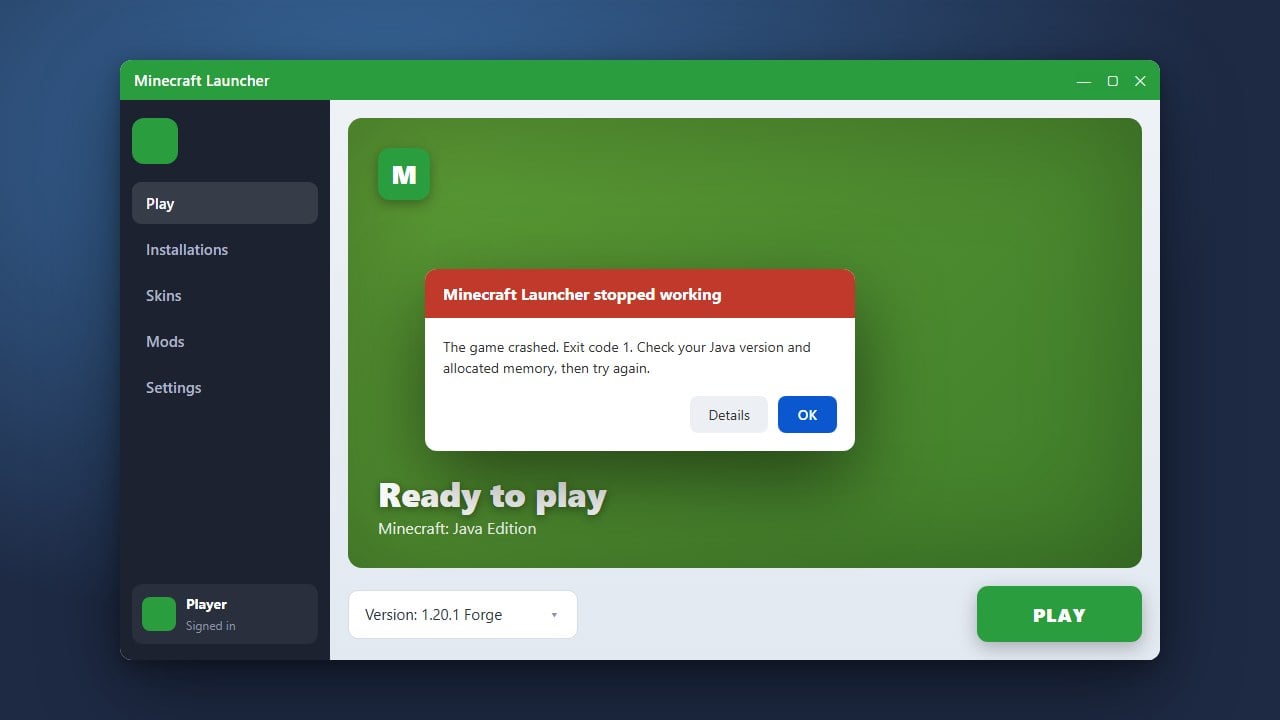
Minecraft Error Code Door is an authentication glitch that occurs primarily in Bedrock Edition and cross-platform logins when the game fails to validate your Microsoft Account credentials. This error typically interrupts your connection before reaching the main menu or marketplace, but clearing your cached authentication tokens and refreshing your sign-in details will quickly resolve the problem.
Error Code Door shares similarities with other animal and mob error codes (such as Error Code Drowned). All of these point to failed login handshakes rather than damaged world files.
Check Xbox and Microsoft Server Status
Before changing your device settings, verify whether authentication servers are experiencing downtime. Visit the official Xbox Status page or Mojang Status feed to confirm that Account & Profile services are fully operational.
If Microsoft services are undergoing maintenance, sign-in handshakes will fail regardless of your local settings. In that case, wait until the outage is resolved before trying again, or review our guide on how to fix Minecraft authentication errors for deeper network checks.
Clear Account Sign-In Data in Bedrock Settings
Corrupted login cache files inside the Bedrock client are the most frequent trigger for Error Code Door. Open Minecraft, navigate to Settings, and scroll down to the Account or Profile tab.
Select the option labeled Clear Account Sign-In Data and confirm your choice. This removes stale login tokens from your device without deleting your worlds, add-ons, or marketplace purchases.
Remove Stored Xbox Live Credentials on PC
If you are playing Bedrock on Windows or using the standard Minecraft Launcher, your operating system may be holding expired authentication tokens. Press the Windows Key, type Credential Manager, and open it.
Click on Windows Credentials, scroll down to the Generic Credentials section, and locate any entries starting with Xbl| or XboxLive. Click the arrow next to each one and select Remove to force a clean re-authentication next time the game boots.
Perform a Full Game and Device Restart
Close Minecraft completely. On consoles (Xbox, PlayStation, or Nintendo Switch), make sure to quit the application from the home dashboard rather than leaving it in standby or rest mode.
Restart your console, PC, or mobile device to flush temporary memory buffers. A full reboot ensures background login daemons reinitialize properly before you attempt to authenticate again.
Sign Back In to Your Microsoft Account
Relaunch Minecraft and select the Sign In button on the main screen. If prompted with a code and the aka.ms/remoteconnect URL, open a web browser on your phone or PC, enter the code shown on your screen, and sign in with your primary Microsoft Account.
If the sign-in window refuses to appear or stays blank, consult our instructions on how to fix Minecraft account not logging in to repair underlying launcher dependencies.
Frequently Asked Questions
Will Error Code Door delete my worlds or Marketplace content?
No. Error Code Door is strictly an authentication token failure between your client and Microsoft servers. Your local single-player worlds, realm memberships, and purchased skins remain entirely safe on your account.
Why does Error Code Door keep happening on Nintendo Switch or PlayStation?
Consoles frequently run into authentication loops if multiple user profiles are active at the same time or if the console woke up from sleep mode without refreshing its network handshake. Completely close the game from the dashboard and sign out guest profiles before opening Minecraft.