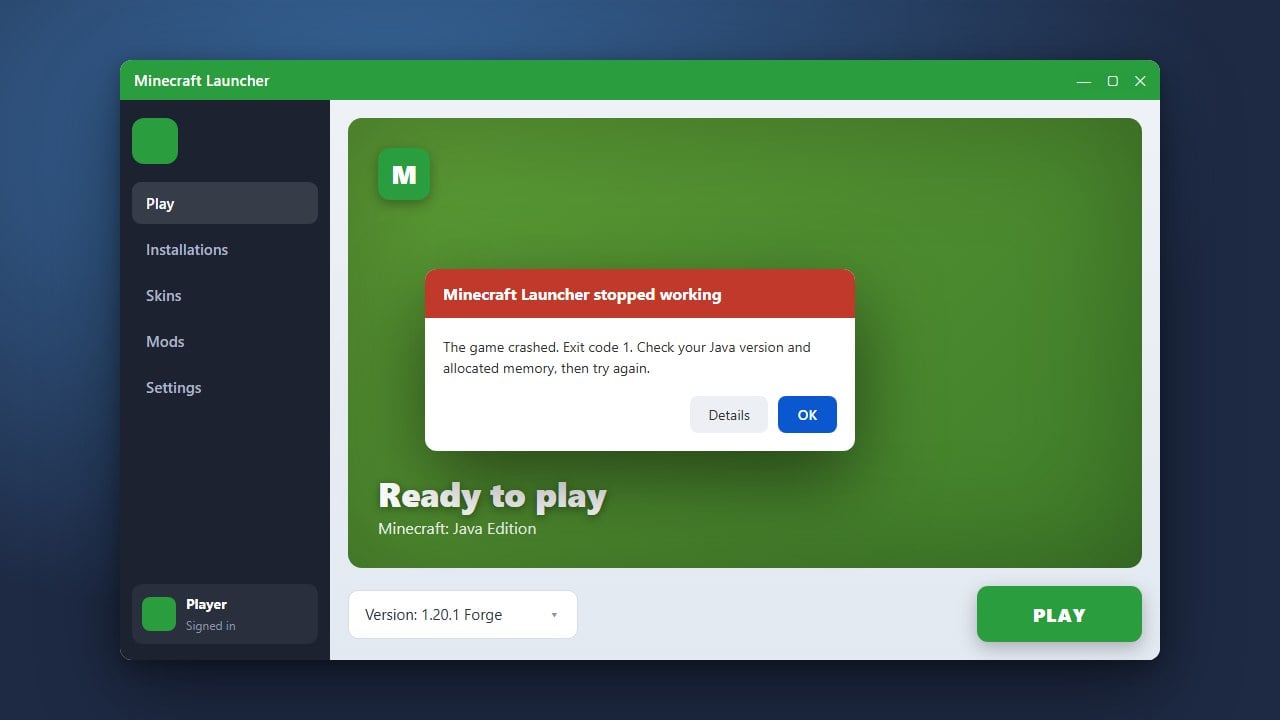
Having trouble signing into your Minecraft account can be frustrating, whether you are trying to launch the game on Java Edition or connect your Microsoft account on Bedrock Edition. This guide covers the most effective troubleshooting steps to get you back into the game.
Check Microsoft and Mojang Server Status
Before changing any settings on your device, verify whether the official authentication servers are online. Sometimes login failures happen simply because Microsoft services are experiencing a temporary outage or maintenance.
Check online server status trackers or official social media channels to see if other players are reporting widespread authentication issues.
Log Out and Sign Back In
A simple re-authentication can often clear up corrupted session tokens. Open your Minecraft Launcher or game client, navigate to your account profile in the corner, and click the log out option.
Once completely signed out, restart the application and enter your Microsoft account credentials again. If you continue experiencing persistent login hurdles, you may want to review related guidance on How to Fix Minecraft Account Locked for deeper security checks.
Check Your Internet Connection and Firewall
Minecraft requires an active internet connection to verify your account ownership with Microsoft servers. Ensure your Wi-Fi or Ethernet cable is securely connected and working properly.
Additionally, check that your computer's firewall or third-party antivirus software is not accidentally blocking the Minecraft Launcher or game executable from communicating with the internet.
Repair or Reset the Minecraft Launcher
If you are on Windows, corrupted launcher data can prevent successful logins. Go to your Windows Settings, open Apps Installed Apps, search for Minecraft, and select Advanced Options.
Click the Repair button. If that does not work, use the Reset button, which clears local launcher data and gives you a fresh start. For general startup issues, you can also consult How to Fix Minecraft Launcher Not Working.
Update the Launcher and Game
Running an outdated version of the Minecraft Launcher can cause compatibility errors with current Microsoft authentication protocols. Open the Microsoft Store or your platform's app store to check for pending updates.
Download and install any available updates for both the launcher and the game, then restart your device and attempt to log in once more.
Frequently Asked Questions
Why does Minecraft say my Microsoft account cannot be verified?
This usually happens due to a temporary server glitch, incorrect login credentials, or expired session tokens. Try logging out completely and signing back in.
Do I need an internet connection to play Minecraft?
Java Edition allows offline play if you have previously logged in successfully on that device, but Bedrock Edition and online multiplayer require an active internet connection and verified account sign-in.