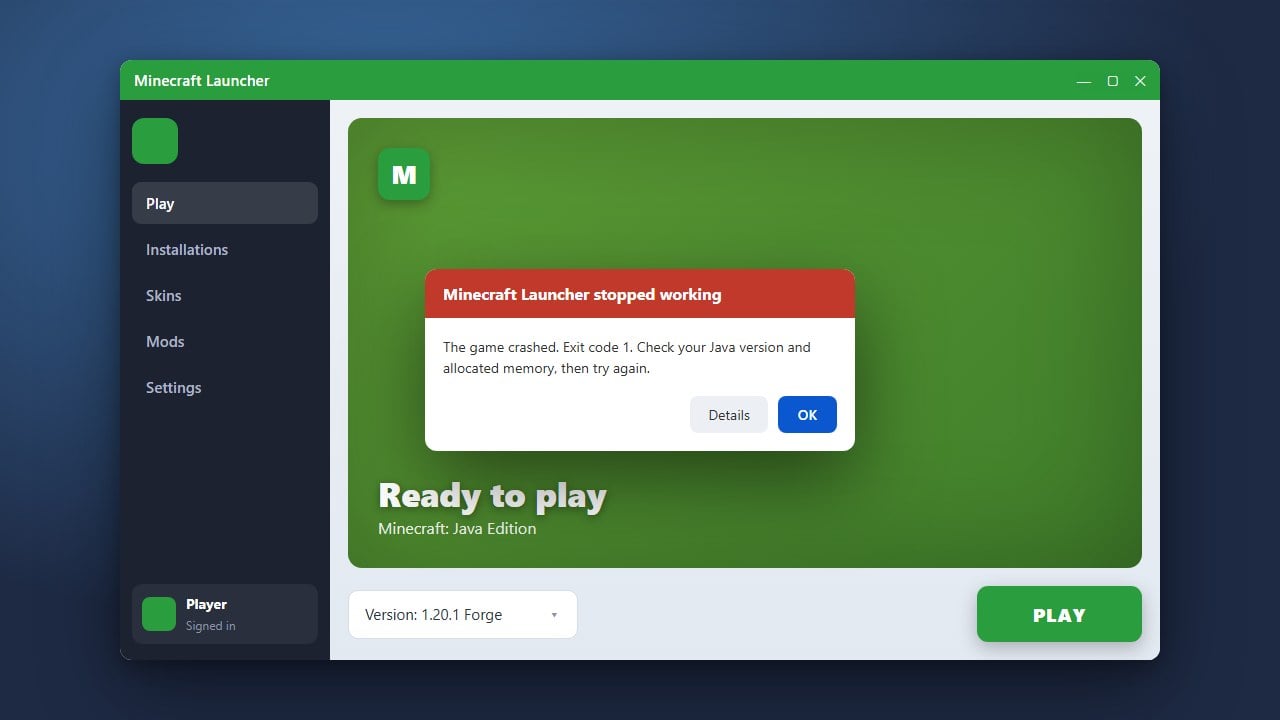
Experiencing unexpected game crashes can be extremely frustrating, whether you are exploring new terrain or managing your inventory. This guide will walk you through the most effective troubleshooting steps to resolve crashing issues in both Minecraft Java Edition and Bedrock Edition.
crash-reports folder (Java Edition) to pinpoint the exact mod or error causing the crash.Update Your Graphics Drivers
Outdated or corrupted graphics drivers are one of the most common reasons Minecraft crashes upon startup or during gameplay. Visit your GPU manufacturer's official website (NVIDIA, AMD, or Intel) to download and install the latest drivers for your system.
Allocate More RAM
If your game is running out of memory, it may suddenly close or throw an out-of-memory error. For Java Edition players, you can follow our guide on How to Allocate More RAM to Minecraft to give the game enough memory to run smoothly.
Remove Incompatible Mods and Resource Packs
Custom mods, shaders, and resource packs often cause crashes if they are outdated or conflict with your current game version. Temporarily remove your mods or resource pack folder to see if the vanilla game launches without any issues.
Verify Game Files and Reinstall
Corrupted game installation files can cause persistent crashes. Use the Minecraft Launcher to repair your installation, or completely uninstall and redownload the game to ensure all core files are intact and up to date.
Frequently Asked Questions
Why does Minecraft keep crashing when I join a world?
This usually happens due to a corrupted world save chunk, an incompatible mod item placed in your inventory, or running out of allocated RAM. Try loading a backup or testing a brand-new singleplayer world.
Where can I find my Minecraft crash logs on Java Edition?
You can find your crash logs by opening the Minecraft Launcher, going to Installations, clicking the folder icon for your game directory, and opening the crash-reports folder.