Running out of memory while playing Minecraft can cause sudden crashes, freezing, and frustrating error messages. Whether you are playing Java or Bedrock edition, this guide will walk you through easy methods to clear up system resources and prevent memory crashes.
Close Background Applications
Heavy background applications like web browsers, video streaming software, and chat apps consume a large portion of your computer or mobile device's RAM. Before launching the game, close any unnecessary programs running in the background to free up immediate memory for Minecraft.
If you play on Windows, press Ctrl + Shift + Esc to open the Task Manager, click on resource-heavy tasks, and select End Task.
Allocate More RAM (Java Edition)
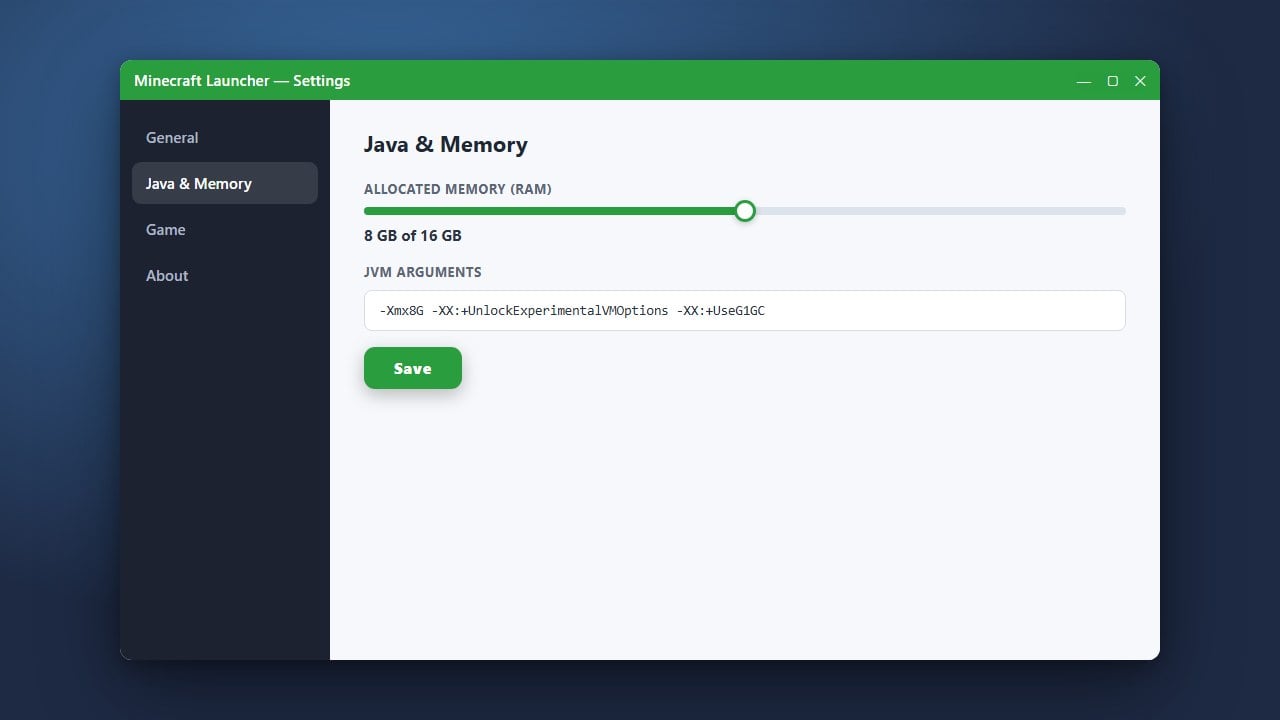
By default, the Minecraft Java launcher assigns a minimal amount of RAM to the game, which is often not enough for heavily modded worlds or modern versions. You can easily fix this by learning how to allocate more RAM to Minecraft directly inside your official Minecraft Launcher installation settings.
Simply navigate to the Installations tab, edit your active profile, open JVM arguments, and increase the maximum memory limit (for example, changing -Xmx2G to -Xmx4G).
Lower Your Video Settings
High render distances, maximum simulation distances, fancy graphics, and smooth lighting require significant memory to process chunks and visual textures. Lowering these graphical settings in your in-game video options reduces the memory load on your device, preventing sudden out-of-memory crashes.
Consider reducing your render distance to 12 chunks or lower, and turn off high-end shaders if you are experiencing performance drops.
Clear Outdated Cache and Temp Files
Corrupted cache files, old crash logs, and temporary data can clutter your storage and interfere with how Minecraft allocates memory. Clearing out unnecessary files helps the game start fresh and stable.
On Java Edition, you can clear temporary files through your operating system's disk cleanup utility. On mobile Bedrock devices, clearing the app cache through your system settings can resolve persistent memory loops.
Update Your Graphics Drivers and Game
Outdated graphics drivers often manage memory inefficiently, leading to memory leaks and unexpected game shutdowns. Ensure your graphics card drivers (Nvidia, AMD, or Intel) are fully updated to their latest versions.
Additionally, make sure your Minecraft client is updated to the latest patch, as developers frequently release optimizations that resolve memory management bugs.
Frequently Asked Questions
Why does Minecraft keep saying Out of Memory?
This error occurs when the game requests more RAM than your system or the current launcher profile has been configured to use. It frequently happens with high render distances, resource packs, or large modpacks.
How much RAM should I give Minecraft?
For vanilla Minecraft, 2 to 4 GB of RAM is usually more than enough. If you are playing with heavy mods or large multiplayer modpacks, you may need to increase it to 6 or 8 GB.