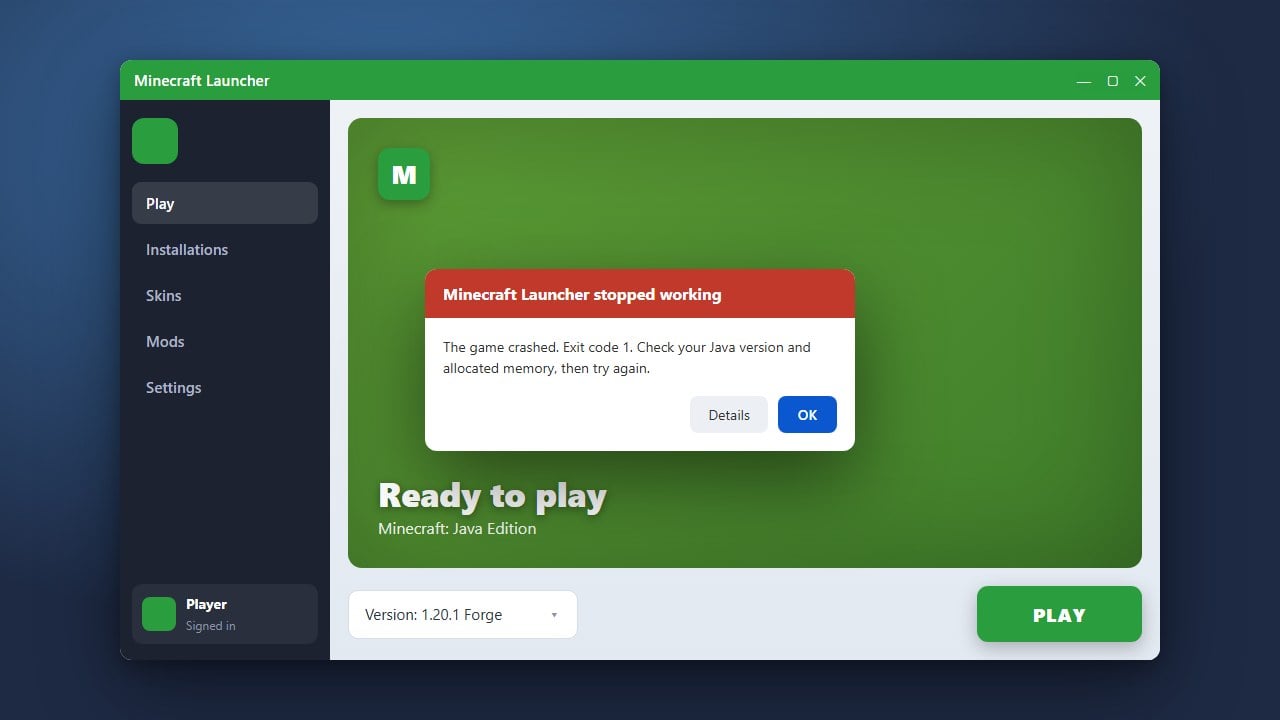
Dealing with sudden crashes can ruin your gaming session, whether you play on Java or Bedrock Edition. This guide will walk you through the most effective methods to diagnose the issue, update your software, and get Minecraft running smoothly again.
1. Update Your Graphics Drivers
Outdated or corrupted graphics drivers are one of the most common causes of game crashes on PC. Visit your GPU manufacturer's official website—such as NVIDIA, AMD, or Intel—to download and install the latest drivers for your graphics card.
After updating your drivers, restart your computer completely before launching Minecraft again to ensure the changes take effect properly.
2. Check for Incompatible Mods and Resource Packs
If you are playing Java Edition with modifications, an outdated mod or resource pack will frequently cause the game to close unexpectedly. Try temporarily removing your mods from the mods folder to see if the crashing stops.
You can also check out How to Fix Minecraft Crashes for more specific advice on reading crash logs and identifying problematic files.
3. Allocate More RAM
Running out of memory can cause Minecraft to freeze and crash, especially when using high-resolution resource packs or large modpacks. If you notice your game running out of memory, you may want to review How to Allocate More RAM to Minecraft to give the game enough breathing room.
Be careful not to allocate all of your computer's RAM, as your operating system needs memory to function correctly.
4. Verify Game Files and Reinstall
Corrupted game installation files can trigger persistent crashes upon launching or loading a world. In the Minecraft Launcher, you can use built-in repair options or completely uninstall and reinstall the game to ensure all core files are fresh.
Before you reinstall or delete game directories, remember to consult How to Back Up Your World so you do not accidentally lose your valuable singleplayer saves and progress.
Frequently Asked Questions
Why does Minecraft keep crashing on startup?
Minecraft usually crashes on startup due to outdated graphics drivers, corrupted game files, or incompatible mods. Checking your crash logs or updating your software will usually point you toward the exact culprit.
How do I find my Minecraft crash logs on Java Edition?
You can find your crash reports inside the crash-reports folder located in your main Minecraft directory (typically found by typing %appdata%\.minecraft into the Windows Run dialog).