Running into invisible worlds and missing terrain can ruin your gameplay. Whether you are experiencing extreme stuttering or holes in the ground where blocks fail to appear, this guide will help you fix chunks not loading in both Minecraft Java and Bedrock Edition.
Always make sure to How to Back Up Your World before modifying game files, allocating memory, or altering advanced settings to protect your progress.
Lower Your Render Distance
Rendering too many chunks at once can overwhelm your device, especially on lower-end hardware or mobile devices. Open your in-game Options, go to Video Settings (or Settings in Bedrock), and lower your Render Distance slider to 10 chunks or fewer.
Applying this change reduces the amount of data your game needs to process at once, which often stops chunk loading delays and helps with general performance issues like those covered in our guide on How to Fix Minecraft Lag.
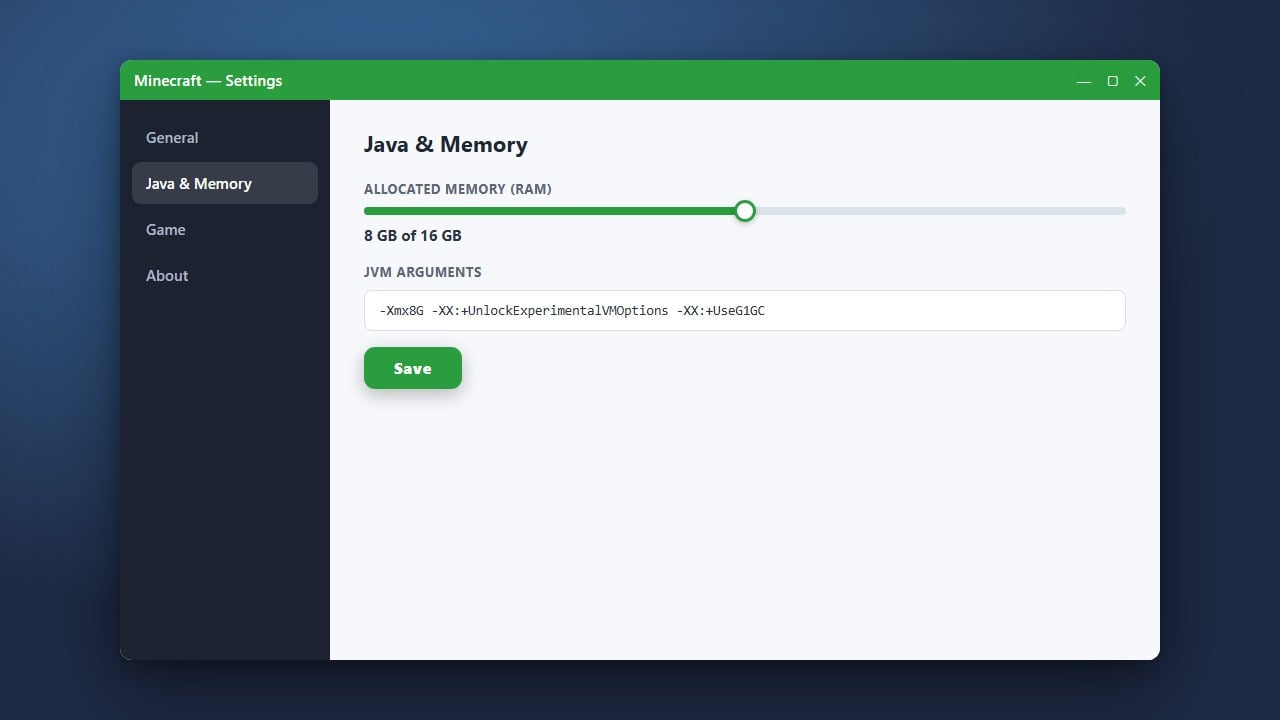
Allocate More RAM (Java Edition)
If you are playing Minecraft Java Edition, your game might be running out of memory while trying to load new terrain as you explore. You can easily give the game more breathing room by checking out our step-by-step instructions on How to Allocate More RAM to Minecraft.
Increasing your allocated memory prevents garbage collection pauses that directly cause chunks to freeze, turn invisible, or take an extremely long time to populate.
Check Your Simulation Distance
Simulation distance determines how far away entities, redstone, and block ticks update, which heavily impacts performance. In your video settings, try lowering your simulation distance below your render distance to ease the burden on your CPU.
Keeping simulation distance at a modest level ensures your game can reliably keep up with loading nearby chunks without stuttering or dropping frames as you move quickly through the world.
Press F3 + A to Reload Chunks (Java Edition)
If you are playing Java Edition and encounter stuck or invisible chunks right in front of you, you can force the game to reload them instantly. Simply press the F3 and A keys on your keyboard at the same time.
You will see a message on your screen indicating that chunk rendering has been reloaded, and all missing terrain and textures should pop back into view immediately.
Update Your Graphics Drivers
Outdated or corrupted graphics card drivers can cause severe rendering bugs, graphical glitches, and failure to load world geometry. Make sure you check Nvidia GeForce Experience, AMD Adrenalin, or Intel Graphics Command Center to install the latest available drivers for your system.
Restarting your computer completely after updating your drivers ensures the changes take full effect before you launch Minecraft again.
Frequently Asked Questions
Why are chunks not loading when I fly fast with Elytra?
Moving faster than your game can generate or stream data causes chunk rendering to fall behind. Lowering your render distance, using performance mods like Sodium (Java), or flying slightly slower will give your device time to catch up.
Does a slow internet connection cause chunks not to load on servers?
Yes. If you play on multiplayer servers or Realms, missing chunks are often caused by high ping, packet loss, or server-side TPS lag rather than your local hardware performance.