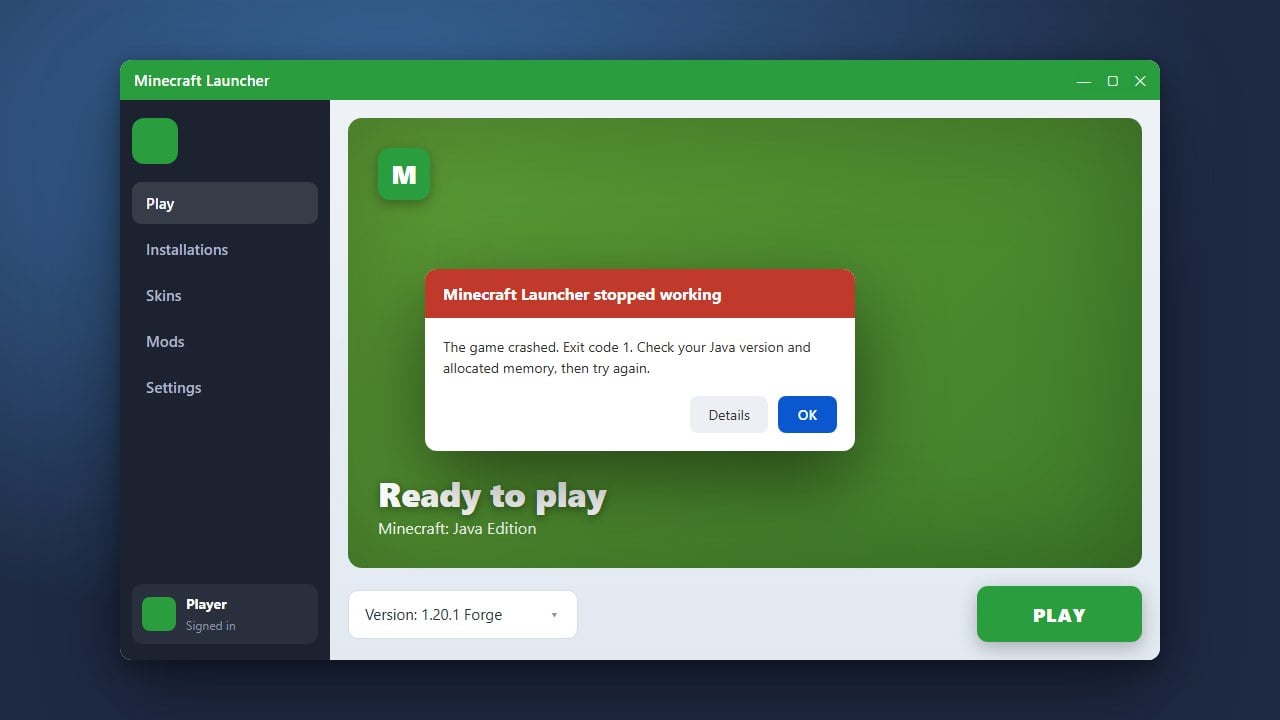
Dealing with CurseForge crashes can be frustrating when you just want to enjoy your modded Minecraft world. Fortunately, most crashing issues stem from simple problems like outdated mod files, incorrect RAM allocation, or corrupted profiles. Follow this guide to get your CurseForge launcher and modpacks running smoothly again.
Check and Allocate More RAM
Modded Minecraft requires significantly more memory than vanilla versions. If your game runs out of memory, it will immediately crash or throw an error code.
Open the CurseForge app, go to your profile settings, locate the allocated memory slider, and increase it. For a detailed walkthrough on this process, check out our guide on how to allocate more RAM to Minecraft.
Update CurseForge and Modpacks
Running outdated versions of the CurseForge application or out-of-date modpacks often leads to unexpected crashes due to unpatched bugs. Open CurseForge and check if an update is available for the app itself.
Next, click on your installed modpack and look for any pending updates for the individual mods or the pack version. Developers frequently push updates that fix critical compatibility issues and game-breaking bugs.
Remove Conflicting or Broken Mods
If a modpack crashes immediately upon launching a world, a specific mod might be causing a conflict. Review the crash report or check your latest log files in the instance folder to find which mod failed.
You can temporarily disable half of your mods at a time to isolate the culprit. If you are struggling with malfunctioning add-ons, our troubleshooting steps for how to fix Minecraft mods not working can help you identify and resolve the issue.
Repair the CurseForge Installation Profile
Sometimes individual profile files within CurseForge become corrupted during downloading or updating. Fixing the installation profile forces the launcher to re-download missing or broken assets.
Click the three dots next to the "Play" button on your modpack screen, select Repair Installation, and let CurseForge verify and replace any corrupted game files automatically.
Update Your Graphics Drivers and Java
Minecraft Java Edition relies heavily on up-to-date graphics card drivers and the correct version of Java. Outdated drivers are a primary trigger for unexpected game closures and black screens.
Visit the official website for your GPU manufacturer (NVIDIA, AMD, or Intel) to download and install the latest drivers. Additionally, ensure that your system uses the correct Java version required by modern Minecraft updates.
Frequently Asked Questions
Why does CurseForge crash when I click Play?
This is usually caused by insufficient RAM allocation, an outdated Java runtime, or a missing dependency file required by one of the mods in your profile.
How do I find my CurseForge crash logs?
Open your specific modpack profile in CurseForge, click the three dots menu, and select Open Folder. Navigate into the logs folder and open the latest.log file to read error messages.