Encountering glitches, missing textures, or broken mechanics can quickly disrupt your survival adventure. Whether you are dealing with invisible blocks on Bedrock Edition or rendering errors on Java Edition 1.21+, most game bugs can be resolved quickly by reloading in-game assets, disabling outdated packs, or repairing your installation files.
For weird physics or item behavior on singleplayer worlds, simply saving and returning to the main menu forces the internal server to reset mob states and block interactions.
Avoid activating experimental gameplay toggles on your main survival worlds, as experimental features frequently introduce game-breaking bugs that cannot be undone.
Reload Chunks and Textures In-Game
Many visual glitches, invisible blocks, and lighting bugs can be resolved immediately without restarting your game. In Java Edition, press F3 + A to reload all rendered chunks. If your textures look corrupt or items appear pink and black, press F3 + T to reload all textures, models, and sound files.
In Bedrock Edition, pause the game, open Settings, navigate to Video, and reduce your render distance by 4 chunks. Exit the menu, reopen it, and return the slider to its previous value to force the game engine to re-render nearby chunks.
Disable Custom Resource Packs
Outdated resource packs designed for older updates often cause missing textures, UI bugs, or broken block models in modern versions. Go to Options > Resource Packs in Java Edition or Settings > Global Resources in Bedrock Edition.
Temporarily deactivate all custom texture packs and return to the default vanilla look. If the issue disappears, check the creator's page for an updated pack compatible with your current game version.
Isolate Mod and Add-on Conflicts
If you run modded Java or Bedrock with behavioral add-ons, mismatched files are the single biggest cause of in-game bugs. Remove your recently added mods or add-ons and test your worldagain. Before making file changes, always make sure you know how to back up your world to prevent accidental loss.
If a mod or add-on is causing your game to close unexpectedly rather than just glitching, consult our guide on how to fix Minecraft crash errors to pinpoint the exact failure code.
Repair the Game Installation Files
Corrupted local files can cause persistent bugs, missing audio cues, or entity desyncs. On Windows, open your system Settings > Apps > Installed apps, find Minecraft Launcher, click the three dots, select Advanced options, and click Repair.
If you play Bedrock on mobile devices or consoles, clear the application cache from your device settings menu, or back up your world data and perform a clean reinstallation of the application.
Update Your Graphics Drivers
Visual bugs like flickering screens, colored artifacts, and distorted mob models usually point to an outdated graphics card driver. Use NVIDIA GeForce Experience, AMD Software: Adrenalin Edition, or Intel Driver & Support Assistant to update your display driver to the latest release.
Once updated, restart your computer and relaunch Minecraft to ensure all rendering pipelines operate on current API standards.
Check the Official Bug Tracker (Mojira)
If the issue persists in a completely vanilla, unmodded game, you may have encountered a genuine game engine bug introduced in a recent update. Visit the official Mojang bug tracker at bugs.mojang.com.
Search for your specific symptom (for example, "boat desync 1.21" or "villager pathfinding") to see if Mojang developers have logged the issue. Active bug reports frequently include temporary workarounds posted by community members while an official patch is prepared.
Frequently Asked Questions
How do I report a new bug to Mojang?
Create a free account on the official Mojang bug tracker at bugs.mojang.com. Search first to confirm no one else has reported it, then click Create Issue to submit details, screenshots, and reproduction steps.
Why do blocks keep turning invisible in my world?
Invisible blocks are typically caused by client-server desynchronization or chunk-loading delays. In Java Edition, press F3 + A to reload chunks. In Bedrock Edition, pausing and rejoining the world will reload the local environment.
Will resetting or reinstalling Minecraft delete my worlds?
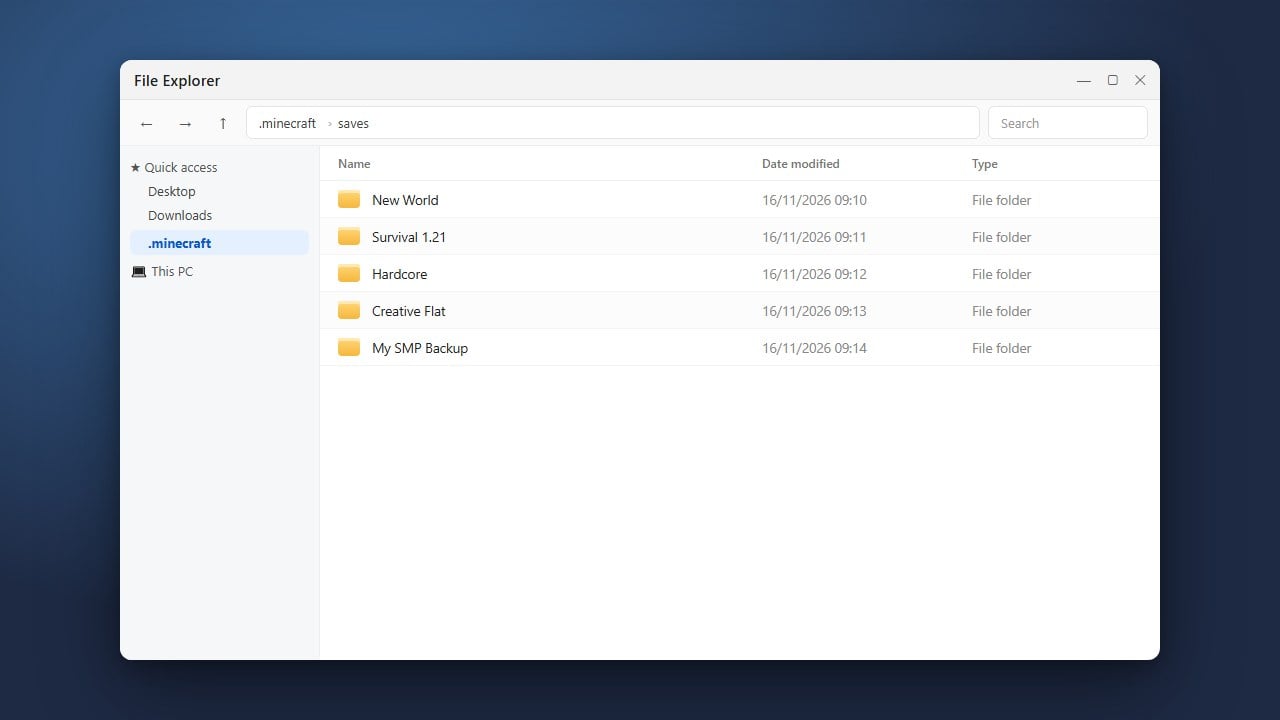
On Java Edition, your worlds remain untouched in your local .minecraft/saves directory. On Bedrock (especially on mobile), uninstalling can delete worlds saved in application storage unless you export them first.