Adding shaders to Minecraft Java Edition transforms your game with gorgeous lighting, dynamic shadows, and beautiful water effects. If you use MultiMC to manage your game instances, installing shaders is a straightforward process once you have a shader-compatible mod loader like Iris or OptiFine set up. Please remember that MultiMC is an alternative launcher for managing your legally purchased copy of the game; you should always buy the official game from minecraft.net to support the developers and ensure account security.
Shader packs can be extremely demanding on your graphics card. If you experience severe lag, consider lowering your render distance or trying a performance-friendly shader pack.
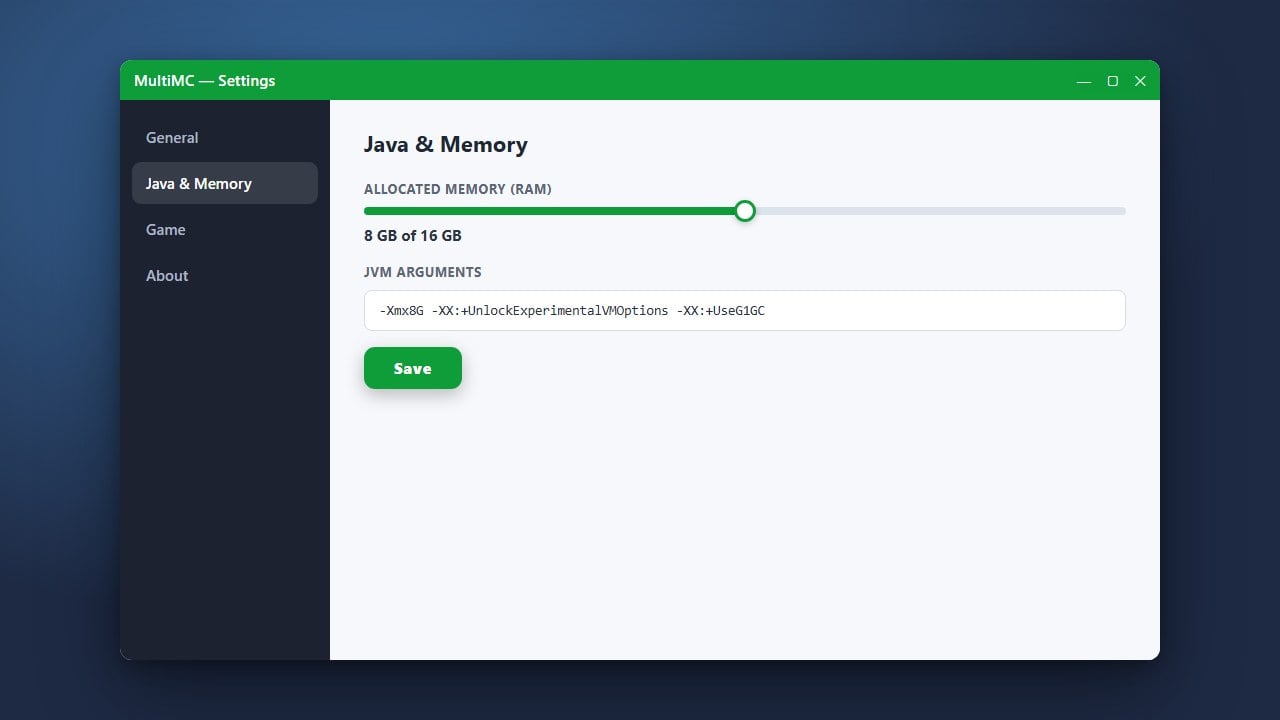
If you need help setting up your instance resources or memory limits, check out our guide on How to Allocate More RAM in MultiMC.
Open Your MultiMC Instance
Launch MultiMC on your computer and locate the Minecraft instance where you want to add shaders. Make sure the instance is not currently running before you make any changes.
Install a Shader-Compatible Mod Loader
To use shaders in modern versions of Minecraft Java Edition, you need a rendering mod installed. Select your instance in MultiMC, click Edit Instance on the right-hand menu, and install either Fabric along with the Iris Shaders mod, or install OptiFine.
Download Your Favorite Shader Packs
Visit a trusted community resource like Modrinth or CurseForge to download shader packs (such as Complementary, BSL, or Sildurs) compatible with your Minecraft version. Keep the downloaded .zip files zipped; do not extract them.
Open the Shaderpacks Folder
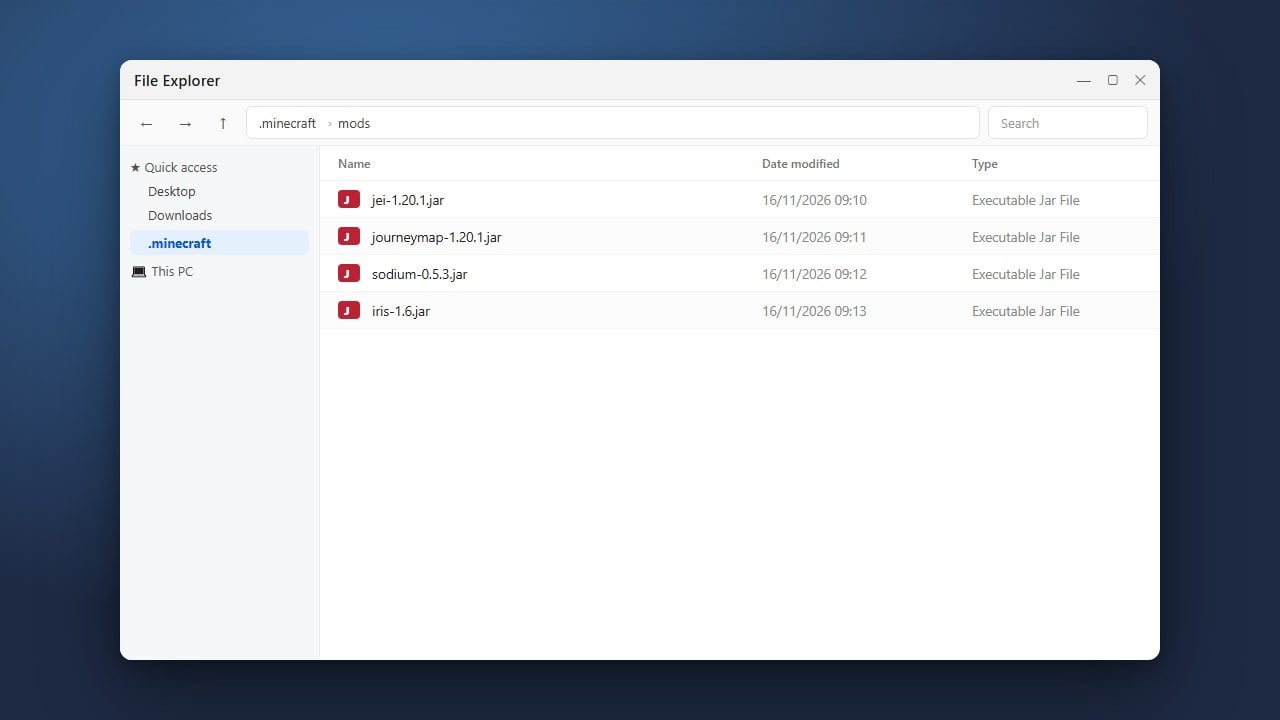
In MultiMC, click on your instance, then click the Shaderpacks button on the right-hand side (or click Folder and navigate to the shaderpacks directory inside your instance folder). If the folder does not exist yet, you can create one named shaderpacks in the .minecraft folder of that instance.
Add the Shader Zip Files
Drag and drop your downloaded shader .zip files directly into the Shaderpacks window or folder that you opened in the previous step. MultiMC will place them in the correct location automatically.
Enable Shaders in Game
Launch your Minecraft instance from MultiMC. Once the game starts, go to Options > Video Settings > Shaders (if using Iris or OptiFine), select your preferred shader pack from the list, and click Apply to enjoy your new visuals!
Frequently Asked Questions
Do I need Iris or OptiFine to use shaders in MultiMC?
Yes. Vanilla Minecraft Java Edition does not support shader packs natively. You must install a rendering mod like Iris (recommended for Fabric) or OptiFine for shaders to work.
Should I unzip the shader pack files before putting them in MultiMC?
No. Shader packs must remain as compressed .zip files. Place the zip archive directly into the shaderpacks folder.