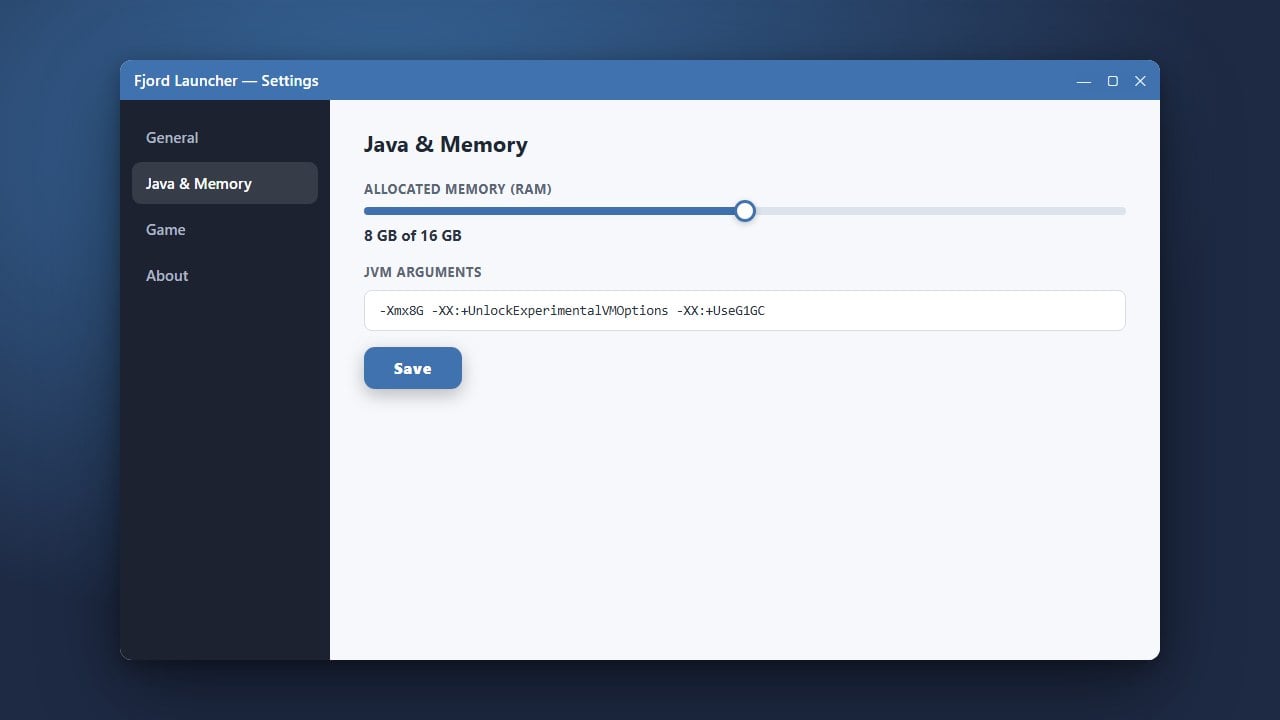
Allocating more RAM in Fjord Launcher can significantly improve your game's performance, especially if you enjoy playing with heavy resource packs or custom mods. Follow this quick guide to adjust your memory settings properly in the launcher.
Never allocate all of your computer's physical RAM to Minecraft, as your operating system needs memory to run smoothly. Always leave at least 2GB to 4GB free for your PC.
Open Fjord Launcher
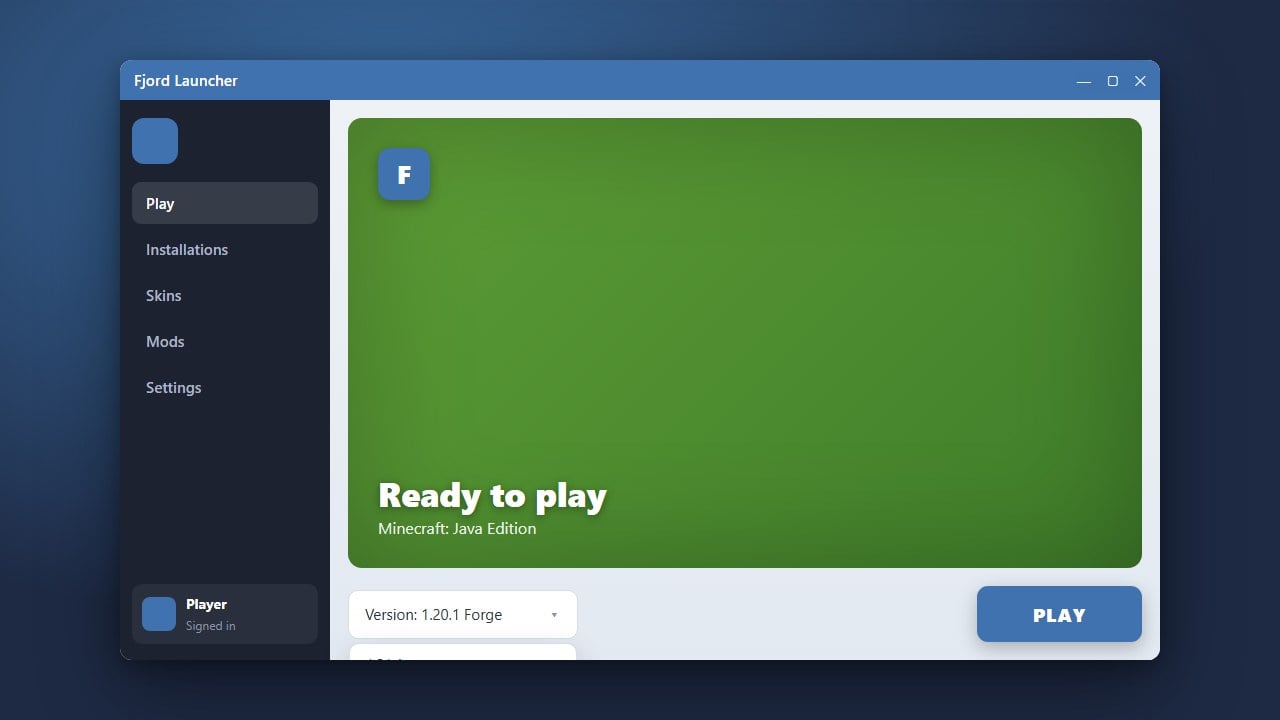
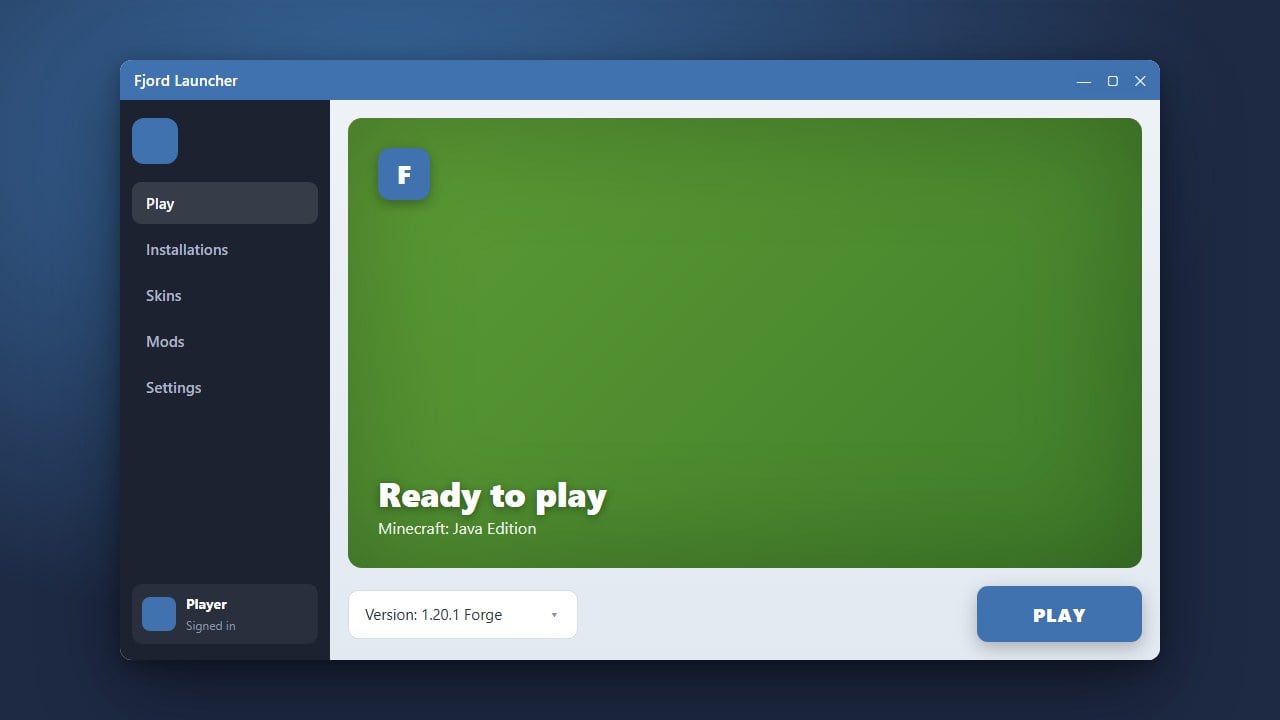
Start by launching the Fjord application on your computer. Make sure you are logged into your account and on the main dashboard before proceeding further.
Navigate to Settings
Locate and click on the Settings or gear icon, usually found in the sidebar or top corner of the launcher interface.
Find the Java and Memory Options
Within the settings menu, look for the Java or Memory tab. This section controls how much system memory your Minecraft instances are allowed to use.
Adjust the RAM Slider
Drag the memory allocation slider to your desired RAM amount. Ensure you leave enough RAM for your operating system and other background applications.
Save and Launch the Game
Save your new settings, then return to the main menu. You can check out How to Change the Minecraft Version in Fjord Launcher if you also want to update your game version before playing.
Frequently Asked Questions
How much RAM should I allocate to Minecraft?
For vanilla Minecraft, 2GB to 4GB is usually plenty. If you play with heavy modpacks, you may need 6GB to 8GB of RAM.
Why is my game crashing after allocating more RAM?
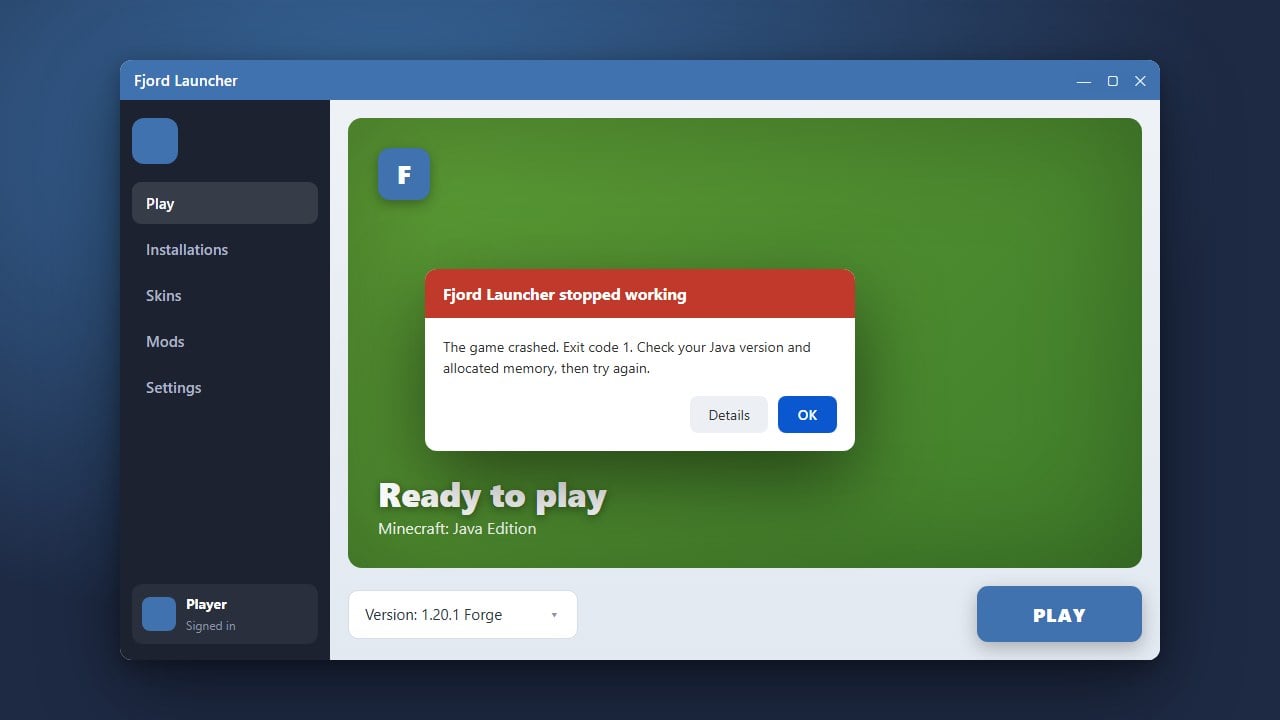
This often happens if you allocate more RAM than your physical computer actually has available. Try lowering the allocated amount.