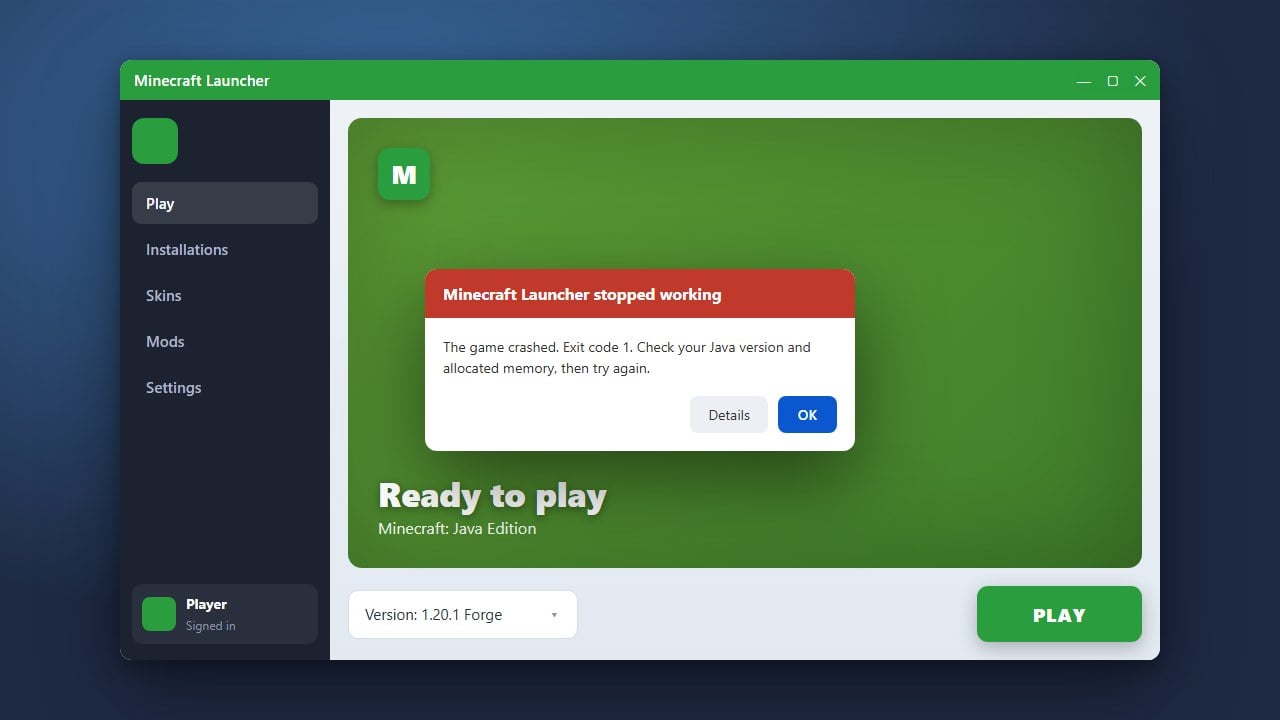
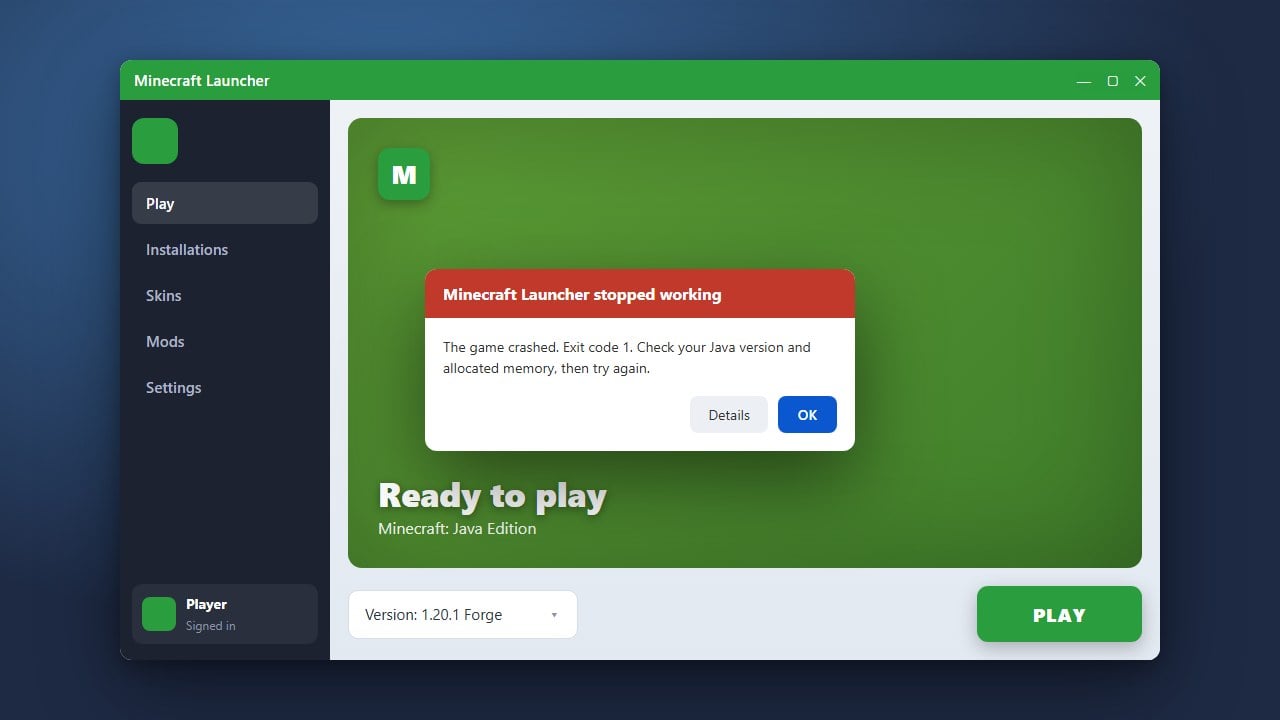
When the Minecraft Launcher refuses to open, it can be frustrating and prevent you from jumping into your favorite worlds. This guide walks you through simple, effective troubleshooting steps to get the launcher running properly again on both Windows and macOS.
If you are experiencing other launch crashes after the application finally opens, you might want to look into How to Fix Exit Code 1 for common Java runtime error solutions.
End Background Processes
Sometimes a previous instance of the launcher is stuck running in the background. On Windows, press Ctrl + Shift + Esc to open the Task Manager, find any processes named Minecraft Launcher or Java, right-click them, and select End Task.
On Mac, open Activity Monitor using Spotlight, search for Minecraft, and force quit any active processes before trying to open the application again.
Run as Administrator
Permission issues can often block applications from launching properly. If you are on Windows, locate your Minecraft Launcher shortcut, right-click it, and select Run as administrator.
If a prompt appears asking for permission to make changes to your device, click Yes and check if the launcher successfully opens.
Update Windows and Graphics Drivers
An outdated operating system or graphics driver can cause compatibility issues with the launcher. Make sure your Windows or macOS system is fully updated to the latest version available.
Additionally, open your device's graphics card software or device manager to check for any pending GPU driver updates, as modern rendering needs up-to-date software.
Repair or Reset the Launcher App
If you downloaded the launcher through the Windows Store, you can easily repair its installation files. Open Windows Settings, go to Apps > Installed apps, search for Minecraft Launcher, click the three dots, and select Advanced options.
Scroll down and click the Repair button. If that does not work, you can use the Reset button, though this may require you to sign back into your Microsoft account.
Reinstall the Minecraft Launcher
If all else fails, a clean reinstall usually solves persistent errors. Completely uninstall the current launcher from your system, then download the fresh installation setup directly from the official website.
For further assistance with software problems, you can also consult our guide on How to Fix Minecraft Launcher for more targeted troubleshooting advice.
Frequently Asked Questions
Why is my Minecraft Launcher showing a blank white screen?
A blank white screen usually indicates an issue with cached data or hardware acceleration. Try resizing the window or signing out and back into your Microsoft account.
Do I need to buy Minecraft again if I reinstall the launcher?
No. Your game ownership is permanently tied to your Microsoft account. As long as you log in using the correct account credentials, you will retain full access.