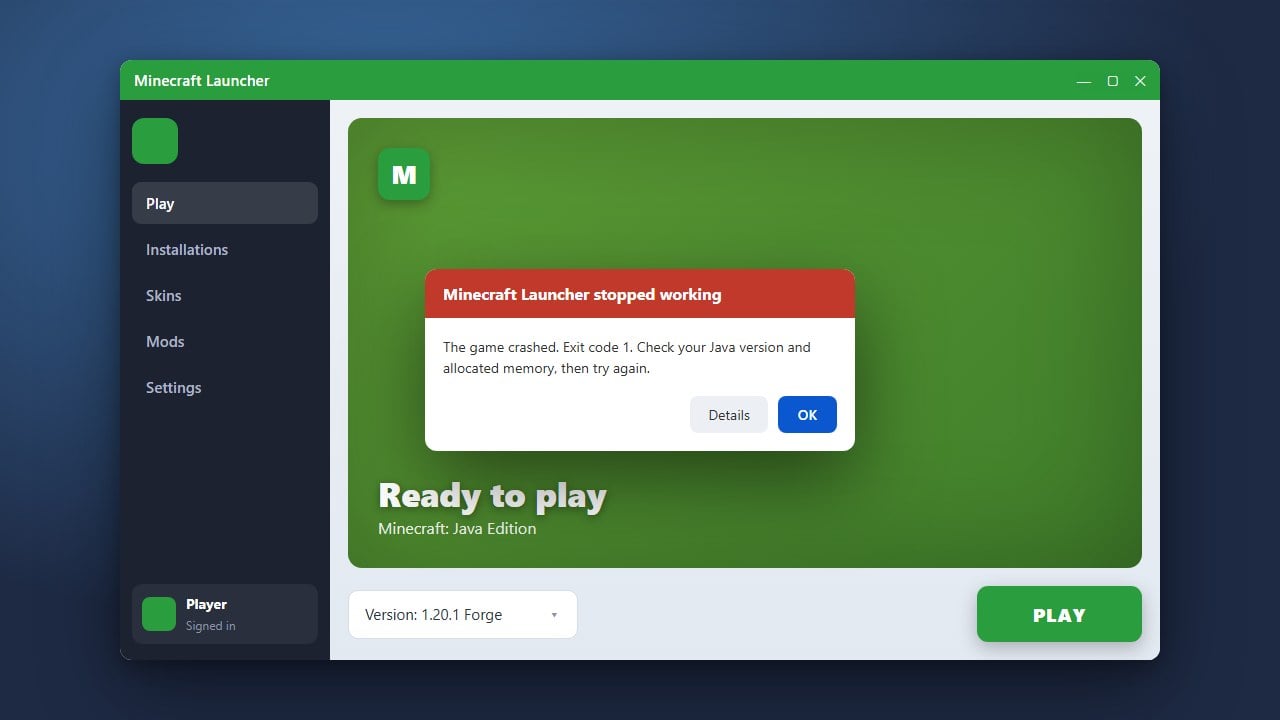
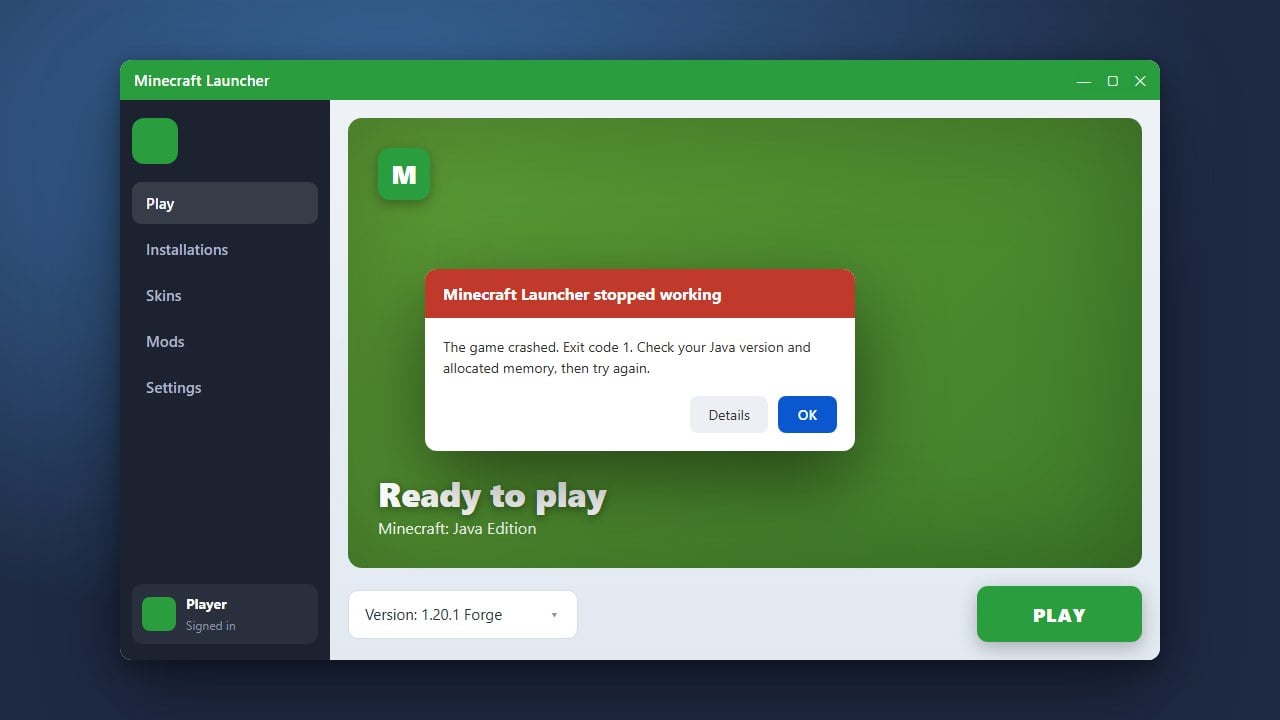
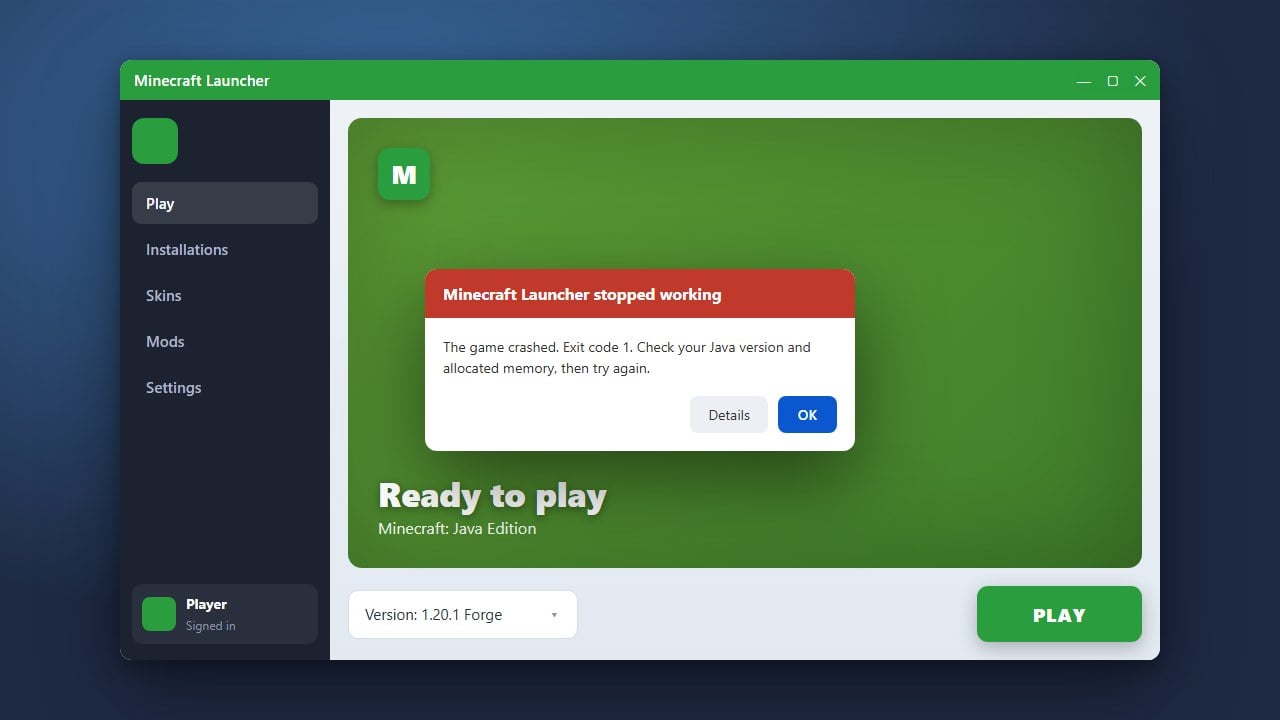
Encountering an OpenGL error when launching Minecraft can be frustrating, especially when it prevents you from playing altogether. This issue typically happens on Minecraft Java Edition when your graphics card drivers are outdated, missing, or incompatible with your current hardware. Follow this easy guide to update your system, fix graphics glitches, and get back into your world safely.
Avoid downloading graphics drivers from unverified third-party websites, as they may contain malware or unstable software packages.
OpenGL errors are exclusive to Minecraft Java Edition because Bedrock Edition uses a different rendering engine (DirectX or Vulkan depending on the platform).
Identify Your Graphics Hardware
Before updating any software, you need to know which graphics card your computer uses. On Windows, press Ctrl + Shift + Esc to open the Task Manager, click on the Performance tab, and select GPU at the bottom to see your graphics card manufacturer (such as NVIDIA, AMD, or Intel). On macOS, click the Apple icon in the top left corner and select About This Mac to check your graphics information.
Update Your Graphics Drivers
Outdated graphics drivers are the most common cause of OpenGL crashes in Minecraft Java Edition. Visit the official website of your graphics card manufacturer—such as NVIDIA GeForce Experience, AMD Software, or Intel Driver & Support Assistant—to download and install the latest drivers for your system. If you are experiencing other startup crashes alongside this error, you might also want to check our guide on How to Fix Exit Code 1 for additional troubleshooting help.
Reinstall or Update Java
Minecraft Java Edition relies heavily on Java to run properly. Ensure you are using the correct and most up-to-date version of Java provided by the official Minecraft Launcher. Sometimes, custom installations or corrupted runtime files can cause rendering errors that trigger OpenGL failure messages upon boot.
Change Integrated Graphics Settings
If your computer has both an integrated graphics processor (like Intel HD Graphics) and a dedicated graphics card (like NVIDIA or AMD), Minecraft might be trying to launch using the weaker integrated chip. Open your graphics control panel, go to 3D settings or program settings, and ensure that javaw.exe is set to run using your high-performance dedicated graphics processor.
Restart Your Computer
Once you have updated your drivers or adjusted your display settings, restart your computer completely to apply the changes. After rebooting, open the Minecraft Launcher and try launching the game again to verify that the OpenGL error has been successfully resolved.
Frequently Asked Questions
What causes the OpenGL error in Minecraft?
The OpenGL error usually occurs when Minecraft cannot initialize the graphics rendering library because your graphics drivers are outdated, corrupted, or incompatible with your hardware.
Does this error affect Minecraft Bedrock Edition?
No, OpenGL errors only affect Minecraft Java Edition. Bedrock Edition runs on different graphics APIs tailored to specific operating systems and consoles.