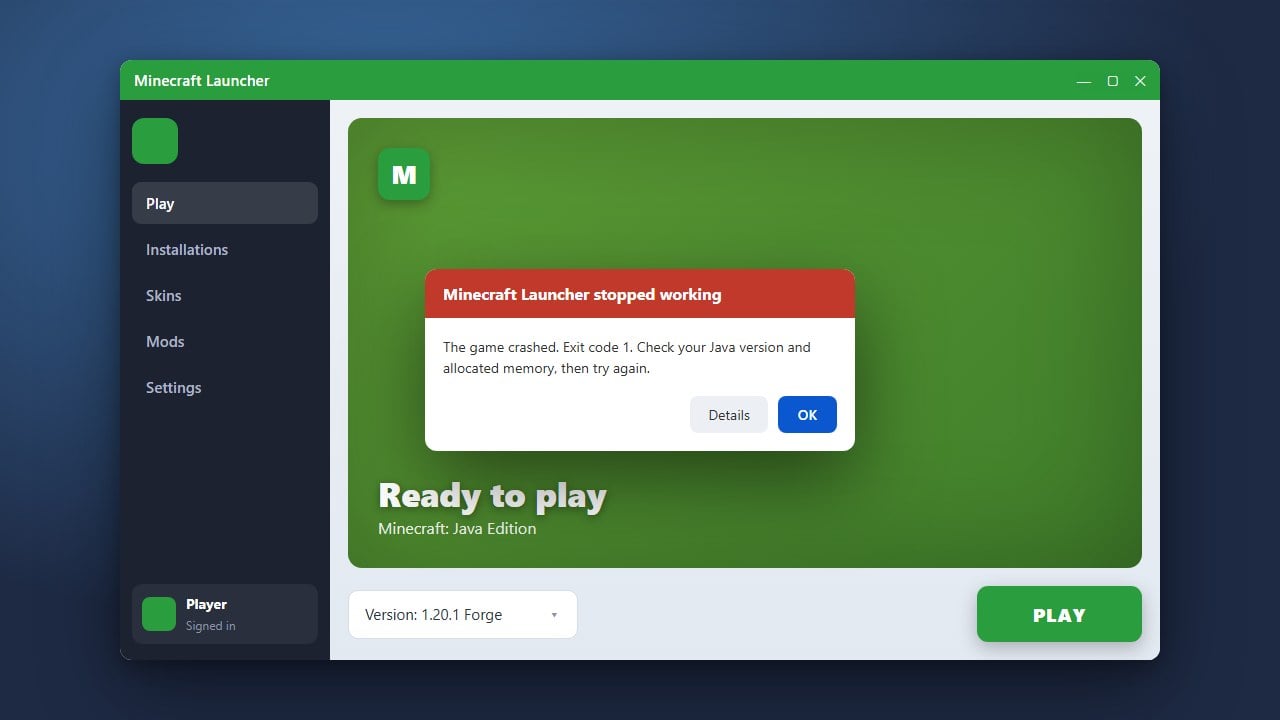
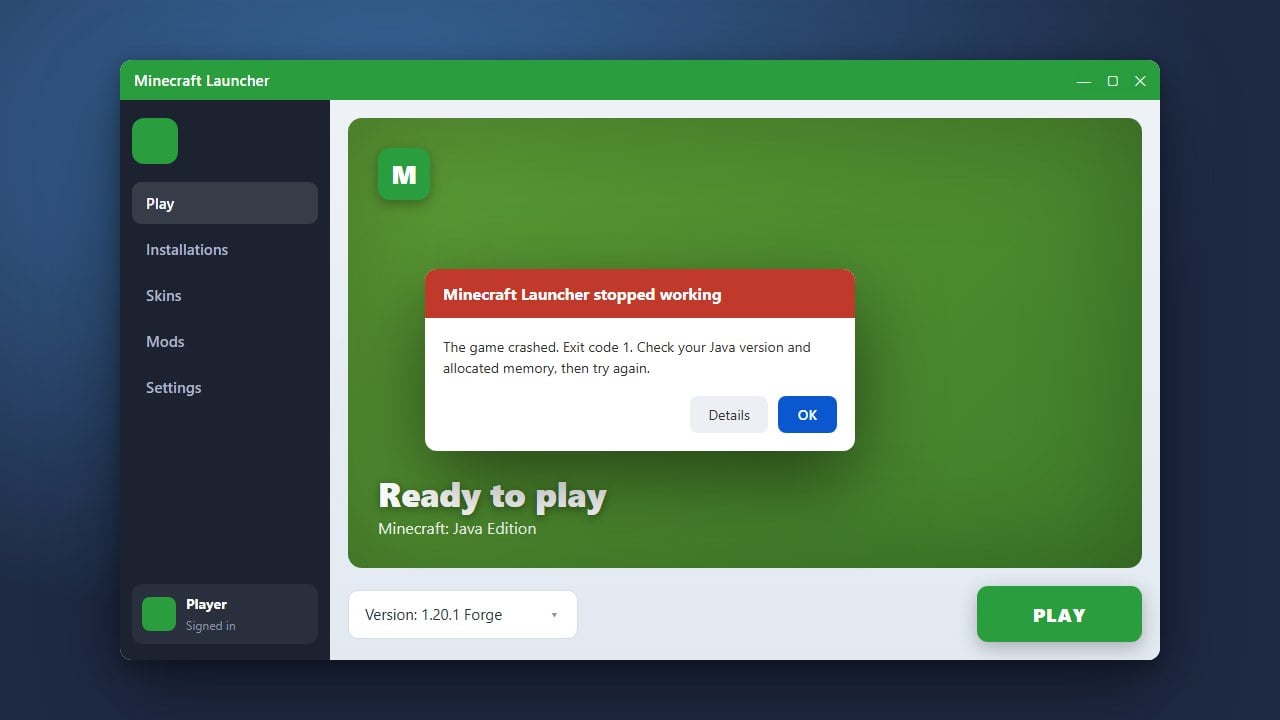
Experiencing sudden crashes while trying to enjoy your game can be extremely frustrating. Whether you are playing Java Edition or Bedrock Edition, this guide will walk you through the most effective methods to troubleshoot the root cause, update your software, and get back into your world smoothly.
1. Update Your Graphics Drivers
Outdated or corrupt graphics drivers are one of the most common reasons Minecraft crashes during startup or gameplay. Visit your GPU manufacturer's official website (NVIDIA, AMD, or Intel) to download and install the latest drivers for your graphics card.
After updating, restart your computer completely before launching the Minecraft launcher again to ensure the changes take effect properly.
2. Remove Incompatible Mods and Resource Packs
If you are playing Java Edition with mods, shaders, or resource packs, a conflicting or outdated mod is often the culprit. Try temporarily moving your mods folder out of your .minecraft directory to see if the game launches normally.
You can also check out our guide on How to Fix Exit Code 1 if your game provides that specific error code upon crashing.
3. Allocate Enough RAM
Running out of memory can cause Java Edition to crash abruptly with an out-of-memory error. Ensuring your game has enough dedicated RAM assigned in the launcher settings can resolve performance drops and random shutdowns.
Follow the steps in How to Allocate More RAM to Minecraft to safely increase your memory allocation.
4. Verify Game Files and Reinstall
Corrupted game files can cause persistent crashes that normal troubleshooting cannot fix. In Java Edition, you can use the official launcher to repair or reinstall the game installation. In Bedrock Edition, make sure your operating system and game app are updated to the latest version via your platform's app store.
Always remember to safeguard your progress by checking out How to Back Up Your World before performing any major reinstalls or file deletions.
Frequently Asked Questions
Why does Minecraft keep crashing on my PC?
Most crashes are caused by outdated graphics drivers, conflicting mods, lack of allocated RAM, or corrupted game installation files.
How do I find my Minecraft crash logs?
In Java Edition, open your .minecraft folder and look inside the crash-reports directory for text files detailing the exact moment the game failed.