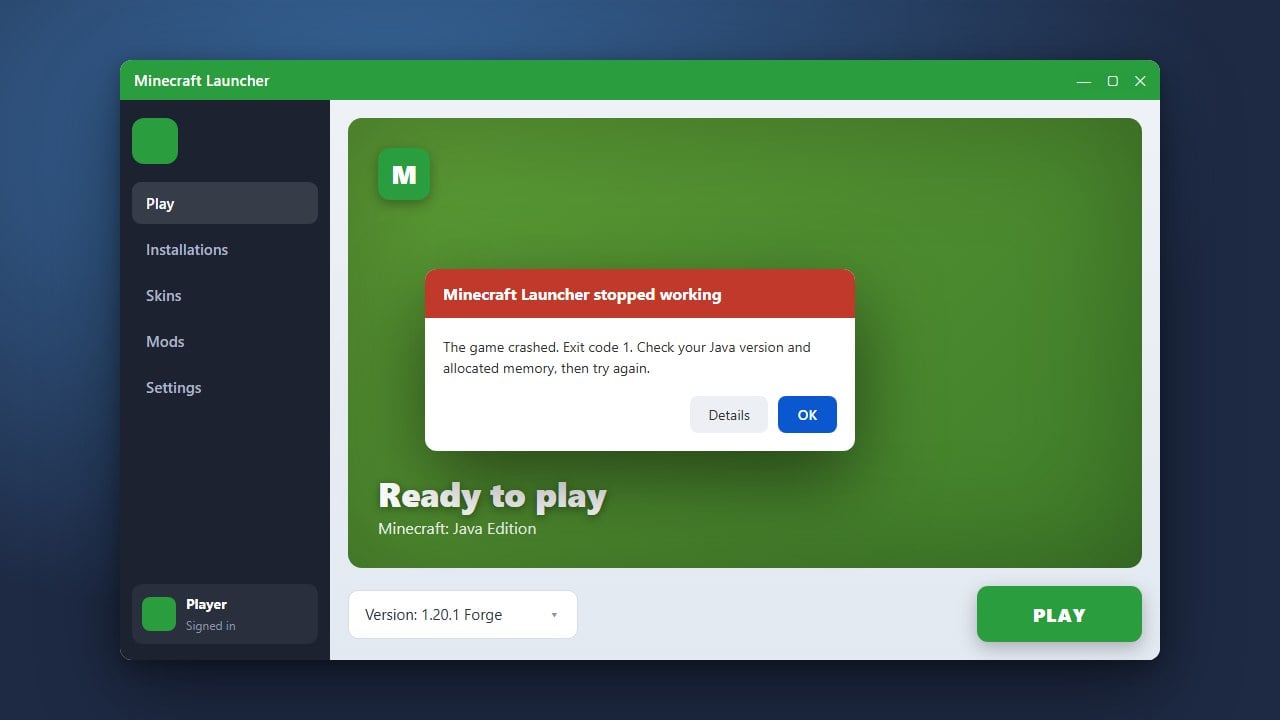
Having trouble signing into Minecraft Education Edition can disrupt your learning or classroom experience. This easy troubleshooting guide will walk you through the essential steps to resolve authentication failures, clear corrupted account data, and get back into the game successfully.
Always verify that your educational license is still active and has not expired through your school IT administrator before attempting complex reinstalls.
Check Your School Account Credentials
First, make sure you are using the correct organizational email and password provided by your school or institution. Typos in your username or domain name are a frequent cause of login failures.
If you recently reset your password, ensure that your device has fully synchronized with your new credentials before trying to log in again.
Sign Out Completely From Other Microsoft Apps
Sometimes cached credentials in other Office 365 or Microsoft applications interfere with Minecraft Education Edition. Open any other Microsoft app on your device, sign out completely, and then close the application.
Restart your device to clear active background tokens that might be blocking a fresh authentication attempt.
Clear Sign-In Cache and App Data
Corrupted local cache files can prevent the sign-in window from loading correctly. On Windows, go to Windows Settings, navigate to Apps, find Minecraft Education, and select Advanced Options to reset or repair the app.
If you are experiencing broader issues similar to How to Fix Minecraft Account Not Logging, clearing temporary application data often forces the game to request a brand new security token.
Verify Your Version and Network Settings
Ensure your copy of Minecraft Education Edition is fully updated to the latest version via your device's app store or official launcher. Outdated versions frequently fail to communicate with modern authentication servers.
Additionally, check that your school network or firewall is not blocking the necessary Microsoft login domains and ports required for educational licensing checks.
Reinstall Minecraft Education Edition
If signing in still fails, a clean installation is often the most effective final resort. Completely uninstall the game from your system, restart your computer or tablet, and download the latest installer from the official website.
For players encountering persistent launcher or startup problems on desktop devices, reviewing How to Fix Minecraft Launcher Not Working can offer additional troubleshooting insight.
Frequently Asked Questions
Why does Minecraft Education Edition keep looping back to the login screen?
This login loop usually happens when cached Microsoft credentials conflict with your current session. Clearing your browser cookies, signing out of other Office 365 apps, and resetting the app data will usually break the loop.
Can I use a personal Microsoft account to sign into Minecraft Education Edition?
No, Minecraft Education Edition requires a valid school or organizational Microsoft 365 account. Personal Microsoft accounts will not work unless they have been explicitly assigned an educational license by an administrator.