Encountering a black screen right after starting Minecraft can be frustrating, but it is usually caused by outdated graphics drivers, conflicting mods, or corrupted game files. Whether you are playing on Java Edition or Bedrock Edition, this guide will walk you through the most effective ways to fix the issue and get your game running smoothly again.
Update Your Graphics Drivers
Outdated or corrupted graphics drivers are the number one cause of black screen issues upon launching Minecraft. Visit the official website of your GPU manufacturer—such as NVIDIA, AMD, or Intel—to download and install the latest drivers for your graphics card.
After the installation is complete, restart your computer entirely to ensure the new graphics drivers are properly applied before launching Minecraft again.
Remove Incompatible Mods and Resource Packs
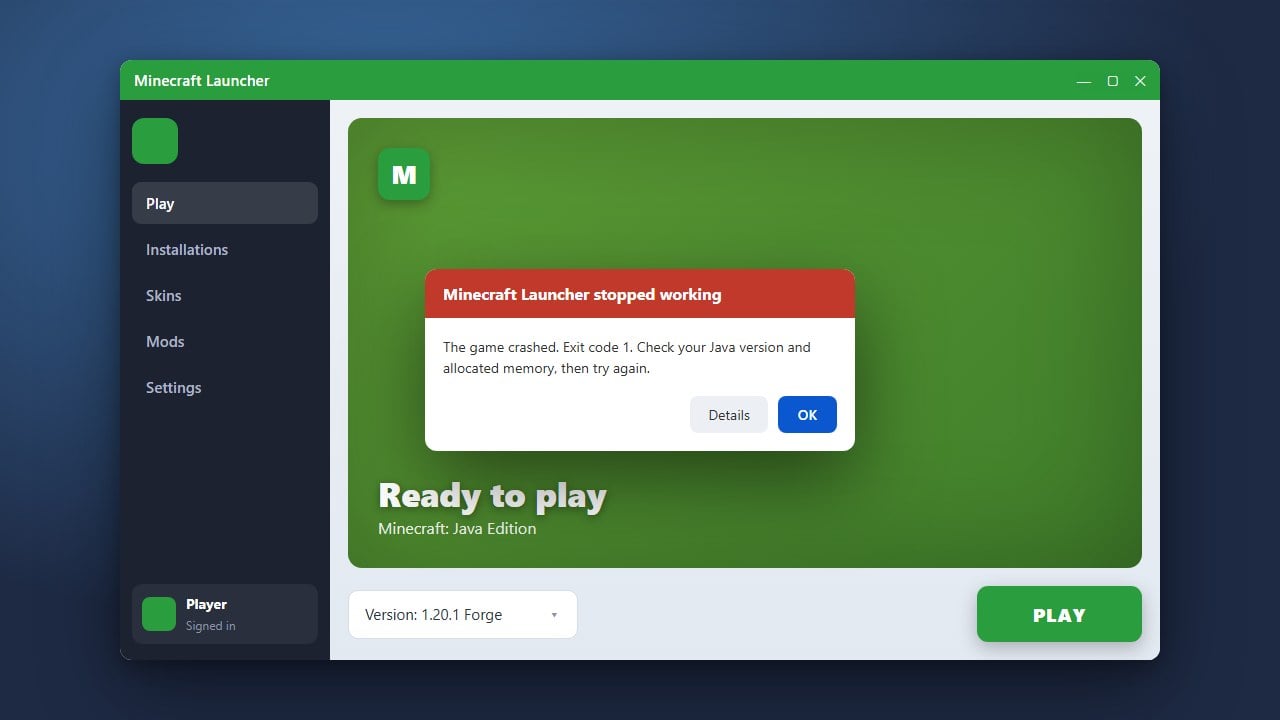
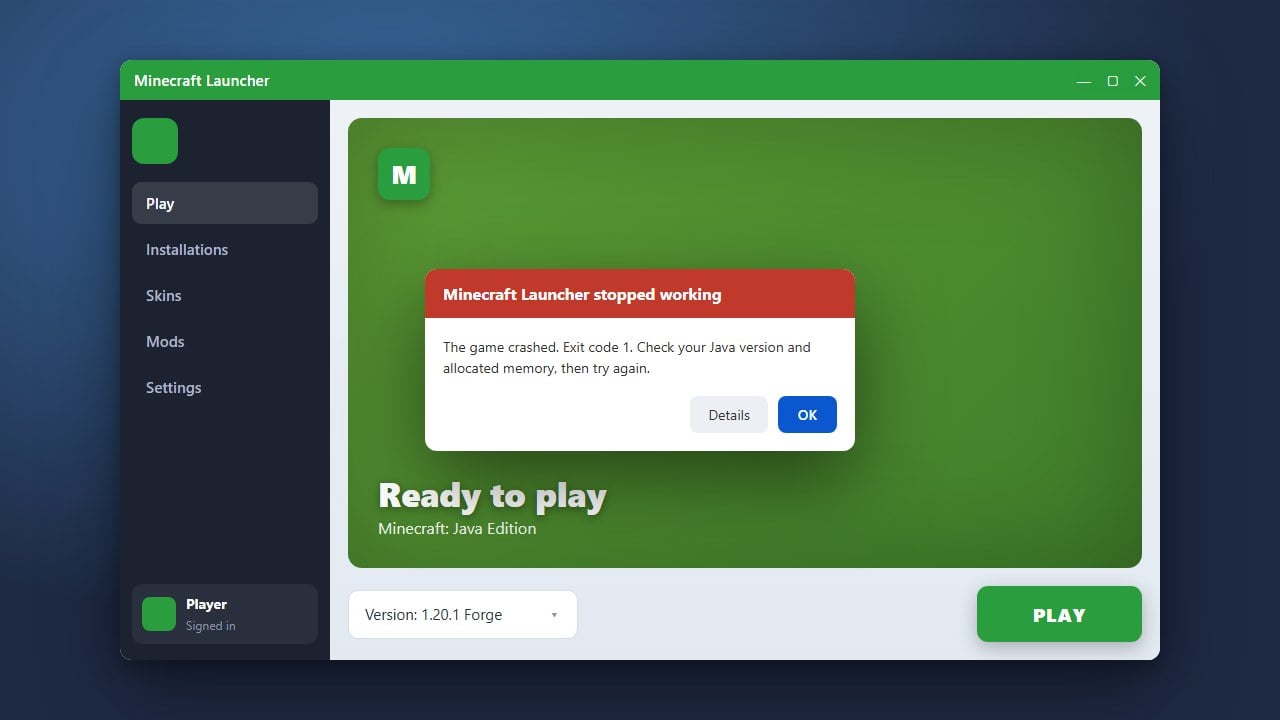
If you are playing Java Edition with modifications, an outdated or broken mod will frequently cause a black screen or trigger errors like How to Fix Exit Code 1. Open your mods folder inside your Minecraft directory and temporarily move your recently added mods elsewhere to test if they are causing the conflict.
Similarly, try removing any newly installed resource packs or shaders that might not be compatible with your current version of the game.
Force Windowed Mode via Launcher
Sometimes Minecraft launches with a resolution or fullscreen setting that your monitor fails to display properly, resulting in a permanent black screen. You can force the game to open in windowed mode through the official launcher.
In the Java Launcher, go to Installations, click the three dots next to your profile, select Edit, click More Options, and adjust the resolution width and height manually.
Clear Corrupted Game and Launcher Cache
Corrupted temporary cache files can prevent the game from rendering its initial loading screens correctly. Clearing these temporary files forces Minecraft to rebuild fresh configurations upon your next launch.
For Java Edition, you can also check out How to Fix Minecraft Launcher to ensure your application files are fully intact and working properly.
Reinstall Minecraft Completely
If all else fails, a clean reinstall will replace any missing or damaged game files causing the black screen. Always remember to back up your important world saves before deleting any game directories so you do not lose your progress.
You can follow safe backup procedures outlined in How to Back Up Your World before proceeding with the uninstallation and fresh download.
Frequently Asked Questions
Why does Minecraft show a black screen immediately upon opening?
A black screen usually means the game is running in the background, but your graphics card or display drivers are failing to render the user interface. This is commonly caused by outdated drivers, incompatible mods, or resolution mismatches.
Will reinstalling Minecraft delete my worlds?
Uninstalling the game launcher generally preserves your user data, but your local singleplayer world saves are stored inside the saves folder. It is always best to manually back up this folder to a safe location before doing a clean reinstall.