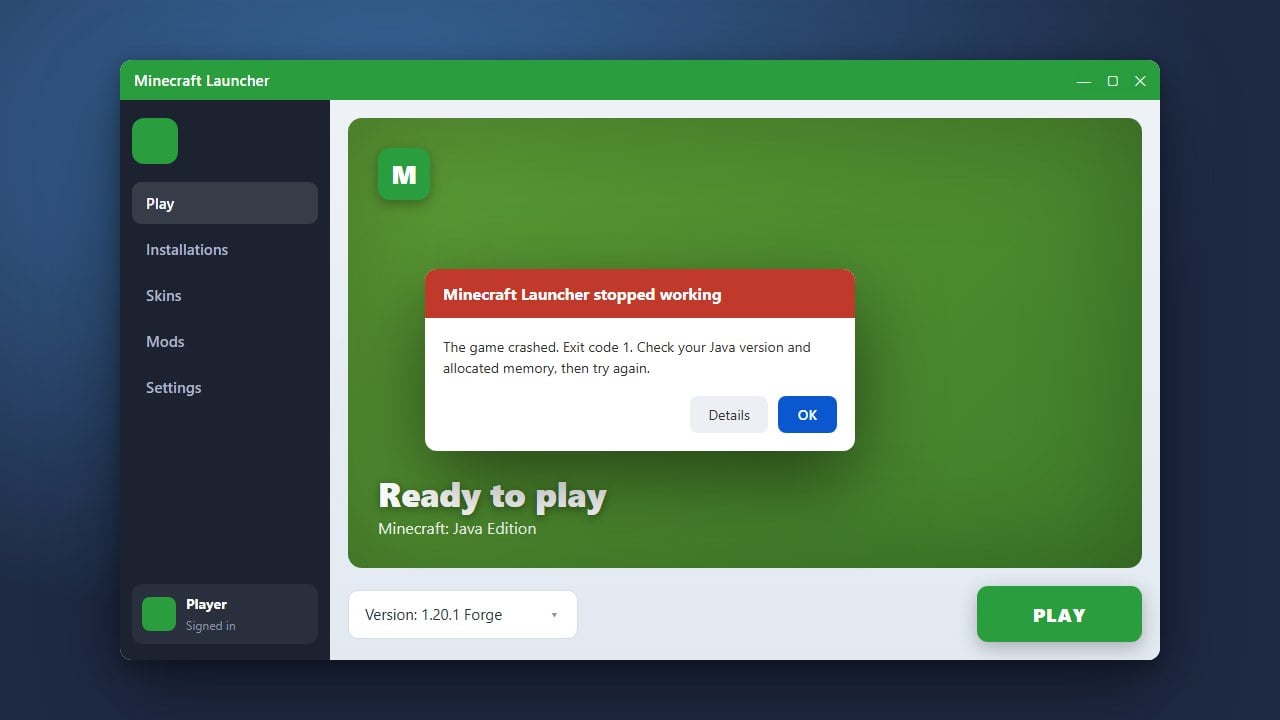
Minecraft Dungeons delivers action-packed dungeon crawling, but sudden desktop crashes or freezes during loading screens can quickly ruin your adventure. Whether your game crashes on startup or randomly exits mid-mission, this guide covers the most reliable solutions to get your game running smoothly again.
Never delete the Characters folder inside %localappdata%\Dungeons\Saved, as it holds your offline hero progression and inventory data.
Console players on Nintendo Switch, Xbox, or PlayStation should perform a full power cycle by holding down the power button for 10 seconds to clear cached system memory.
Verify and Repair Game Files
Corrupted or missing installation files are the leading cause of crashes in Minecraft Dungeons. If you play on Steam, right-click Minecraft Dungeons in your Library, select Properties, navigate to the Installed Files tab, and click Verify integrity of game files.
If you use the Windows Xbox App, locate the game in your library, click the three dots (...) next to the play button, select Manage, go to Files, and choose Verify and Repair.
Update Your Graphics Drivers
Minecraft Dungeons runs on Unreal Engine, which requires stable display drivers to prevent fatal rendering crashes. Visit the official website for your graphics manufacturer (NVIDIA, AMD, or Intel) and download the latest driver package for your GPU. Performing a clean installation can also resolve compatibility issues that trigger Minecraft Dungeons white screen errors.
Disable Conflicting Overlays
Third-party in-game overlays can hook into the game's DirectX rendering pipeline and force an unexpected crash. Disable background overlays inside applications like Discord, GeForce Experience, Steam, and RivaTuner Statistics Server before launching the game.
In Discord, open User Settings, click Game Overlay in the left sidebar, and toggle off Enable in-game overlay to eliminate performance conflicts.
Reset Local Configuration Files
Corrupted configuration or shader cache files stored in your Windows profile can cause the game to crash right after the opening logos. Press Win + R, type %localappdata%\Dungeons into the Run box, and press Enter.
Open the Saved folder and locate the Config directory. Rename this folder to Config_Backup and launch the game. Minecraft Dungeons will generate clean default settings, which also resolves instances where Minecraft Dungeons is not loading.
Install Visual C++ and DirectX Runtimes
Minecraft Dungeons depends on Microsoft Visual C++ Redistributable packages and DirectX runtimes to execute game code properly. If these system components are missing or outdated, the game may crash silently straight to your desktop.
Download and install both the x86 and x64 versions of the latest Visual C++ Redistributable (2015–2022) directly from Microsoft's official support website, then restart your PC before starting the game.
Frequently Asked Questions
Why does Minecraft Dungeons crash right on startup?
Startup crashes are commonly caused by outdated graphics drivers, conflicting software overlays like Discord, or damaged configuration files inside your local app data folder.
Will reinstalling Minecraft Dungeons delete my characters?
If cloud saves are enabled with your Microsoft account, your hero progression is safely synced online. However, PC players can safely create a manual backup of their Saved folder before reinstalling to prevent accidental data loss.