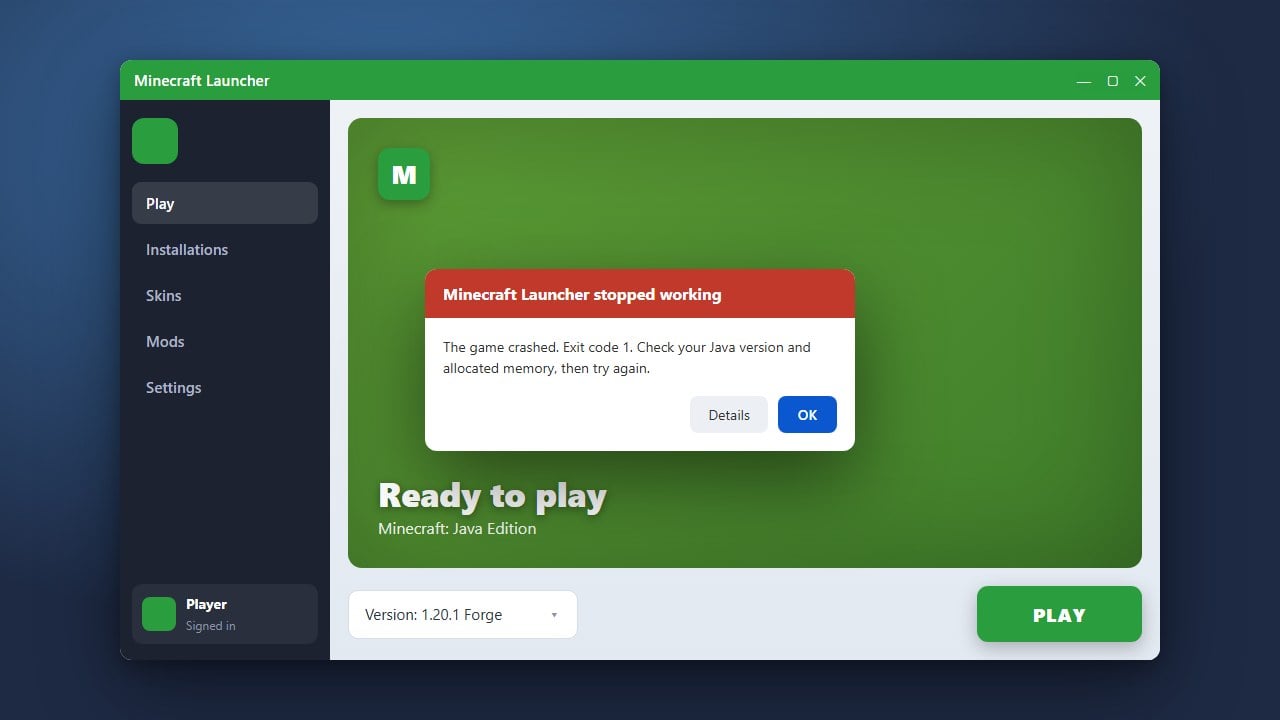
Few things are more frustrating than Minecraft abruptly crashing on startup or shutting down automatically without warning. Whether caused by conflicting mods, outdated graphics drivers, or corrupted configuration files, this guide walks you through the best methods to stop the auto-crash problem on both Java Edition and Bedrock Edition.
saves folder in Java or export your worlds in Bedrock before deleting files or reinstalling the game.crash-reports folder inside your .minecraft directory for detailed text logs that state the exact line of code that triggered the shutdown.Update Your Graphics Card Drivers
Outdated or corrupt GPU drivers are the most frequent cause of sudden auto crashes when Minecraft initializes its rendering engine. Open the companion software for your graphics card—such as NVIDIA GeForce Experience or the NVIDIA App, AMD Software, or Intel Arc Control—and check for the latest drivers.
After completing the driver installation, restart your computer completely before launching Minecraft again to ensure the display stack reloads cleanly.
Isolate Conflicting Mods and Add-ons
If you run Java Edition with Fabric, Forge, or NeoForge, an incompatible or outdated mod can trigger an immediate crash right after hitting Play. Temporarily move the contents of your .minecraft/mods folder to a backup folder on your desktop, then launch the game. If it starts normally, read our guide on how to fix Minecraft crashing with mods to isolate the broken file.
On Bedrock Edition, navigate to Settings > Global Resources and deactivate third-party resource packs or behavioral add-ons that may have broken after recent game updates.
Adjust Allocated Memory
Minecraft Java Edition can close itself without warning if it runs out of memory or if excessive RAM causes Java garbage collection pauses. In the official Minecraft Launcher, open the Installations tab, click the three dots next to your profile, select Edit, and click More Options.
Locate the JVM Arguments line and adjust the memory limit parameter—for instance, changing -Xmx2G to -Xmx4G. For optimal values, check out our guide on how to allocate more RAM to Minecraft.
Reset Corrupted Options and Settings
A corrupted configuration file can force the game engine to crash the moment the title screen tries to load. On Java Edition, press Windows Key + R, type %appdata%\.minecraft, and press Enter. Locate the options.txt file and rename it to options.txt.bak so the game builds fresh default settings on next launch.
On Windows Bedrock Edition, open Windows Settings > Apps > Installed apps, select Minecraft, click Advanced options, and choose Repair to fix corrupted local app data.
Repair or Update the Minecraft Launcher
Missing dependencies or outdated background services can cause both the launcher and the game process to terminate abruptly. Open the Microsoft Store, open your Library tab, and update both the Minecraft Launcher and Microsoft Gaming Services.
If the auto-crash continues across multiple profiles, follow our tutorial on how to fix Minecraft game crash to perform a clean reinstall while keeping your world saves safe.
Frequently Asked Questions
Why does Minecraft auto crash without showing an error code?
Sudden closures without an error screen typically happen when your graphics drivers stop responding, when your system runs out of physical memory, or when an aggressive antivirus program terminates the game process abruptly.
Can a high render distance cause automatic crashes?
Yes. Setting render or simulation distance beyond what your GPU and system RAM can accommodate can overload the rendering engine, causing the game to close automatically as soon as chunk loading begins.
Does updating Java fix auto crashes in Minecraft 1.21+?
The official Minecraft Launcher bundles its own tested Java runtime (Java 21 for 1.21+), so installing standalone Java rarely fixes crashes unless you use third-party launchers configured to use a custom Java path.