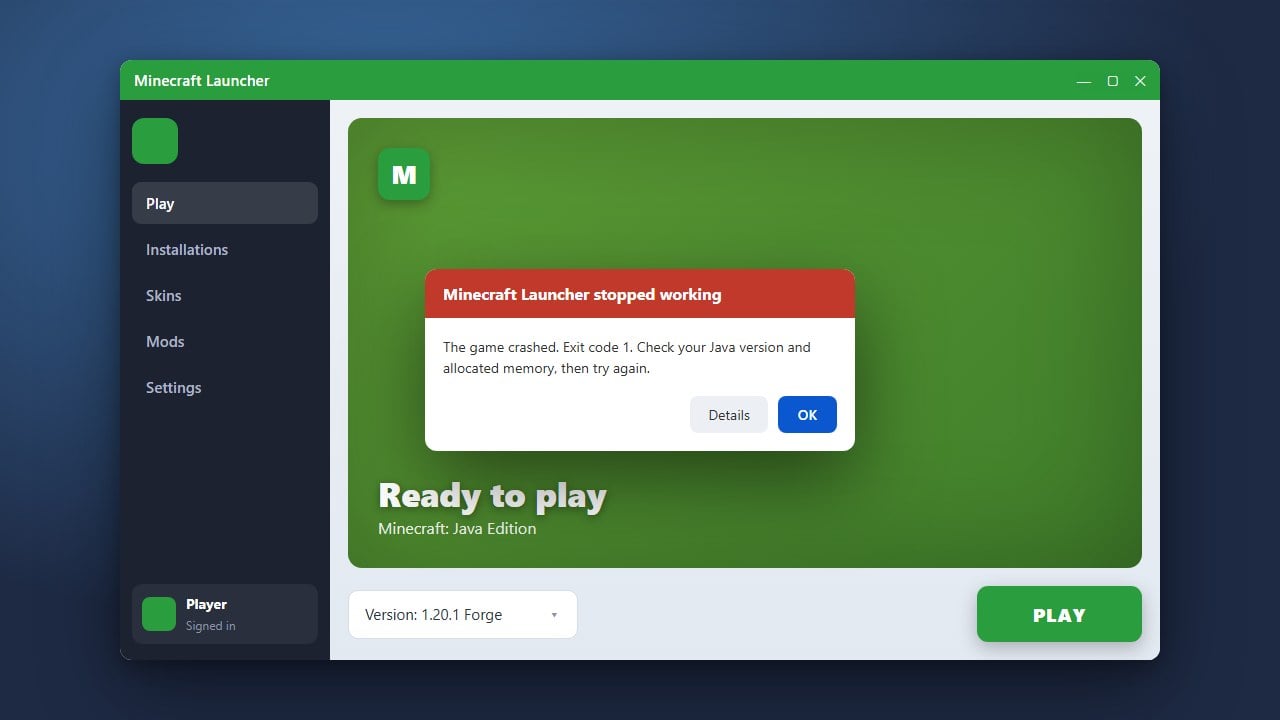
Clicking on Minecraft only to have nothing happen—or seeing the loading screen immediately vanish—is one of the most frustrating launch errors. Whether you are launching Bedrock Edition from the Windows Store, firing up the official Minecraft Launcher for Java Edition, or tapping the app icon on mobile, this guide covers the most reliable solutions to get your game opening normally again.
End Background Tasks and Restart
Sometimes Minecraft or its launcher is already running silently in the background, preventing a fresh instance from starting. On Windows, press Ctrl + Shift + Esc to open Task Manager, locate any instances of Minecraft, Minecraft Launcher, or Java(TM) Platform SE binary, right-click them, and select End task.
On Android or iOS devices, swipe up to access your recent apps list and swipe Minecraft off the screen to force close it. After closing any lingering tasks, restart your device and launch the app once more.
Repair and Reset the App in Windows Settings
If you are playing Bedrock Edition or using the Microsoft Store launcher on PC, built-in Windows repair tools can fix broken app data. Open Windows Settings, head to Apps > Installed apps, locate Minecraft (or Minecraft Launcher), click the three dots, and select Advanced options.
Scroll down and click Repair to scan and fix corrupted system files. If the game still refuses to load after repairing, review our guide on how to fix Minecraft Bedrock not opening on PC for platform-specific launch fixes.
Update Your Graphics Drivers
Both Java Edition and Bedrock Edition require up-to-date graphics drivers to initialize the display. Outdated, corrupted, or missing GPU drivers can cause the game window to fail silently before opening the main menu.
Open your GPU companion utility—such as NVIDIA GeForce Experience/App, AMD Software: Adrenalin Edition, or Intel Graphics Command Center—and install any pending display driver updates. Alternatively, visit your hardware manufacturer's official website to download the latest driver package manually, then restart your PC.
Remove Incompatible Mods and Test Default Settings
For Java Edition players, third-party mods, outdated mod loaders (like Fabric, NeoForge, or Forge), and custom JVM arguments frequently cause the launcher to close immediately on boot, often triggering an error such as Exit Code 1.
Press Windows Key + R, type %appdata%\.minecraft, and press Enter. Move your mods folder to your desktop temporarily, select an unmodified release installation (such as the latest release 1.21+), and launch the game to confirm whether mods are blocking startup.
Update the Microsoft Store and Gaming Services
On Windows PCs, authentication issues between the launcher and background licensing services can stop the app from opening. Open the Microsoft Store app, click Library in the bottom-left corner, and click Get updates to ensure that Gaming Services, the Xbox App, and the Minecraft Launcher are up to date.
If updates fail or hang, press Windows Key + R, type wsreset.exe, and press Enter. A blank Command Prompt window will appear for roughly 10–30 seconds to clear the store cache before closing itself automatically.
Perform a Clean Reinstallation
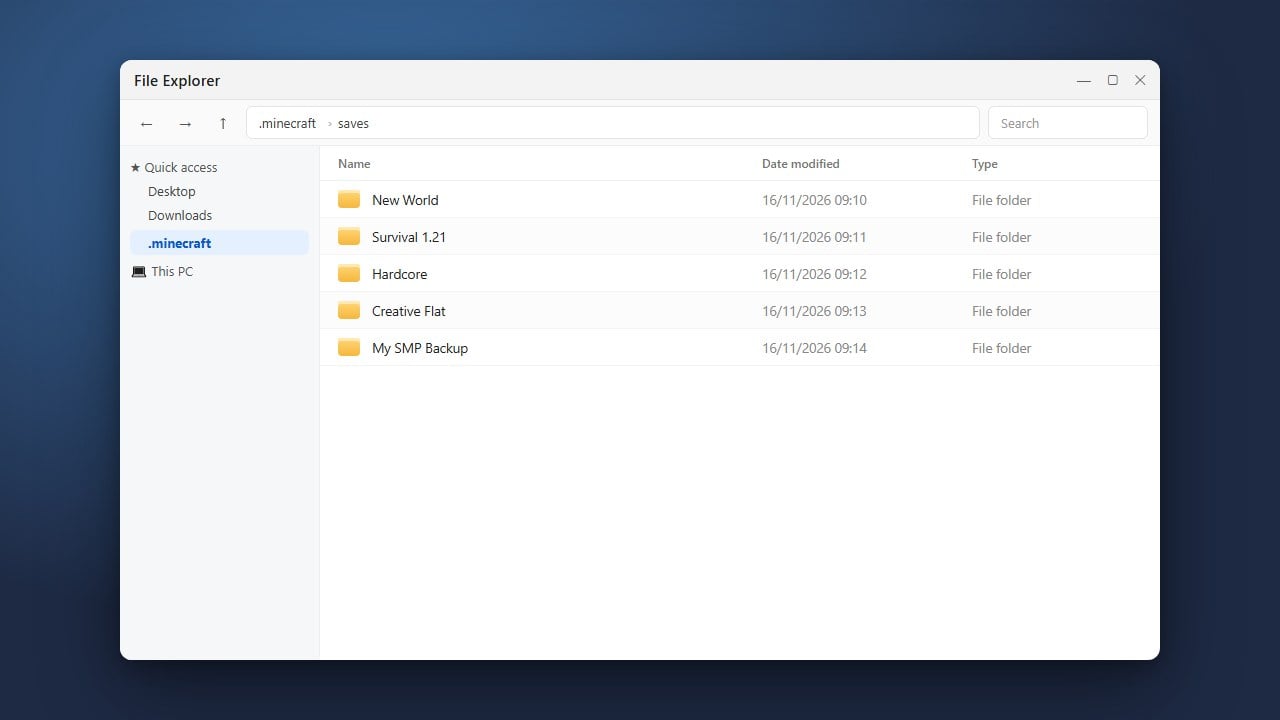
When files are missing or permanently corrupted, reinstalling the app provides a clean slate. Before uninstalling, always take a moment to back up your world files so you never lose your single-player builds.
Uninstall Minecraft via your platform's app manager, restart your computer or mobile device, and re-download the latest installer from the official Minecraft website or your platform store. For Windows users dealing with persistent launcher issues, the legacy "Minecraft Launcher for Windows 7/8" available from minecraft.net can often bypass Windows Store conflicts.
Frequently Asked Questions
Why does my Minecraft launcher close immediately after clicking Play?
This is commonly caused by an immediate runtime crash. Check your .minecraft/crash-reports folder to see the error log, which will indicate if a broken mod, incompatible shader, or missing display driver caused the startup failure.
How do I fix Minecraft not opening on an Android device?
Open your Android Settings > Apps > Minecraft > Storage, and tap Clear Cache. Ensure your phone has at least 1 GB of free internal storage and reboot the phone before attempting to launch again.
Can antivirus software prevent Minecraft from launching?
Yes. Aggressive third-party antivirus suites can flag the launcher's executable files or the Java runtime as false positives. Adding your Minecraft install directory to your antivirus exclusion list often resolves startup freezes.