Having trouble talking or listening to friends in Minecraft? Whether you are using simple proximity voice chat mods on Java Edition or built-in party chat features on Bedrock Edition, audio issues can ruin the multiplayer experience. Follow this straightforward guide to get your voice chat working perfectly.
Check Your Audio Input and Output Devices
Open your operating system's sound settings and make sure your preferred microphone and headphones or speakers are set as the default devices. If your microphone is muted physically or via a cable switch, no sound will transmit into the game.
If you are experiencing connection drops alongside your audio troubles while playing on servers, you might want to check out How to Fix Connection Timed Out to ensure your network isn't interfering.
Verify In-Game Voice Chat Settings
Navigate to your Minecraft audio or mod settings menu. Ensure that voice chat is enabled, the correct microphone device is selected from the dropdown list, and your input volume is turned up high enough.
Check your push-to-talk keybind as well. If push-to-talk is enabled, you must hold down that specific key whenever you speak, or others will only hear silence.
Check Microphone Permissions
On Windows, go to your privacy settings and ensure that desktop apps are allowed to access your microphone. On consoles or mobile devices (Bedrock Edition), verify through system settings that Minecraft has explicit permission to use your mic.
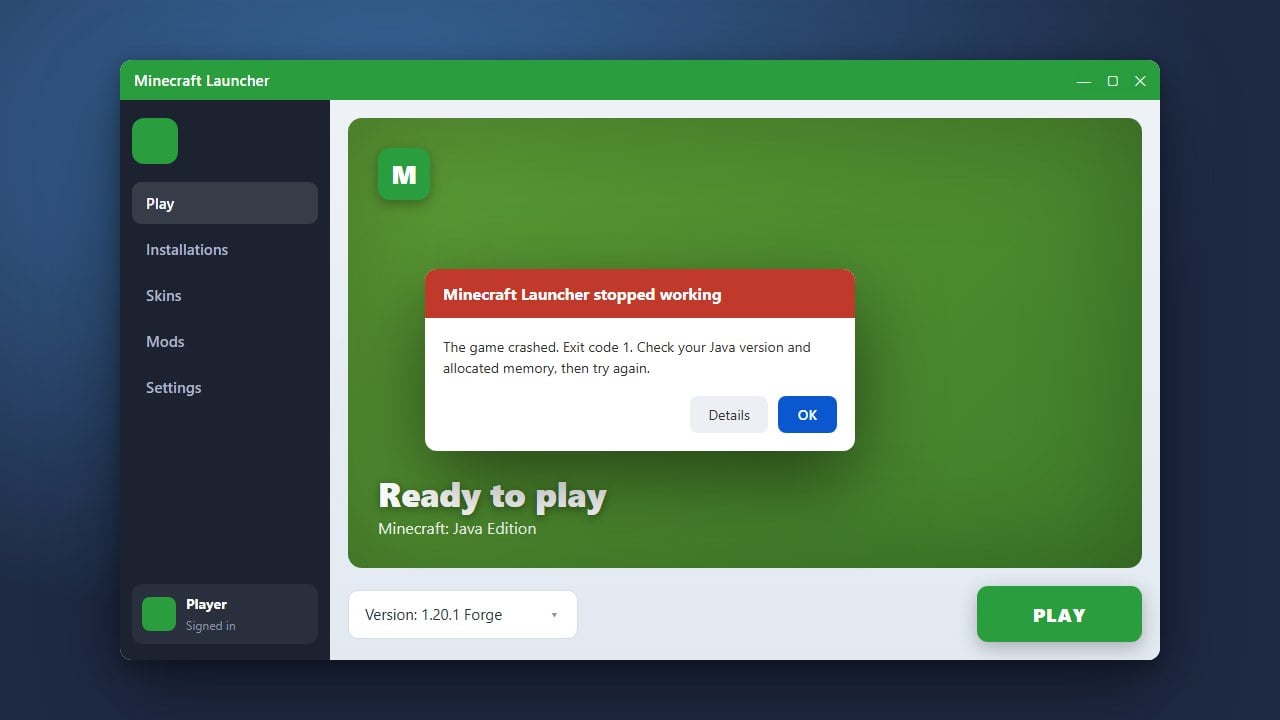
If your game is acting up or failing to launch properly while trying to troubleshoot audio mods or configurations, consult How to Fix Minecraft Crashing for quick stability fixes.
Update or Reinstall Voice Chat Mods
For Java Edition players using popular voice chat mods like Simple Voice Chat, ensure that your mod version matches your exact Minecraft version and server version. Outdated client-side mods will frequently fail to connect to the voice server.
Delete the old mod jar file from your mods folder, download the latest compatible release from a trusted source, and restart your game client completely.
Test Your Network and Firewall Settings
Voice chat relies on specific UDP ports to stream audio between players. If your router or third-party antivirus firewall is blocking these ports, you might see connection errors within your voice chat interface.
Try temporarily disabling strict firewall rules or whitelisting your Minecraft application to see if your voice connection stabilizes.
Frequently Asked Questions
Why can I hear other players, but they cannot hear me?
This usually happens because the wrong microphone is selected in your settings, your microphone is muted, or your push-to-talk key is not being pressed. Double-check your OS and in-game audio input devices.
Do I need mods for voice chat in Minecraft Java Edition?
Yes. Vanilla Java Edition does not include built-in proximity voice chat. You will need to install a client-and-server-side mod (such as Simple Voice Chat) to enable talking with other players.
Does Bedrock Edition have built-in voice chat?
Bedrock Edition supports party chat and platform-specific voice features (like Xbox Live parties or PlayStation chat), but proximity voice chat typically requires specific server-side add-ons or external apps.