High ping in Minecraft can cause frustrating delays, blocks reappearing after being mined, and rubberbanding. Whether you are playing on Java Edition 1.21+ or Bedrock Edition, this guide will walk you through troubleshooting steps to lower your latency and enjoy a smooth multiplayer experience.
If you also notice stuttering or low frame rates during gameplay, you may want to read How to Fix Minecraft Bedrock Lag for client-side performance tips.
Check Your Physical Connection
Wi-Fi interference and weak wireless signals are leading causes of high ping. Whenever possible, switch from a wireless connection to a wired Ethernet cable to ensure a stable data transmission between your device and your router.
If you must use Wi-Fi, move closer to your router, disconnect other bandwidth-heavy devices on your network, and switch to a 5GHz band if available.
Close Background Network Applications
Applications running in the background—such as video streaming services, torrent clients, large file downloads, or cloud backups—can hog your internet bandwidth and spike your ping. Open your task manager to close unnecessary apps before launching Minecraft.
If you experience persistent server slowdowns alongside your ping issues, you might want to check out our guide on How to Fix Minecraft Server Lag to see if the host server itself is struggling.
Choose a Geographically Closer Server
Data has to travel across physical distances. If you connect to a server hosted on another continent, your ping will naturally be high due to the time it takes packets to travel across oceans.
Try joining multiplayer servers that are hosted closer to your actual geographical region to achieve the lowest possible latency and response times.
Flush Your DNS and Restart Your Router
Temporary network routing issues can be cleared by performing a simple power cycle on your networking hardware. Unplug your modem and router, wait about 30 seconds, and plug them back in.
Additionally, Windows users can flush their DNS cache by opening the Command Prompt and typing ipconfig /flushdns before hitting Enter, which refreshes your connection routes.
Update Your Network Drivers
Outdated or corrupted network adapter drivers on your PC can cause inefficient packet handling and high latency. Head to your device manager, locate your network adapters, right-click your Ethernet or Wi-Fi controller, and select update driver.
Keeping your operating system and network components fully updated ensures optimal performance when sending and receiving game data.
Frequently Asked Questions
What is considered a good ping in Minecraft?
A ping under 50 milliseconds (ms) is considered excellent. Anything between 50ms and 100ms is generally playable. Once your ping rises above 150ms to 200ms, you will likely notice significant delays and rubberbanding.
Does allocating more RAM fix high ping?
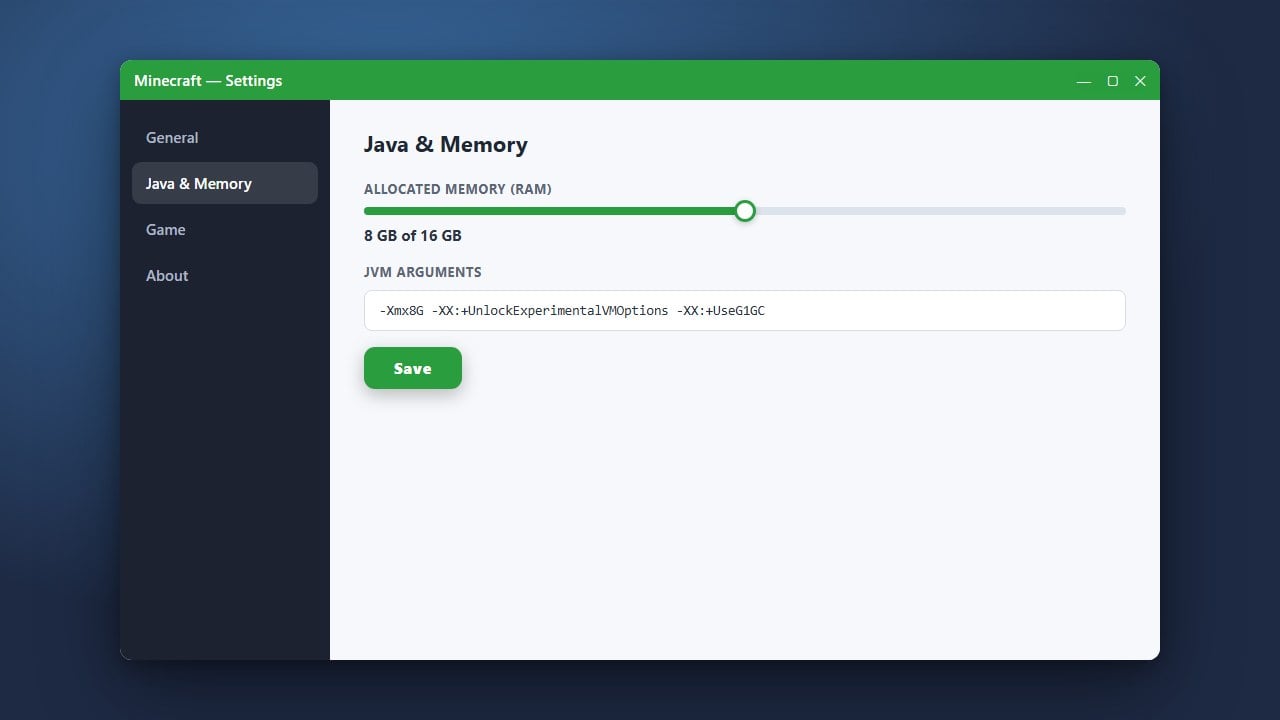
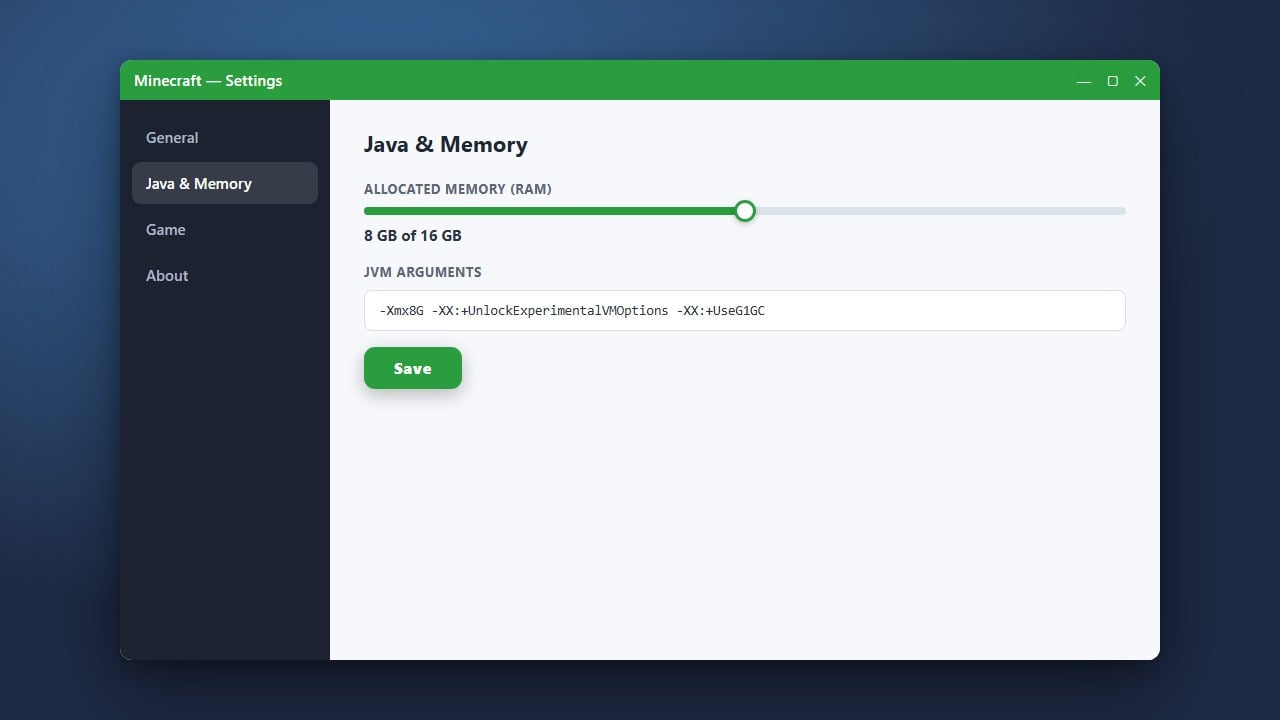
No. Allocating more RAM helps resolve stuttering, out-of-memory crashes, and low frame rates caused by hardware limitations, but ping is purely a measure of network latency between you and the server.