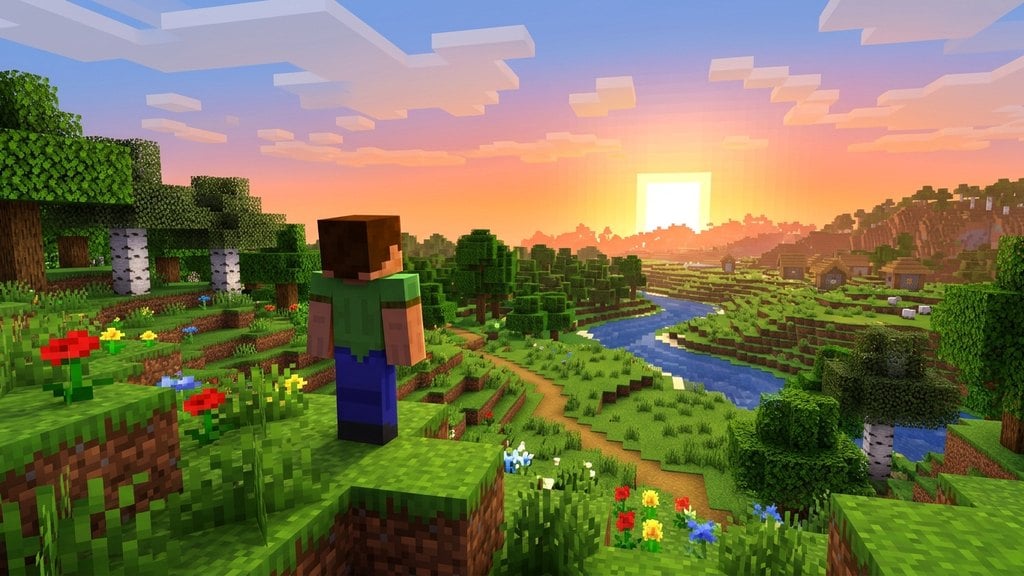
Playing Minecraft in virtual reality puts you directly inside your blocky worlds at true human scale, looking towering Endermen in the eye and swinging tools with your own hands. Whether you are running Java Edition using the popular Vivecraft mod or playing Bedrock Edition on PC via OpenXR, setting up VR takes only a few minutes once your headset is connected.
Prepare Your VR Headset and PC Connection
Ensure your VR headset (such as a Meta Quest 2/3/Pro, Valve Index, or HTC Vive) is properly connected to your PC. If you use a Meta Quest, connect to your PC using a Quest Link cable or wirelessly via Air Link / Steam Link, then confirm your headset is recognized inside the Oculus or SteamVR desktop software.
Install Vivecraft for Java Edition
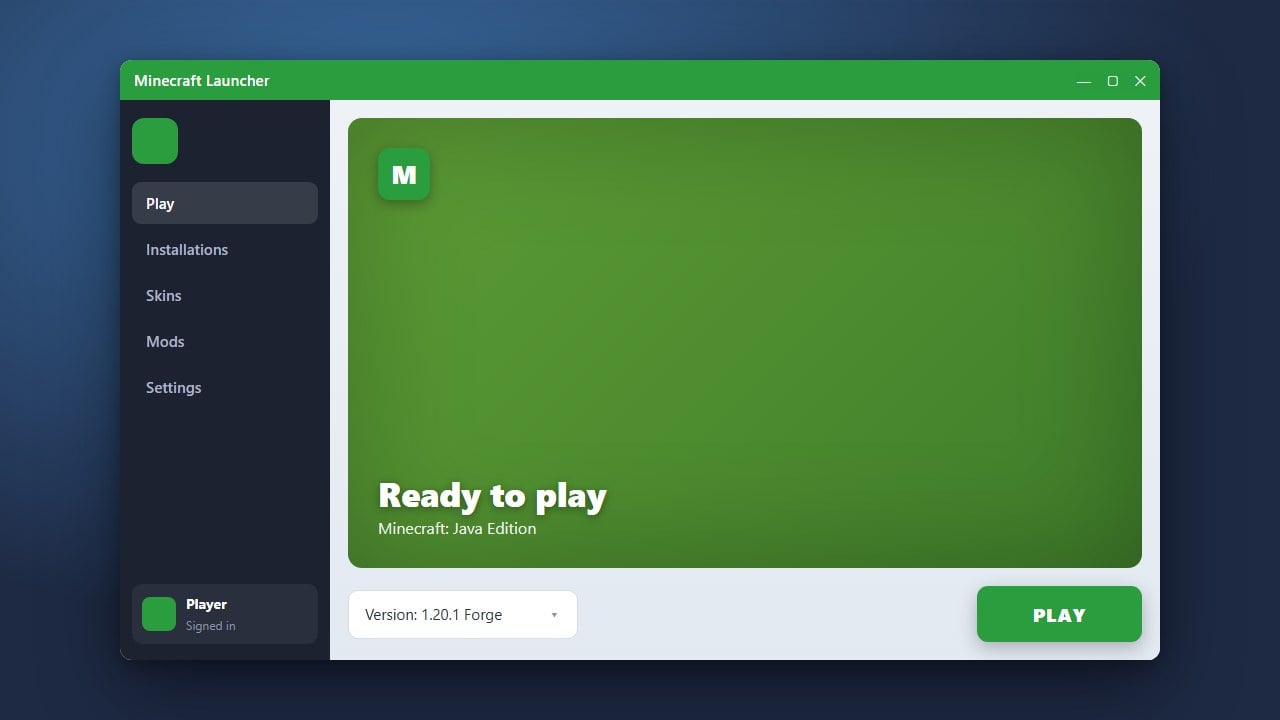
Java Edition provides the most immersive VR experience through the free, community-standard Vivecraft mod. Download the Vivecraft installer from the official Vivecraft website for your current Minecraft version. Run the installer to generate a dedicated Vivecraft profile in the standard Minecraft Launcher, or add the Vivecraft mod file to a Fabric profile if you already use mod loaders (see our guide on Forge vs Fabric).
Launch Bedrock Edition in VR
In Bedrock Edition on Windows, VR runs through OpenXR. Make sure your headset runtime is set as the active OpenXR runtime in your headset desktop software. You can launch Bedrock VR by pressing Windows Key + R on your keyboard, typing minecraft://Mode/?OpenXR=true, and pressing Enter while your headset is active.
Configure Comfort and Locomotion Settings
VR can cause motion sickness if your settings are not tailored to your tolerance. Open the in-game VR options menu before heading into a world. Choose between Teleportation (jumping from spot to spot) or Smooth Locomotion (walking with your controller thumbstick). You can also enable Snap Turning and a movement vignette to reduce nausea.
Create a World and Test the Controls
Once in the main menu, load into an existing save or follow our tutorial on how to create your first world. Use your primary hand controller trigger to swing tools or punch blocks, your off-hand trigger to place blocks or interact, and the grip buttons to grab or open your inventory. You can customize button assignments anytime through your control menu, just like adjusting your setup in our guide on how to change your keybinds.
Frequently Asked Questions
Can I play Minecraft VR with friends on normal PC monitors?
Yes! On Java Edition with Vivecraft, you can join standard vanilla multiplayer servers, and non-VR players will see your character move normally. Bedrock Edition VR also supports complete cross-play with players on consoles, mobile devices, and standard PCs.
Can I play Minecraft VR directly on Meta Quest without a PC?
There is no official standalone Quest app on the Meta Horizon Store. However, Quest owners can sideload QuestCraft, a community-driven standalone port of Java Edition Vivecraft that runs directly on Meta Quest headsets without requiring a PC.