Playing Minecraft Java Edition with friends turns a quiet survival adventure into an unforgettable group experience. Because Java Edition does not use a universal friend-invite menu like console editions, you have several reliable ways to connect: local LAN play for the same household, joining established multiplayer servers, inviting players to a Minecraft Realm, or hosting a custom server.
If local friends cannot see your LAN world, check Windows Defender Firewall or your antivirus software. Ensure Java(TM) Platform SE binary is allowed through both private and public networks.
Never publish your personal home IP address on public forums or social media when hosting a local server; only share your connection details with friends you trust.
Match Your Minecraft Java Versions
Before trying to connect, confirm that everyone is running the exact same version of Minecraft Java Edition (such as 1.21). Java servers and LAN sessions will reject connections if client versions mismatch.
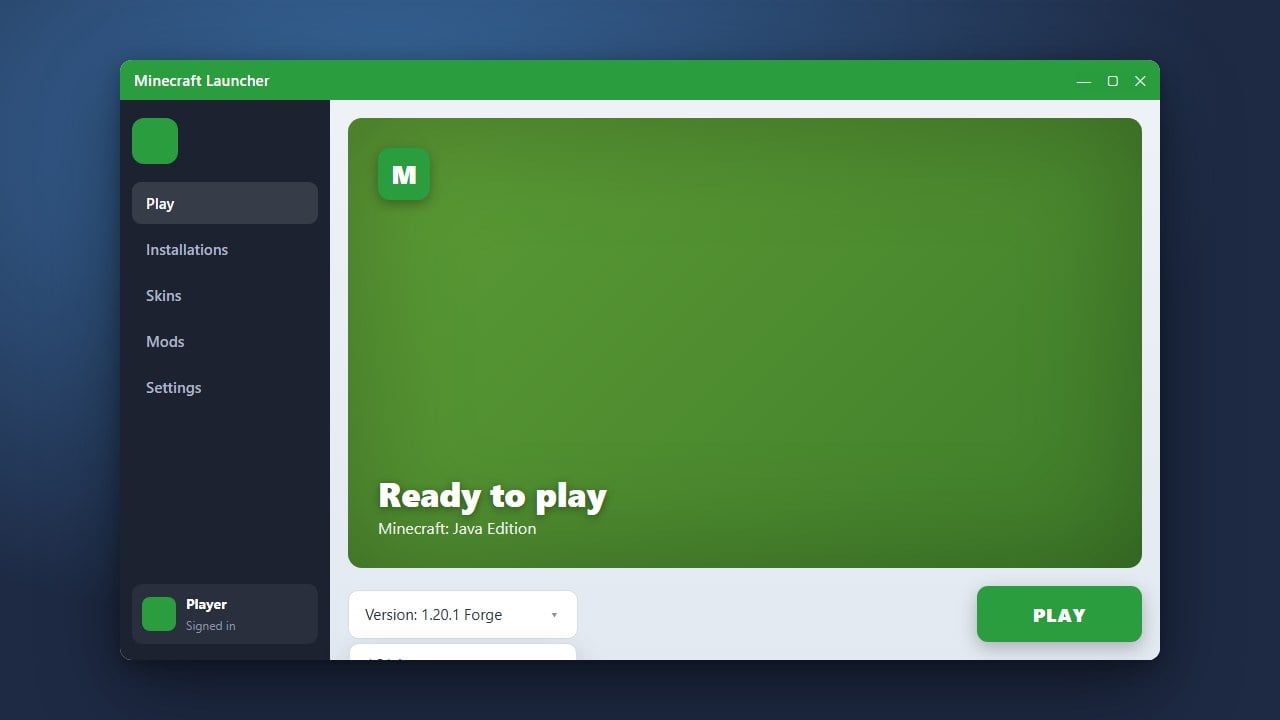
To change versions, open the Minecraft Launcher, select Minecraft: Java Edition, open the Installations tab, and choose or create an installation running the matching version.
Use LAN Play for Friends on the Same Network
If you and your friends share the same Wi-Fi or local router, LAN is the fastest setup. The host opens an existing single-player world, presses Esc to view the Game Menu, and clicks Open to LAN.
Select your default game mode and whether cheats are allowed, then click Start LAN World. Other players can find this game by opening Multiplayer and scrolling to the bottom of their server list. For more troubleshooting, see our guide on How to Set Up a LAN World.
Join an Online Multiplayer Server
If you and your friends live in different locations, joining an existing public or private server is the simplest remote option. One player selects a reputable server, or rents a hosted private server, and shares its IP address with the group.
From the main menu, click Multiplayer, click Add Server, enter a friendly name along with the server address in the Server Address box, and click Done. Double-click the server entry to jump in together. Read more details in our guide on How to Join a Server.
Invite Friends to a Minecraft Realm
Minecraft Realms is Mojang's official paid hosting service, perfect for up to 10 simultaneous players who want an always-online survival world without handling technical network settings.
The realm owner clicks Minecraft Realms from the main menu, creates a world, and selects Configure Realm. From the Players tab, click the + button and enter your friends' Java usernames. Invited players simply click the envelope icon at the top of their Realms screen to accept and join.
Host a Free Dedicated Java Server
If you want full control over server settings, mods, or plugins without a paid subscription, you can run the official server software on your own computer or through a free hosting service.
When running a server on your home PC, you will need to open TCP port 25565 in your router's port-forwarding settings so remote friends can connect using your public IP address. Follow our complete tutorial on How to Make a Minecraft Server to configure everything safely.
Frequently Asked Questions
Can Minecraft Java players play with Bedrock Edition friends?
Standard Java and Bedrock worlds are not cross-compatible because they run on different engines. However, third-party Java servers running plugin software like GeyserMC can translate packets, allowing Bedrock players on mobile, consoles, or Windows to join a Java server.
Do all players need to pay for Minecraft Realms?
No. Only the host needs an active Minecraft Realms subscription. Up to 10 invited friends can join and play on that Realm completely free of charge.
Does playing over LAN require an active internet connection?
You do not need a high-speed internet connection for LAN play, but all devices must be connected to the same local network router via Wi-Fi or Ethernet cables.