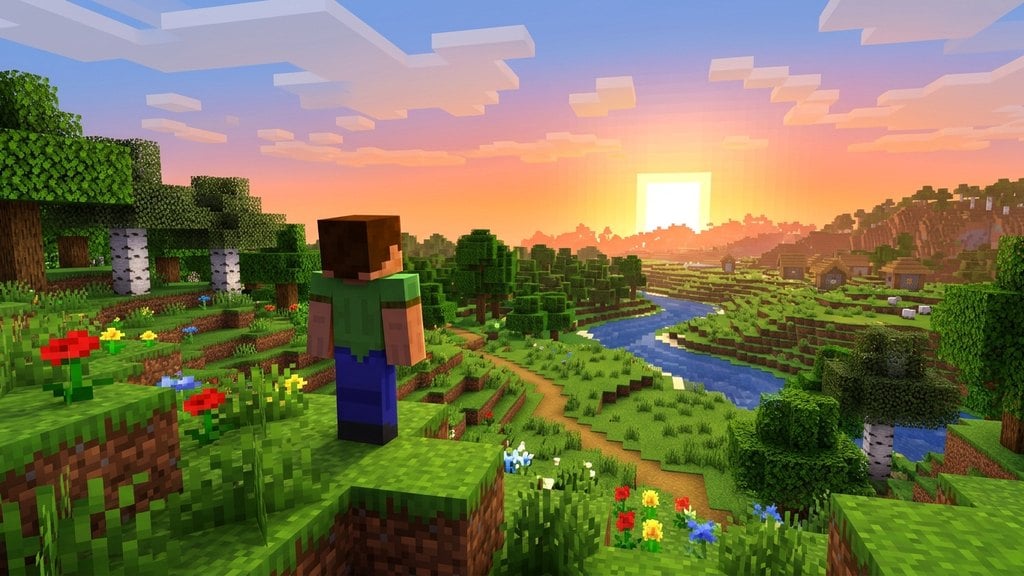
Playing Minecraft on a PC offers the ultimate sandbox experience, giving you access to responsive keyboard and mouse controls, customizable settings, and both major editions of the game. Whether you plan to build grand structures or survive your first night, getting started on PC is simple and straightforward.
F3 to open the debug screen, which reveals your exact XYZ coordinates, current biome, and system performance stats.Install the Minecraft Launcher
Head to the official Minecraft website or open the Microsoft Store on Windows 10 or 11 to download the unified Minecraft Launcher. Once installed, open the launcher and sign in using your Microsoft account.
Purchasing Minecraft on PC grants you the bundle containing both Java Edition and Bedrock Edition (labeled as Minecraft for Windows).
Select your edition and launch the game
On the left sidebar of the launcher, choose whether you want to play Minecraft: Java Edition or Minecraft for Windows (Bedrock). Click the green Play button to download the latest files and boot up the title screen.
If you plan to use mods or play on custom Java servers, pick Java Edition. If you want native cross-platform multiplayer with console or mobile friends, pick Bedrock Edition.
Start a new singleplayer world
From the main menu, click Singleplayer (in Java) or Play (in Bedrock), then choose to create a new world. Select your preferred game mode—such as Survival for the full progression experience or Creative for unlimited resources.
For a detailed walkthrough on seed options and custom world generation, check our guide on how to create your first world.
Learn the standard movement controls
Movement on PC uses standard PC gaming controls. Use W to move forward, A to move left, S to move backward, and D to move right. Press Spacebar to jump, and aim your view using your mouse.
To move faster across terrain, learn how to sprint by double-tapping W or pressing Left Control while walking forward.
Interact with the world using your mouse
Your mouse controls all physical interactions in the game world. Hold down Left Click to hit mobs or mine blocks. Click Right Click to place blocks, use tools, eat food, or interact with objects like doors and chests.
If the default mouse or keyboard setup feels uncomfortable, you can always learn how to change your keybinds in the in-game Options menu.
Navigate your hotbar and inventory
Press the number keys 1 through 9 or scroll your mouse wheel to switch between items in your bottom hotbar. Press E to open your full inventory screen, where you can equip gear, manage gathered loot, and craft basic recipes.
Press Q while holding an item to drop it, or press Esc at any point to pause the game and access options.
Frequently Asked Questions
Do I have to buy Java Edition and Bedrock Edition separately on PC?
No. When you purchase Minecraft on PC, you receive both Java Edition and Bedrock Edition under the same Microsoft account license.
How do I pause the game on PC?
Press the Esc key to open the game menu. In Java Edition singleplayer, this completely pauses the game. In Bedrock Edition or any multiplayer world, the world continues running in the background while the menu is open.