Keeping Minecraft up to date ensures you have access to the newest features, gameplay improvements, and important bug fixes. Depending on whether you play on Java Edition or Bedrock Edition, the updating process varies slightly. Before you begin, it is also smart to review How to Back Up Your World to protect your builds.
1. Check Your Current Version
Before updating, you should confirm your current game version so you know whether an update is actually available. You can easily verify this by checking How to Check Your Version on the main menu.
2. Update Minecraft Java Edition
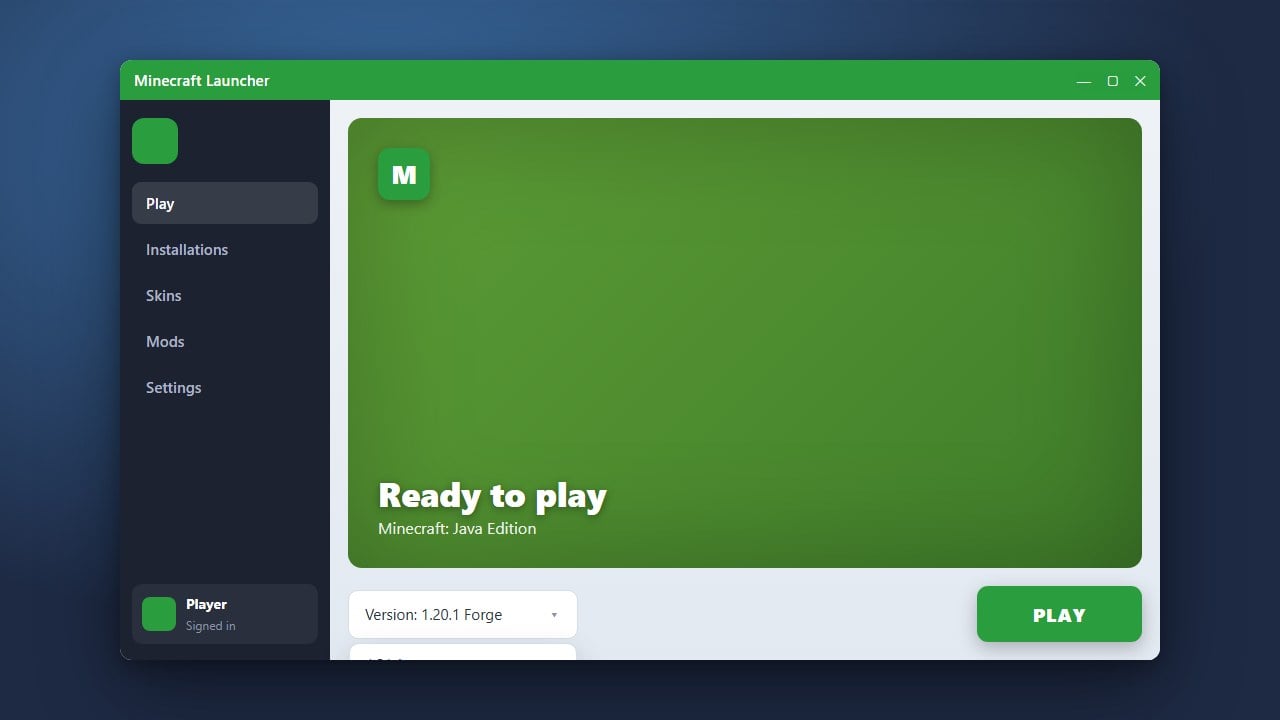
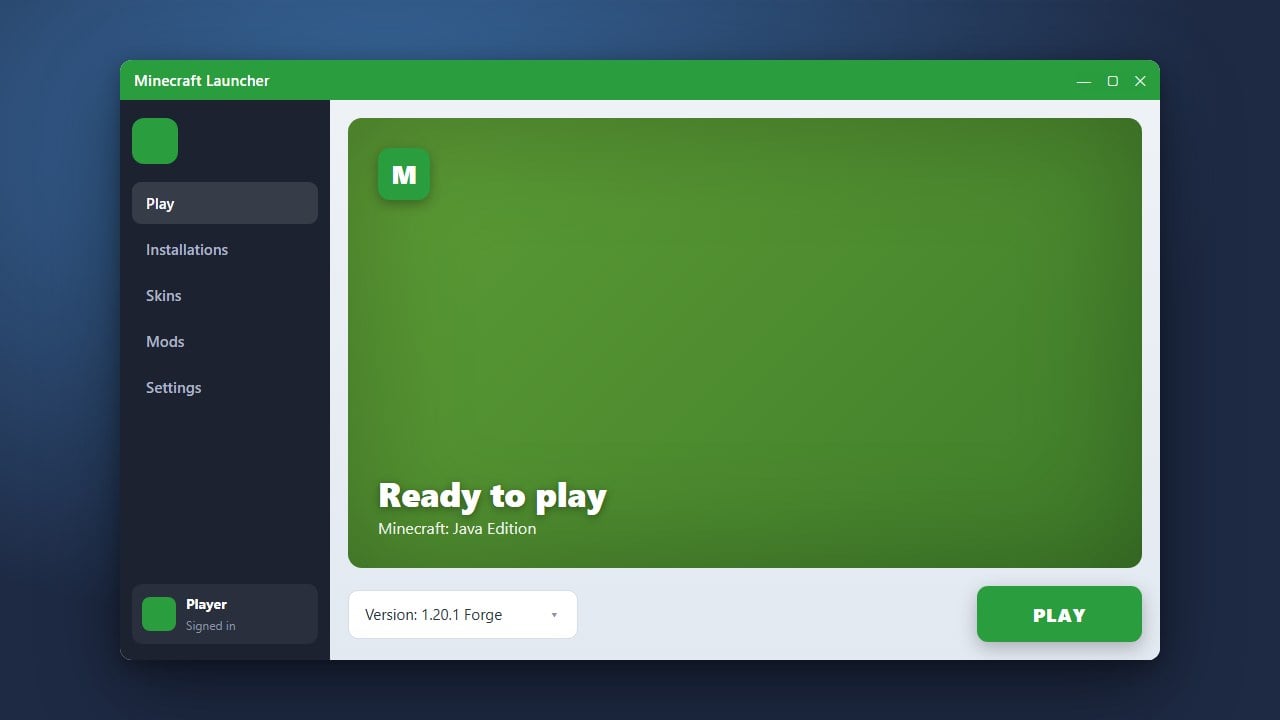
If you play Java Edition on a PC, open the official Minecraft Launcher. Navigate to the Installations tab at the top or simply click the Latest Release tab on the main Play screen. If an update is ready, the green "Play" button will change to an "Update" button, or you can create a new installation using the latest release.
3. Update Minecraft Bedrock Edition
If you play Bedrock Edition on Windows, Xbox, PlayStation, Nintendo Switch, or mobile devices, updates are managed directly through your device's app store. Open the Microsoft Store, Google Play Store, Apple App Store, or your console's game library, search for Minecraft, and select the option to update the game.
4. Verify the Installation
Once the download and installation finish, launch the game and check the title screen or debug menu to confirm that the new version number is displayed correctly. You are now ready to jump back into your favorite worlds with all the latest content!
Frequently Asked Questions
Do I have to pay to update Minecraft?
No, all official game updates and major version releases for Minecraft are completely free for existing owners on all supported platforms.
Why is my game not showing the latest update?
If you don't see the update, try restarting your launcher, device, or app store. Sometimes it takes a few moments for the update rollout to reach your specific device or region.