Playing Minecraft on macOS is straightforward and delivers great performance on both Intel and Apple Silicon machines. While Minecraft: Java Edition is the primary native version for Mac, setting up your controls and display settings properly ensures the best possible experience. Here is how to install the launcher, tune your Mac settings, and jump into your first world.
Purchasing Minecraft grants access to both Java and Bedrock Editions, but only Minecraft: Java Edition runs natively on macOS. Bedrock Edition is designed for Windows, consoles, and mobile devices.
On modern Apple Silicon Macs (M1, M2, M3, and M4), the official launcher automatically uses a native ARM64 Java runtime, providing fast loading times and long battery life.
Download the Official macOS Launcher
Open your browser and visit the official Minecraft website to download the macOS game installer. The file downloads as a standard .dmg disk image compatible with macOS.
Install and Log In to the Game
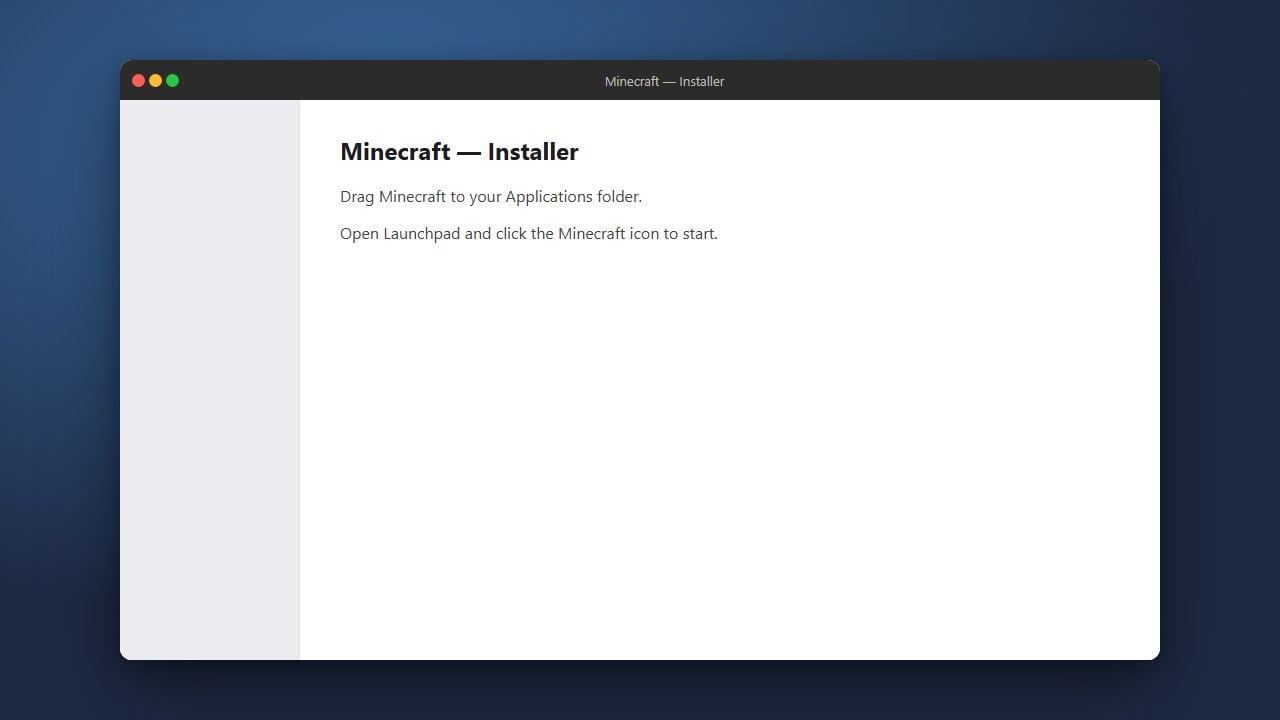
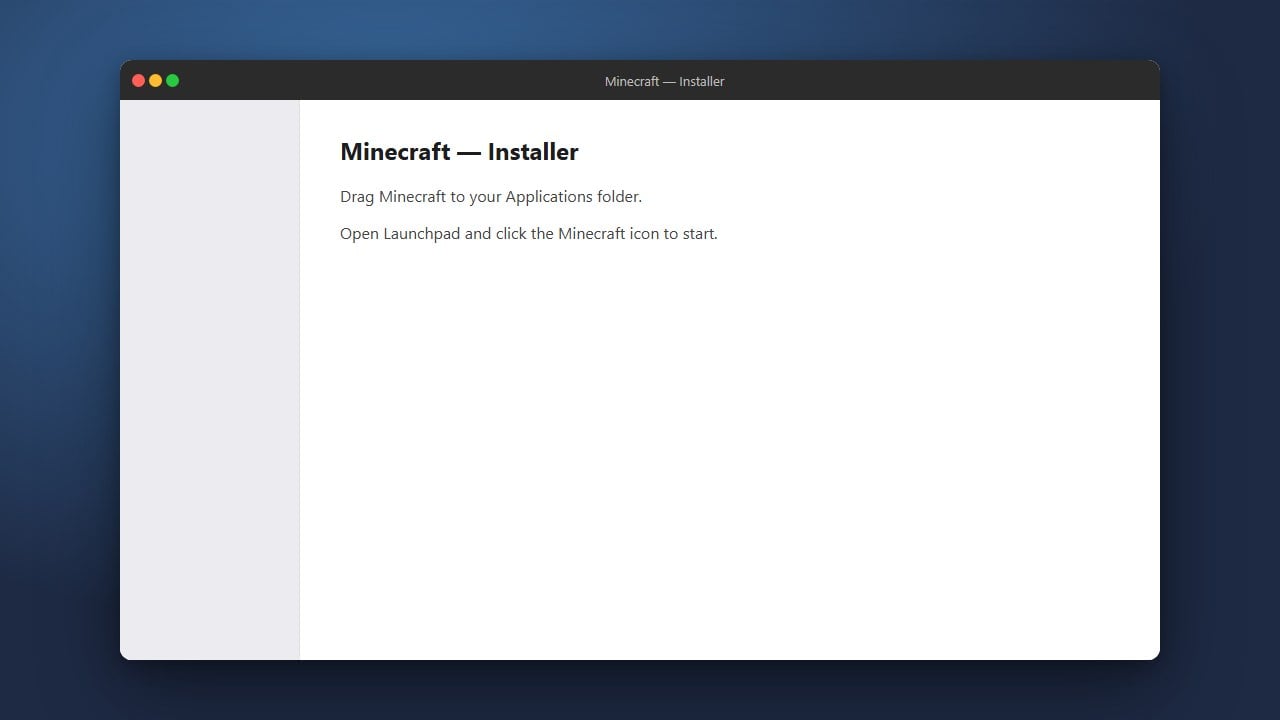
Double-click the downloaded .dmg file, then drag the Minecraft icon into your Mac's Applications folder. Open Minecraft from Applications or Launchpad, grant system permissions if prompted, and sign in using your Microsoft account.
Configure Your Mouse and Trackpad
Minecraft requires right-clicking to place blocks and interact with items. Open macOS System Settings, select Trackpad (or Mouse), and make sure Secondary Click is enabled. Using an external two-button mouse is strongly recommended over a trackpad for comfortable gameplay.
Adjust macOS Function Key Settings
Essential Minecraft features rely on function keys, such as F3 for the debug overlay and F5 for changing perspectives. In macOS System Settings > Keyboard > Keyboard Shortcuts > Function Keys, enable the option to use F1, F2, etc., as standard function keys so you do not have to hold Fn each time. You can also visit our guide on How to Change Your Keybinds to remap actions to your preferred keys.
Optimize In-Game Video Settings
Once the launcher opens Java Edition, select Options and click Video Settings. Because Mac Retina screens use very high native resolutions, lowering your fullscreen resolution slightly or setting your render distance to 10–14 chunks ensures consistently smooth frame rates.
Create Your First World
Select Singleplayer from the main menu, click Create New World, choose your preferred game mode, and start exploring. Check out How to Create Your First World for a complete walkthrough of world settings. If you want to connect with friends playing on consoles, check our guide on How to Play Minecraft Bedrock on Mac.
Frequently Asked Questions
Can you play Minecraft Bedrock Edition directly on Mac?
No, there is no official native Bedrock Edition app for macOS. Mac players run Java Edition natively. Playing Bedrock requires third-party tools, Android emulation, or cloud streaming services.
Why does my F3 screen not work on Mac?
Mac keyboards treat function keys as media keys by default. Hold the Fn key while pressing F3, or change your settings under macOS System Settings > Keyboard > Function Keys to use standard function keys.
Can Mac players join Windows PC players?
Yes. Mac players on Java Edition can play seamlessly with Windows and Linux players running Java Edition on any standard Java multiplayer server or Realm.