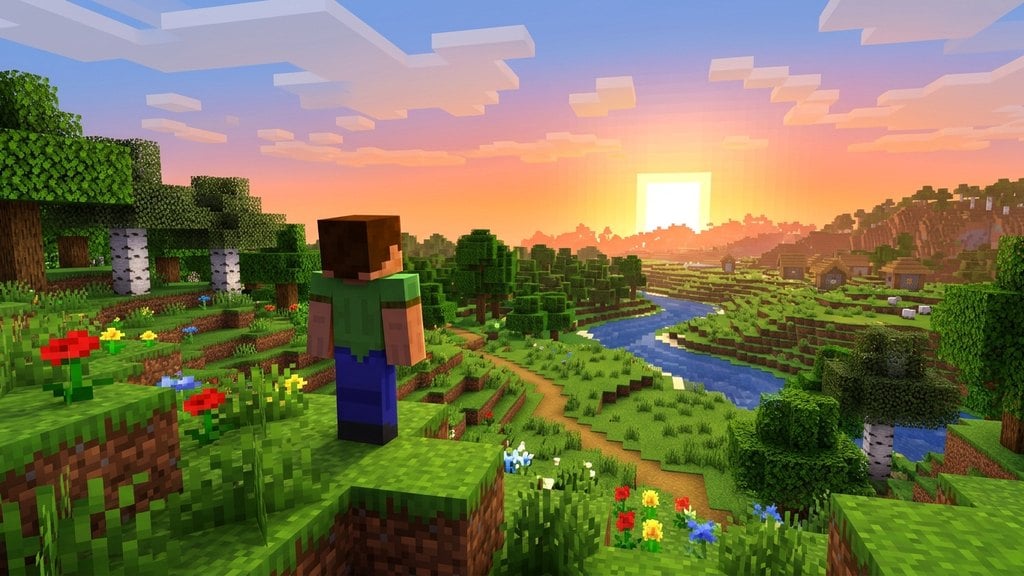
Playing Minecraft on a Chromebook is now easier than ever thanks to the official Bedrock Edition release on ChromeOS and built-in Linux support for running Java Edition. Whether you want seamless cross-play or the classic Java experience, you can get Minecraft up and running in just a few quick steps.
Pressing Search + Esc or checking your pointer lock settings ensures your mouse stays locked to the game window instead of drifting outside the screen during gameplay.
School-managed Chromebooks usually block the Google Play Store and Linux development tools. If those options are grayed out, an administrator has restricted third-party installations.
Choose Your Preferred Minecraft Edition
Decide whether you want to run Bedrock Edition or Java Edition. The Bedrock version is officially distributed through the Google Play Store, runs natively on supported Chromebooks, and provides full cross-platform play with consoles and mobile devices.
If you prefer Java Edition for custom servers and mods, you will need to run the desktop client through ChromeOS's built-in Linux development environment.
Install Bedrock Edition via Google Play
To install Bedrock Edition, open the Google Play Store app on your Chromebook. Type Minecraft into the search bar, select the official game published by Mojang, and purchase or install it directly to your device.
Once the download completes, launch the game from your app launcher, log in with your Microsoft account, and jump straight into your worlds.
Enable the Linux Environment for Java Edition
If you want to play Java Edition, open your Chromebook's Settings app and select About ChromeOS or Advanced, then click Developers. Next to Linux development environment, select Turn on and follow the on-screen setup prompts.
Assign at least 10 GB to 15 GB of disk space to the Linux partition so you have plenty of room for the game files, world saves, and assets.
Download and Install the Java Debian Package
Open your browser, navigate to the official Minecraft website, and download the Debian / Ubuntu (.deb) installer. Open the ChromeOS Files app, move the downloaded .deb file into the Linux files folder, and double-click it to start the automated installation.
Once installed, open your ChromeOS app drawer and look inside the Linux apps folder to launch the official Minecraft Launcher. Log in, click Play, and let the launcher download the latest version.
Connect a Mouse and Optimize Settings
Chromebook touchpads can make camera rotation and block placement awkward, so connect an external USB or Bluetooth mouse for standard desktop controls. If needed, review how to change your keybinds to remap actions to your preferred keys.
Because many Chromebooks have entry-level hardware, open Video Settings in-game and lower your render distance to 8–10 chunks, set graphics to Fast, and turn off smooth lighting to ensure steady framerates when you create your first world.
Frequently Asked Questions
Can I install mods on the Chromebook Java Edition?
Yes. Because the Linux environment runs the standard desktop version of Java Edition, you can install mod loaders like Fabric or Forge and add compatible mods directly into your .minecraft/mods folder.
Does Minecraft Bedrock on Chromebook support controllers?
Yes. The Bedrock Edition on ChromeOS supports most standard Bluetooth and USB gamepads, including official Xbox and PlayStation controllers.