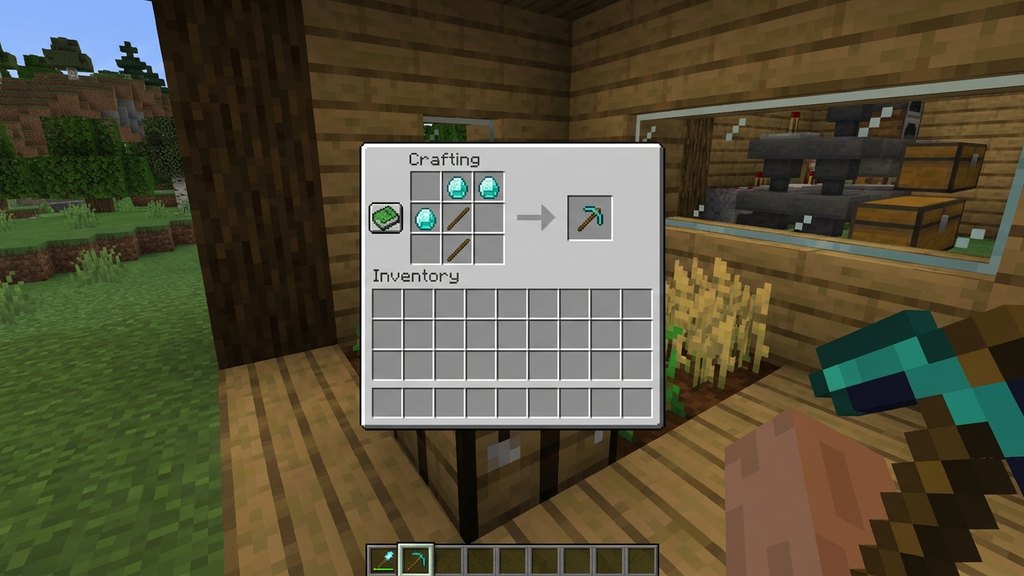
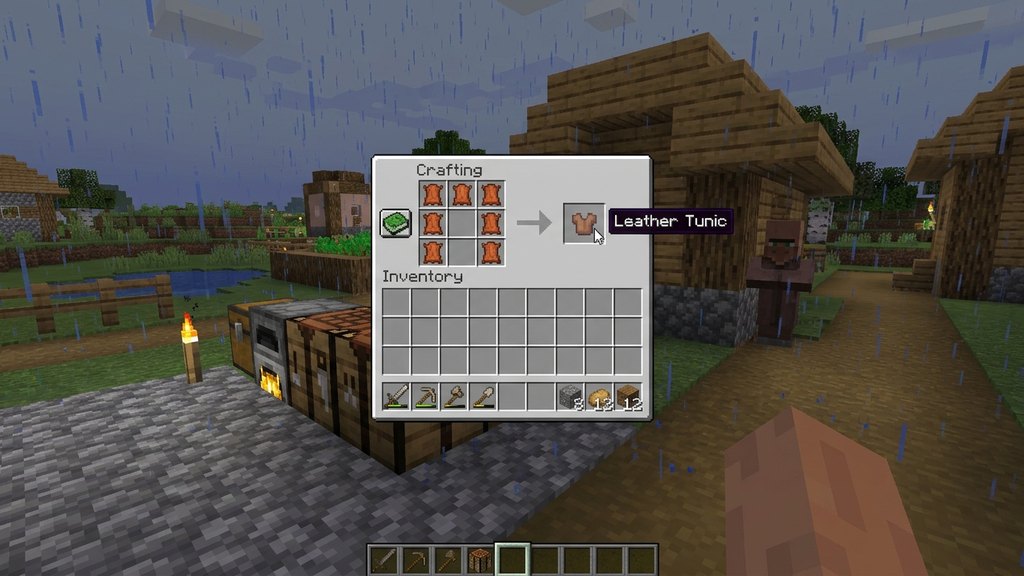
Use the Recipe Book for Instant Grid Filling
Instead of manually picking up and arranging items on the grid, open the green recipe book icon on the left side of your crafting screen. Clicking any available recipe instantly moves the required materials from your inventory into their correct slots.
In Java Edition, clicking a recipe places exactly one set of ingredients into the grid. In Bedrock Edition, selecting an item from the recipe book will auto-populate the grid and allow you to craft it with a single tap or button press.
Shift-Click the Recipe to Fill Maximum Materials
When you need to craft multiple stacks of an item—such as sticks, planks, or torches—hold Shift while clicking the recipe icon in the recipe book (Java Edition). This action distributes as many items into the crafting grid as your inventory can support.
Combine this with holding Shift when clicking the output item to craft and transfer everything directly into your inventory in a single click, completely skipping manual item handling.
Master Mouse Dragging Shortcuts
When placing custom patterns without the recipe book on PC, mouse dragging saves valuable seconds. Pick up a stack of items and hold down your Left Mouse Button while dragging across multiple grid slots to divide the stack evenly across every slot you touch.
Alternatively, hold down the Right Mouse Button while dragging across slots to place exactly one item into each slot. This technique is especially useful for recipes with borders, such as making a chest or furnace.
Quick-Swap Directly to the Hotbar
You can instantly move crafted items into your hotbar without picking them up. Hover your cursor over the craft result slot and press any number key from 1 through 9 on your keyboard.
The crafted item will instantly jump into that specific hotbar slot, swapping places with whatever was previously held there. This is ideal when preparing weapons, tools, or food during high-stress situations.
Automate Batch Production with the Crafter
Introduced in Minecraft 1.21, the Crafter block lets you automate recipe production using redstone signals. By feeding ingredients into a Crafter using a hopper and locking unwanted slots, you can automate repetitive items entirely.
Every time the Crafter receives a redstone pulse from a clock or button, it spits out the finished item. This completely eliminates manual crafting for items like iron blocks, gold ingots, and fireworks.
Frequently Asked Questions
Why does shift-clicking the recipe book only craft one item in Bedrock?
Bedrock Edition handles batch crafting differently than Java Edition. On Bedrock, repeatedly tapping or holding down the craft button while selecting the recipe crafts items in rapid succession rather than using a shift-click recipe modifier.
Can I search for recipes without scrolling?
Yes. Click the magnifying glass icon inside the recipe book and start typing the item name. This instantly filters your available recipes so you do not waste time browsing through tabs.
How does the Crafter block prevent ingredients from piling into the wrong slots?
The Crafter allows you to disable individual slots by clicking on them. Disabled slots show a dark red outline and will reject items, ensuring hoppers only deliver materials into the exact slots required for your recipe.